

Browse All Articles > Connect to your SQL Server
0. Introduction: Terms
If you are already familiar with all the terms, you can skip this section. Anyone else just read on for the quick introduction of the terms that are important to know and distinguish, when troubleshooting SQL server login issues. First, the pure abstract definition as I would give them:
server (machine): host on which the SQL server database service is running
client (machine): host from which you (try to) connect to the SQL server. This could be from the server box itself.
(database) instance: one installation of the database services (on a server).
(installation) version: SQL server can happily run with different versions and/or service packs for each of the instances installed on the same server.
(connection) protocol: the protocol the server and the client will use to communicate. This is usually tcp/ip or named pipes.
(connection) port: for the tcp/ip protocol, a port is used to specify the communication, this is essential part of the underlying networking API.
database: consists of at least one .MDF and one .LDF file. A database is attached to exactly one instance, referred to by the database (logical) name.
login: a username (+password if it's not Windows integrated login), defined on instance level. A Windows-based login can also refer to a Windows group (domain group), which will result in ALL the members of that group to have the access of this login!
user: One login being mapped in one database, needed to grant permissions on the database level. No password is defined on that level.
role: a set of permissions granted to the login (fixed server roles) or the user (database roles).
connection string/settings: based on the tool you use, you have to specify, at some point, to which instance you want to connect and which login you use.
cluster: at least two hosts that run as cluster, of which one node is active, (all) the other node(s) is (are) passive (active/passive cluster). By adding another instance (cluster resource) on each of the node(s), you can make your cluster active/active.
replication: specific data from one database is replicated to another instance's database.
Some quick notes:
One login can be mapped in multiple databases, but only once per database.
In a connection string, you can optionally specify the database you want to connect to. If you don't, the login's default database setting applies, if any (defaulting to the master database).
In a connection string, you cannot specify a specific Windows login. When you want to use Windows Authentication, the current user's Windows session login is used.
In the next step, let's see where/how to configure/check the different settings.
1. Configuration Details Screens
A SQL Server Instance can be a named instance or a default instance. You can check if the instance you have to connect to is named or not by using the Computer Management tool (on the server): The highlighted line shows a default instance, as the name in brackets is MSSQLSERVER. To be a named instance, it must be a different name, for example of SQL Server Express editions, it is usually SQLEXPRESS. To really see the difference, pop up the service details. A named instance has as internal name with a $ (dollar sign) in it, for example MSSQL$SQLEXPRESS.
If you can login to the instance, you can detect the version using either of those 2 small queries:
SELECT @@VERSIONSELECT SERVERPROPERTY('productversion'), SERVERPROPERTY ('productlevel'), SERVERPROPERTY ('edition')The default port for MS SQL server is 1433 (for all versions I know of, aka version 7). For each instance, there MUST be a different port specified. The SQL Server Configuration tool (an MMC snap-in) can be called here:
 or you can set it directly in the computer management studio. I show the tcp/ip configuration details which shows the port:
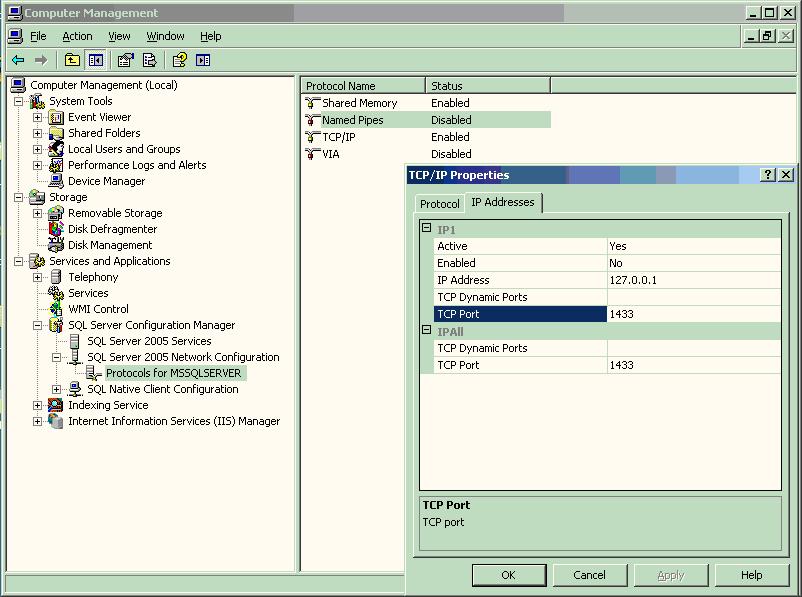 If you change the port, you must restart your SQL Server instance to make the change effective, and all clients need to be "informed" so they change their connection information.
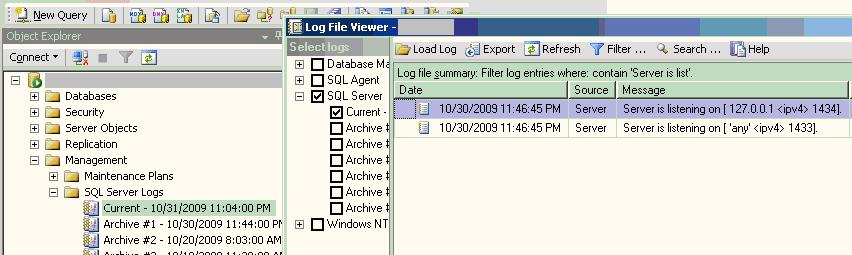
In that same tool, you can also enable/disable all the protocols your server will listen on. To confirm that the configuration is really active, check the SQL Server ERRORLOG file, it will list all the protocols, like this:
 For more details, I will refer you to the following MSDN links:
SQL 2008: http://msdn.microsoft.com/en-us/library/ms174212.aspx
SQL 2005: http://msdn.microsoft.com/en-us/library/ms177440.aspx
SQL 2000: http://support.microsoft.com/kb/822642 (scripting via sqldmo)
Advanced: http://support.microsoft.com/kb/823938
Once you can connected with the SQL Management Studio (SQL 2005+) [or the SQL Enterprise Manager for SQL 7/2000], you should find the database folder easily. In SQL 2005+, the system databases are put into a dedicated folder, and you usually won't mess with those anyhow.
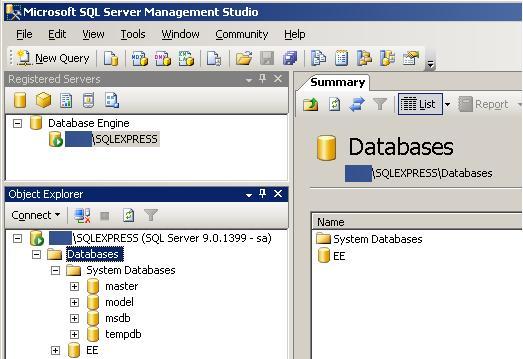 On the context menu on the database, you can choose properties to see (and eventually change) the details of the database.
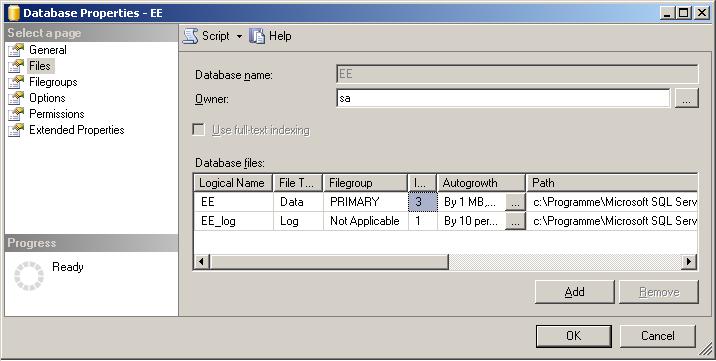 Note: If you want to move your database(s), you have two options:
detach+attach : http://support.microsoft.com/kb/224071 (faster, but no backup)
backup+restore - http://support.microsoft.com/kb/314546 (using the WITH MOVE during the restore)
To find all the logins defined in your instance, check the security/logins folder on your instance 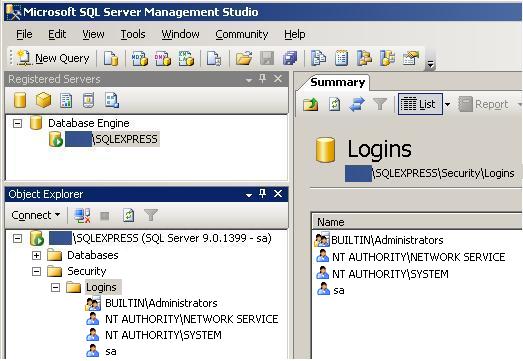 To create logins/users, refer to these two pages from Microsoft:
Starting with SQL 2005, there are new options available:
Password policies: http://msdn.microsoft.com/en-us/library/ms161959.aspx
Based on a certificate or asymmetric key: http://msdn.microsoft.com/en-us/library/ms189751.aspx
To know if SQL logins will actually work, you have to check if the instance is configured for mixed-mode authentication: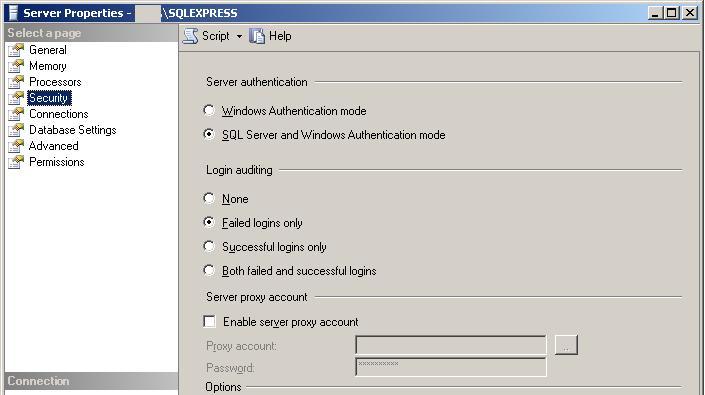 Again, some quick notes:
To change that setting effectively, you have to restart the instance.
Limiting to Windows authentication only does not block you from creating non-Windows-based logins, nor does it delete any of those logins from the list.
To create a user in a database: Open the properties of the login and go to the User Mapping tab. For each of the user databases that the login should be able to access, click the checkbox in the Map column, then you can override the username (which defaults to the login name), and add database roles if needed.
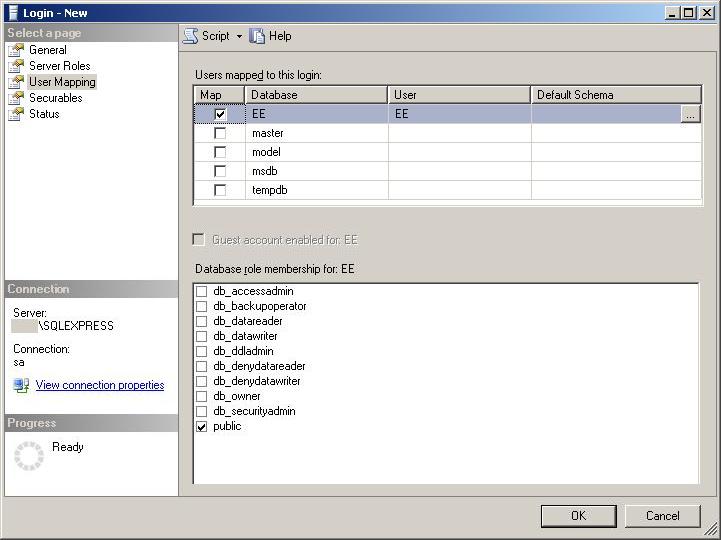 Usually, you don't need to map the login into the system databases.
If you want to know the details of the predefined fixed database roles, see here:
http://msdn.microsoft.com/en-us/library/ms189612.aspx
If you want to know the details of the predefined fixed server (instance) roles, see here:
http://msdn.microsoft.com/en-us/library/ms175892.aspx
You can create roles on database level only, and you should use that extensively, in most scenarios.
2. Connecting/Typical Tools
Let's look at some methods and tools you can use to connect to your SQL Server instances.With SQL server 7 and 2000, you have the Enterprise Manager (EM):

...as well as the Query Analyser (QA):
 As you can see, all you need to specify is the instance name and the login+password (or just specify Windows authentication) in the connection window.
Please note that it should not matter if you use the short Server name (NetBIOS), the full server name (FQDN), or its IP address. Only the network (firewall, name resolution etc) can make a difference there. If you connect to a named instance using the instance name, you do not specify the port.
Connecting When Using Command-Line Tools
For SQL 2000, there are two command-line tools:
Both use the same command-line arguments for connections:
Windows Authentication: osql -E -Sserver_name[\instance_name]
SQL Authentication: osql -Uusername -Ppassword -Sserver_name[\instance_name]
Notes:
There is no space between the flag and the value in the command line tool, so watch out for that gotcha.
You might have issues to connect to a named instance, to fix you need to configure.
Starting with SQL Server 2005, both EM and QA have been integrated into a single tool, SQL Server the Management Studio (SSMS). There is no change in the how to connect compared to previous versions.
osql/isql in turn have been replaced by the sqlcmd command-line tool, the command line arguments for the connection are, surprisingly, exactly the same again.
Another command-line tool is bcp, which is used to import/export data from/into flat files. The connection options are again the same as for isql/osql and sqlcmd!
Connecting From Your Application
So that's all for connecting with the tools. But mostly, you also need to connect from applications to your SQL server instances.
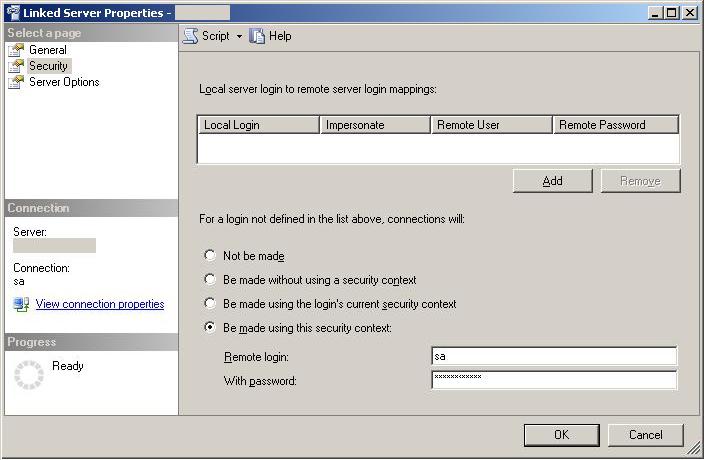
To start with, SQL Server itself can connect, from within its SQL language, to another instance. You can do that using either a linked server, or directly using OPENROWSET. Although those can connect to even other types of databases and not only other SQL Servers, what is important is that the linked server configuration defines the login credentials that are used when connecting to the remote database.
Again, you specify only the remote server/instance name, and in the credentials, you specify some login mappings, respectively a fallback login:
 For applications, you have usually two methods:
1) A method that accepts the same parameters like the SQL tools, or
2) A way to specify a connection string.
Here are three links into a most valuable website, ConnectionStrings.com. It's a great resource for helping you build a correct connection string (not only for SQL Server, btw):
http://www.connectionstrings.com/sql-server
http://www.connectionstrings.com/sql-server-2005
http://www.connectionstrings.com/sql-server-2008
Some notes/terms:
ODBC is "old" (though still working for most stuff), but does have limitations, so some of the newer features might not work with it.
OLEDB is the newer replacement, and should be preferred
DSN relies on ODBC drivers, hence should be avoided when OLEDB can be used.
3. Troubleshooting Connectivity Problems
Ok, you run into some connection problems... what to do/check? Well, some of these might sound obvious, but the first things to check are:
Is the SQL Server instance running, actually? => check the services applet (see step 1)
Is the SQL Server instance listening on the protocol/port I try to connect with? (see the SQL server ERRORLOG file (see step 1)
Is the SQL Server instance allowing remote connections? Starting with SQL Server 2005, the default is to block remote connections. To configure, see: http://support.microsoft.com/kb/914277
Is the SQL Server instance listening on the protocol/port I try to connect with? (see the SQL server ERRORLOG file (see step 1)
If using SQL login: Is the SQL login (user) defined on the server, and is the server running in mixed authentication?
If using Windows authentication: is the Windows account himself, or at least one of the groups it is member of, defined in the logins? If the login group membership has been modified since its last domain login, you might need to log-off and log-in back to put that into effect.
if you try to specify a Windows login username (with or without password) when selecting SQL Server Authentication, you will get this error:
Login failed for user 'domain\user' (Microsoft SQL Server, Error : 18456)
...even if the domain\user IS defined in the SQL Server logins. You cannot specify a specific Windows login, but instead must use the currently logged in Windows account credentials (that is, use Windows Authentication).
Your SQL Server instance needs to have the domain account (or a domain group the account is part of) to be created in the server's security, and granted the access to the database(s) that you need. SQL 2000 example
Login failed for user 'domain\user' (Microsoft SQL Server, Error : 18456)
...even if the domain\user IS defined in the SQL Server logins. You cannot specify a specific Windows login, but instead must use the currently logged in Windows account credentials (that is, use Windows Authentication).
Your SQL Server instance needs to have the domain account (or a domain group the account is part of) to be created in the server's security, and granted the access to the database(s) that you need. SQL 2000 example
Apart from that, I could just have post the following two links, and be done, as they cover all of the usual issues:
How to troubleshoot connectivity issues in SQL Server 2000
http://support.microsoft.com/kb/827422 (for SQL 2000, but useful for understanding for 2005+):
...and...
Potential causes of the "SQL Server does not exist or access denied" error message
http://support.microsoft.com/kb/328306
Please make sure you carefully take each of the steps top-down. In short:
If you can telnet to the port on the server, it's NOT a connectivity issue, but (SQL) login permissions (unless the tcp/ip protocol is disabled)
If you cannot telnet to the port, it IS a connectivity issue, usually a firewall is blocking on either the server, in the network or on the client. To check if it's on the server: try to telnet from the server itself.
If that cause is eliminated (after double-checking that there is no firewall rule just blocking incoming requests from outside, and not from the machine itself):
a) Check from the client to another SQL servers
b) Check from another client to this (and other) SQL servers
and of course, check the firewall(s) on the client(s) themselves.
Note: For a clustered instance, you use the cluster name or IP address instead of the server's name or IP address.
a) Check from the client to another SQL servers
b) Check from another client to this (and other) SQL servers
and of course, check the firewall(s) on the client(s) themselves.
If you specify the server name, you can run into the name-to-ip resolution issues.
Usually, if that is the case, the connection times out after (default) 30 seconds as the name resolution (DNS lookup) fails. If you get that, double-check if you specified the name correctly, and verify that the name is resolved correctly:
From command line, do a ping hostname, and you shall quickly see if that is the issue or not.
The ping itself might time out, but that is not relevant for the troubleshooting. A firewall rule might block the ICMP, but still allow the SQL Server port(s). If a firewall is blocking the connection, it usually gives a quicker timeout, usually instantly, slow or far away firewalls might take up to ~10 seconds.
Once all issues on the underlying connectivity are solved, you can proceed to solving missing permission issues in the next step.
The ping itself might time out, but that is not relevant for the troubleshooting. A firewall rule might block the ICMP, but still allow the SQL Server port(s). If a firewall is blocking the connection, it usually gives a quicker timeout, usually instantly, slow or far away firewalls might take up to ~10 seconds.
4. Troubleshooting Permissions
To connect to a SQL Server Instance, as noted, you use the login (and NOT the user) in the first place. When you connect to a SQL Server instance, you also connect to a database. This can be specified in the connection string, if it is not, the login's default database is used. This setting defaults to the master database. To change that, use the
(until SQL 2008): sp_defaultdb procedure (http://msdn.microsoft.com/en-us/library/ms181738.aspx).
SQL 2008 and later: ALTER LOGIN (http://msdn.microsoft.com/en-us/library/ms189828.aspx)
If the database requested is in any of the following states:
missing (aka deleted)
offline
locked for the login (aka the login is not mapped to a user in that database)
... then you will get a login error:
Cannot open user default database.
Login failed. Login failed for user ‘UserName’. (Microsoft SQL Server, Error: 4064)
Solution: Specify the correct database name in the connection string, make sure the db is online, or add some permissions to the login (map the login to a user in that database)
Hint: if you had specified a default database for the admin login(s) (aka for "sa") - which is not recommended - and that database becomes offline or deleted, you cannot connect with SSMS for example. If you have another login with the powers to change the default database for that "locked out" login, just do it with the appropriate method shown above. If this happens in the situation where that is your only sysadm account, you use the following back door:
Connect on the Service using the sqlcmd tool, using dedicated admin connection, which then ignores the error about the default database being unavailable for the login, and connect to master database as fallback anyway.
Once the login has permissions to the database, and even if it's only the public role, the connection shall succeed.
Connect on the Service using the sqlcmd tool, using dedicated admin connection, which then ignores the error about the default database being unavailable for the login, and connect to master database as fallback anyway.
5. You should be done by now!
I hope this article helped or helps you to solve your SQL server connection problems. If you did not manage to solve your problem with this, just ask a question here at Experts-Exchange, in any of the SQL-Server-related Zones. If it gets solved there, please post the link to that question here, so I could update the article accordingly.Have a question about something in this article? You can receive help directly from the article author. Sign up for a free trial to get started.
Comments (6)
Author
Commented:thanks for the question. And yes, the SQL Browser will handle things in regards to dynamic ports.
http://msdn.microsoft.com/en-us/library/ms165724%28SQL.90%29.aspx
however, I did not want to develop that part in this article, not avoid making it too big ...
angel eyes
Commented:
Commented:
That has been a standby for me ... it's a huge help!
Commented:
Commented:
Very nice link.....
Thanks for taking time and making others life easy.... =)
- Bhavesh
View More