Retrieving Data From Excel Using OPENROWSET()


1998: C++ - SQL Server 6.5
2000-2007: C++, VB6, C#, java - SQL Server 7.0-2005
2008-...: SQL Server 2005-2016
2014-2017: MVP Data Platform
2000-2007: C++, VB6, C#, java - SQL Server 7.0-2005
2008-...: SQL Server 2005-2016
2014-2017: MVP Data Platform
Published:
Browse All Articles > Retrieving Data From Excel Using OPENROWSET()
The purpose of this article is to demonstrate how to retrieve data from an Excel sheet and put it in a table in a SQL Server database.
But people have great imagination and invent new uses for it every day. I've even seen it used as a picture album. (Sorry dad, but I know you won't be reading this anyway. :-) ) Ever since he had this specific YACI, or "Yet Another Computer Issue", because his PC wasn't powerful enough to open his 45 MB Excel file, uh, "picture collection", he took some evening classes. He's now putting his Photoshopped pictures in PowerPoint... Anyway, let's get back on track now.
Another use, and the one that's the subject of this article, is when Excel has been used as a database. Come on, you know what I'm talking about, with the first row containing the column headers followed by possibly thousands of data rows. The following screenshot contains an example, and is also the file that I will be using in this article. I took all records from the Production.Product table in the AdventureWorks 2008R2 database and dumped them in Excel.
![An Excel sheet used as a data store]()
At some point people will realize, either because someone told them or because they lost some data due to inattentiveness, that it wasn't a really good idea to keep all that data in an Excel sheet. And they'll ask you to put it in a real database such as SQL Server.
That's what I'm going to show you in the next paragraphs: how to import data from Excel into SQL Server.
My sample Excel files are located in C:\temp\. This folder contains two files: Products.xls and Products.xlsx. The first file is saved in the old format, Excel 97-2003, while the second file was saved from Excel 2010. Both files contain the same data. The sheet containing the list of products is called ProductList.
And here are the queries:
These queries are just returning the data from the Excel file into the Results window, when executed using the Management Studio. To insert the data into a table, uncomment the INTO clause. When uncommented, the statement retrieves the data from the Excel sheet and puts it into a newly-created local temporary table called #productlist.
Furthermore, the query assumes that the first row contains the header. If that's not the case, replace HDR=YES with HDR=NO.
Note: if you get an error message when running the query, look further down in this article. I've covered a couple of them.
With the INTO clause uncommented and the query executed, the temporary table can now be queried just like any other table:
Because a temporary table is stored in the tempdb, the sp_help command should be issued against that database.
Here's the part of the output in which we're interested:
![The data types used when combining OPENROWSET with SELECT INTO]()
As you can see, anything that looks like text will be put in a field of type nvarchar(510) and anything that looks like a number (integers, floating-point numbers, datetime values, ...) is put into a float(53). Not a lot of intelligence there. This is the result when no formatting was put on the cells in Excel.
As an experiment I've changed the format of some fields in the Excel file and then retried the SELECT INTO statement. What did I change? I identified ProductID as being a number without any decimals, changed StandardCost and ListPrice to a currency with four decimal digits and I changed SellStartDate and SellEndDate to a custom date/time format showing both date and time.
The effect on the table creation was not completely as I would have expected:
![SELECT INTO with some field types changed]()
ProductID is still being stored into a float field, even though in Excel it's defined as having no decimals. And the datetime values are not recognized either. Okay, I used a custom format there, so maybe it's due to that.
It's up to you of course how you use this method of importing the data. You can put your records into a temporary table to process further, or you can create a table with the expected data types upfront and import the data directly into that one.
This is one of the advanced options. To enable it you can use the following command:
To get a good look at all the different settings, just run the sp_configure procedure without any parameters.
Note: if you're not the administrator of the server, you should talk to the DBA who's responsible before attempting this.
So close the file and try the query again.
To solve the issue, install the right driver and try again.
How can you tell what drivers are installed? Open up the ODBC Data Source Administrator window (Start > Run > type ODBCAD32.EXE and enter) and have a look in the Drivers tab. The following screenshot (taken on a Dutch Windows XP) shows both the JET 4.0 driver for Excel 97-2003 and the fairly-new ACE driver for Excel 2007.
![odbcad32.exe - ODBC Data Source Administrator]()
The drivers can be downloaded from the following pages on the Microsoft site:
Excel 97-2003 Jet 4.0 driver
Excel 2007 ACE driver – 12.00.6423.1000
Excel 2010 ACE driver (beta) – 14.00.4732.1000
Sidenote: the Excel 2010 driver is not supported on Windows XP, but I was able to query the 2010 Excel sheet using the 2007 driver. I guess that this is the result of the Office Open XML standard which was introduced in Office 2007.
Driver backward-compatibility
The ACE drivers are backwards-compatible. So the following queries are working perfectly:
In other words, you won't be needing that first link for the Jet driver. For the full story have a look at this blog post by Adam Saxton of the CSS SQL Server Escalation Services team.
ACE 14 64-bit through SSMS
My main laptop is running Windows 7 64-bit, Office 2010 64-bit and SQL Server 2008 R2 64-bit. So I installed the 64-bit version of the ACE 14 driver, which happens to be the first OLE DB driver for Excel that ships in 64-bit. But when I execute my query I'm getting the following message:
Is this because SSMS ships only in 32-bit? Maybe, but I'm not able to install the 32-bit driver. It doesn't allow me to because I've got Office in 64-bit installed. The installer throws me the following error:
![Microsoft Access database engine 2010 (beta) - You cannot install the 32-bit version of Access Database engine for Microsoft Office 2010 because you currently have 64-bit Office products installed...]()
ACE 12 32-bit on a 64-bit machine
When I check the installed drivers using the 32-bit version of the ODBC Data Source Administrator (located in C:\Windows\SysWOW64), I notice that the ACE 12 driver is installed. However, trying to use that one from the Management Studio gives me this:
The Results pane shows all the columns with the right column names, retrieved from Excel. But the driver seems to have a problem retrieving the actual data.
This issue with error 7330 is mentioned in the following thread on the SQL Server MSDN forum, but unfortunately the proposed solution didn't solve the problem in my case.
64-bit SQLCMD using ACE 14 driver
I also tried using the 64-bit version of sqlcmd.exe, but strangely enough that throws the same error.
![Using sqlcmd 64-bit to query Excel]()
I actually expected this last method to work, after all, everything is now running in 64-bit. But alas, it didn't...
One more go...
After some more trial and error, I have actually found a way to get the query to work. I don't have a logical explanation on why it's behaving the way it is, but, well, it is working...
This query is running fine:
But this one isn't:
It's exactly the same query, only difference is the comment line at the start. And even weirder, if I add a space after the double-dash, the query works fine as well!
Then I decided to remove the commented INTO clause. This made the weird behavior disappear. So for some reason SQL Server doesn't like the OPENROWSET function combined with comments inside the query. The strange behavior also disappears when a space is added between the double-dash and the INTO keyword.
Uh, computers can be so much fun, right? :-)
If anyone has got an explanation on this strange behavior: please do post a comment! For now my conclusion is: don't use comments when creating an OPENROWSET query.
IMPORTANT UPDATE (April 11, 2010): it seems that the current installer for the ACE 14 driver contains a bug and registers it as being "Microsoft.ACE.OLEDB.12.0" instead of "Microsoft.ACE.OLEDB.14.0" . This explains some of the issues shown above. Some evidence on the issue:
Microsoft Connect: Access Database Engine 2010 installation issue to use with ADO access technology to access data from Jet database (.mdb files)
The 'Microsoft.ACE.OLEDB.14.0' provider is not registered ..... (see last comment)
Excel Services, ODC and Microsoft.ACE.OLEDB.14.0
I would recommend this method only for one-off quick imports, such as when you as a developer are given a bunch of data in a spreadsheet and need to get it into the database, one way or another. I would not use it for an automated import process. For that we've got a more interesting alternative which I'll cover in an upcoming article.
Have fun!
PS: is it a Yes or is it a No?? Please click one before you go! :-)
Valentino.
Originally appeared at my own website: http://blog.hoegaerden.be/2010/03/29/retrieving-data-from-excel
References
BOL 2008: Special Table Types (incl. temporary tables)
BOL 2008: OPENROWSET() function
BOL 2008: the INTO clause
CSS SQL Server Engineers: How to get a x64 version of Jet?
Introduction
Anyone who's ever used a computer for a significant amount of time has probably come into contact with Excel, the spreadsheet application part of the Microsoft Office suite. Its main purposes are to perform calculations and create charts and pivot tables for analysis.But people have great imagination and invent new uses for it every day. I've even seen it used as a picture album. (Sorry dad, but I know you won't be reading this anyway. :-) ) Ever since he had this specific YACI, or "Yet Another Computer Issue", because his PC wasn't powerful enough to open his 45 MB Excel file, uh, "picture collection", he took some evening classes. He's now putting his Photoshopped pictures in PowerPoint... Anyway, let's get back on track now.
Another use, and the one that's the subject of this article, is when Excel has been used as a database. Come on, you know what I'm talking about, with the first row containing the column headers followed by possibly thousands of data rows. The following screenshot contains an example, and is also the file that I will be using in this article. I took all records from the Production.Product table in the AdventureWorks 2008R2 database and dumped them in Excel.

At some point people will realize, either because someone told them or because they lost some data due to inattentiveness, that it wasn't a really good idea to keep all that data in an Excel sheet. And they'll ask you to put it in a real database such as SQL Server.
That's what I'm going to show you in the next paragraphs: how to import data from Excel into SQL Server.
Using OPENROWSET() To Query Excel Files
There are actually several different ways to achieve this. In this article I will use the OPENROWSET() function. This is a T-SQL function that can be used to access any OLE DB data source. All you need is the right OLE DB driver. The oldest version which I could confirm that contains this function is SQL Server 7.0, good enough to say that any version supports it.My sample Excel files are located in C:\temp\. This folder contains two files: Products.xls and Products.xlsx. The first file is saved in the old format, Excel 97-2003, while the second file was saved from Excel 2010. Both files contain the same data. The sheet containing the list of products is called ProductList.
And here are the queries:
--Excel 2007-2010
                      SELECT * --INTO #productlist
                      FROM OPENROWSET('Microsoft.ACE.OLEDB.12.0',
                          'Excel 12.0 Xml;HDR=YES;Database=C:\temp\Products.xlsx',
                          'SELECT * FROM [ProductList$]');

                      --Excel 97-2003
                      SELECT * --INTO #productlist
                      FROM OPENROWSET('Microsoft.Jet.OLEDB.4.0',
                          'Excel 8.0;HDR=YES;Database=C:\temp\Products.xls',
'select * from [ProductList$]');These queries are just returning the data from the Excel file into the Results window, when executed using the Management Studio. To insert the data into a table, uncomment the INTO clause. When uncommented, the statement retrieves the data from the Excel sheet and puts it into a newly-created local temporary table called #productlist.
Furthermore, the query assumes that the first row contains the header. If that's not the case, replace HDR=YES with HDR=NO.
Note: if you get an error message when running the query, look further down in this article. I've covered a couple of them.
With the INTO clause uncommented and the query executed, the temporary table can now be queried just like any other table:
SELECT * FROM #productlistWhat Type Is Your Data?
Let's have a look if this method of using a SELECT INTO in combination with OPENROWSET and a temporary table is smart enough to interpret the correct data types of the data coming in. Use the following command to describe the metadata of the temporary table:USE tempdb;
GO
sp_help '#productlist';Because a temporary table is stored in the tempdb, the sp_help command should be issued against that database.
Here's the part of the output in which we're interested:
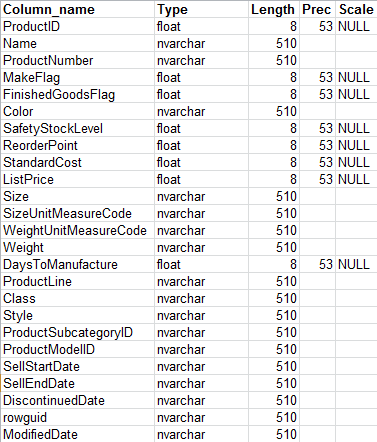
As you can see, anything that looks like text will be put in a field of type nvarchar(510) and anything that looks like a number (integers, floating-point numbers, datetime values, ...) is put into a float(53). Not a lot of intelligence there. This is the result when no formatting was put on the cells in Excel.
As an experiment I've changed the format of some fields in the Excel file and then retried the SELECT INTO statement. What did I change? I identified ProductID as being a number without any decimals, changed StandardCost and ListPrice to a currency with four decimal digits and I changed SellStartDate and SellEndDate to a custom date/time format showing both date and time.
The effect on the table creation was not completely as I would have expected:
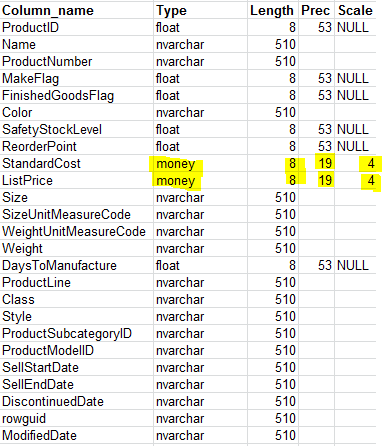
ProductID is still being stored into a float field, even though in Excel it's defined as having no decimals. And the datetime values are not recognized either. Okay, I used a custom format there, so maybe it's due to that.
It's up to you of course how you use this method of importing the data. You can put your records into a temporary table to process further, or you can create a table with the expected data types upfront and import the data directly into that one.
Some Possible Issues
Let's cover some issues related to this method.Enable 'AD Hoc Distributed Queries'
The OPENROWSET() function expects that the 'Ad Hoc Distributed Queries' option is enabled on the server. When that's not the case you'll see the following message:
Msg 15281, Level 16, State 1, Line 1
SQL Server blocked access to STATEMENT 'OpenRowset/OpenDatasource' of component 'Ad Hoc Distributed Queries' because this component is turned off as part of the security configuration for this server. A system administrator can enable the use of 'Ad Hoc Distributed Queries' by using sp_configure. For more information about enabling 'Ad Hoc Distributed Queries', see "Surface Area Configuration" in SQL Server Books Online.
This is one of the advanced options. To enable it you can use the following command:
sp_configure 'show advanced options', 1;
                      GO
                      RECONFIGURE;
                      GO

                      sp_configure 'Ad Hoc Distributed Queries', 1;
                      GO
                      RECONFIGURE;
GOTo get a good look at all the different settings, just run the sp_configure procedure without any parameters.
Note: if you're not the administrator of the server, you should talk to the DBA who's responsible before attempting this.
The File Needs To Be Closed
When the Excel file is not closed, you'll end up with the following error:
Msg 7399, Level 16, State 1, Line 1
The OLE DB provider "Microsoft.Jet.OLEDB.4.0" for linked server "(null)" reported an error. The provider did not give any information about the error.
Msg 7303, Level 16, State 1, Line 1
Cannot initialize the data source object of OLE DB provider "Microsoft.Jet.OLEDB.4.0" for linked server "(null)".
So close the file and try the query again.
OLE DB Driver Not Installed
The OPENROWSET() function uses OLE DB, so it needs a driver for your data source, in this case for Excel. If the right driver is not installed, you'll see the following error (or similar, depends on the version used).
Msg 7302, Level 16, State 1, Line 1
Cannot create an instance of OLE DB provider "Microsoft.ACE.OLEDB.12.0"for linked server "(null)".
To solve the issue, install the right driver and try again.
How can you tell what drivers are installed? Open up the ODBC Data Source Administrator window (Start > Run > type ODBCAD32.EXE and enter) and have a look in the Drivers tab. The following screenshot (taken on a Dutch Windows XP) shows both the JET 4.0 driver for Excel 97-2003 and the fairly-new ACE driver for Excel 2007.

The drivers can be downloaded from the following pages on the Microsoft site:
Excel 97-2003 Jet 4.0 driver
Excel 2007 ACE driver – 12.00.6423.1000
Excel 2010 ACE driver (beta) – 14.00.4732.1000
Sidenote: the Excel 2010 driver is not supported on Windows XP, but I was able to query the 2010 Excel sheet using the 2007 driver. I guess that this is the result of the Office Open XML standard which was introduced in Office 2007.
Driver backward-compatibility
The ACE drivers are backwards-compatible. So the following queries are working perfectly:
--old Excel with new ACE driver - working query 1
                      SELECT * --INTO #productlist
                      FROM OPENROWSET('Microsoft.ACE.OLEDB.12.0',
                          'Excel 8.0;HDR=YES;Database=C:\temp\Products.xls',
                          'SELECT * FROM [ProductList$]');

                      --old Excel with new ACE driver - working query 2
                      SELECT * --INTO #productlist
                      FROM OPENROWSET('Microsoft.ACE.OLEDB.12.0',
                          'Excel 12.0;HDR=YES;Database=C:\temp\Products.xls',
'SELECT * FROM [ProductList$]');In other words, you won't be needing that first link for the Jet driver. For the full story have a look at this blog post by Adam Saxton of the CSS SQL Server Escalation Services team.
The 64-bit Story
So, what if you're running a 64-bit OS? I'll start by saying that I had quite some issues getting OPENROWSET to work, but finally I managed it. Following is a list of my attempts, each time with the resulting message. And finally I'll show you how I got it to work. The problem was something really unexpected...ACE 14 64-bit through SSMS
My main laptop is running Windows 7 64-bit, Office 2010 64-bit and SQL Server 2008 R2 64-bit. So I installed the 64-bit version of the ACE 14 driver, which happens to be the first OLE DB driver for Excel that ships in 64-bit. But when I execute my query I'm getting the following message:
Msg 7403, Level 16, State 1, Line 1
The OLE DB provider "Microsoft.ACE.OLEDB.14.0"has not been registered.
Is this because SSMS ships only in 32-bit? Maybe, but I'm not able to install the 32-bit driver. It doesn't allow me to because I've got Office in 64-bit installed. The installer throws me the following error:
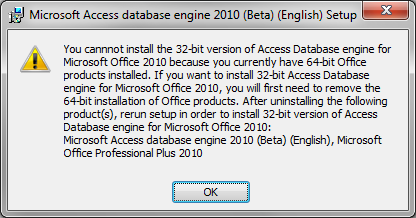
ACE 12 32-bit on a 64-bit machine
When I check the installed drivers using the 32-bit version of the ODBC Data Source Administrator (located in C:\Windows\SysWOW64), I notice that the ACE 12 driver is installed. However, trying to use that one from the Management Studio gives me this:
Msg 7399, Level 16, State 1, Line 1
The OLE DB provider "Microsoft.ACE.OLEDB.12.0"for linked server "(null)" reported an error. The provider did not give any information about the error.
Msg 7330, Level 16, State 2, Line 1
Cannot fetch a row from OLE DB provider "Microsoft.ACE.OLEDB.12.0"for linked server "(null)".
The Results pane shows all the columns with the right column names, retrieved from Excel. But the driver seems to have a problem retrieving the actual data.
This issue with error 7330 is mentioned in the following thread on the SQL Server MSDN forum, but unfortunately the proposed solution didn't solve the problem in my case.
64-bit SQLCMD using ACE 14 driver
I also tried using the 64-bit version of sqlcmd.exe, but strangely enough that throws the same error.
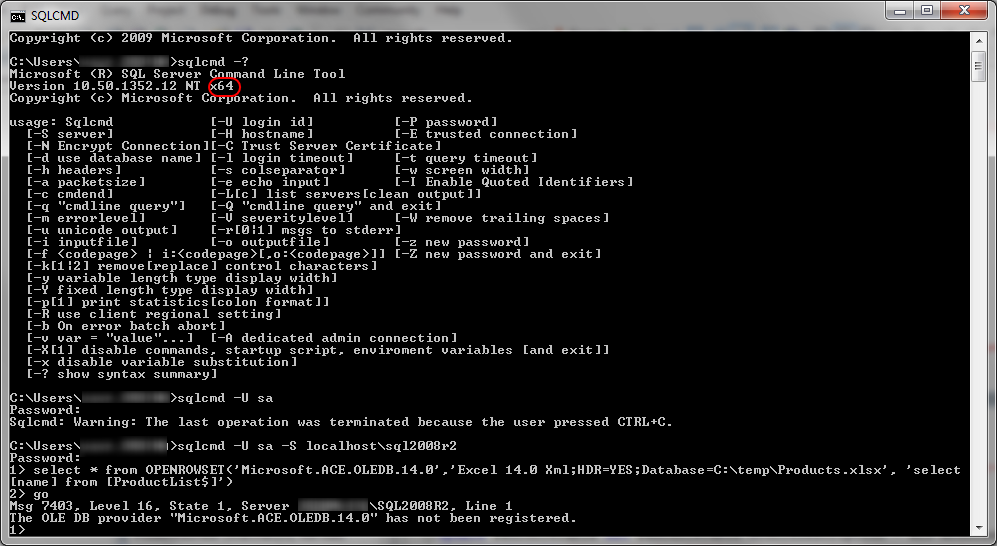
I actually expected this last method to work, after all, everything is now running in 64-bit. But alas, it didn't...
One more go...
After some more trial and error, I have actually found a way to get the query to work. I don't have a logical explanation on why it's behaving the way it is, but, well, it is working...
This query is running fine:
SELECT * --INTO #productlist
                      FROM OPENROWSET('Microsoft.ACE.OLEDB.12.0',
                          'Excel 12.0 Xml;HDR=YES;Database=C:\temp\Products.xlsx',
'SELECT * FROM [ProductList$]');But this one isn't:
--Excel 2007-2010
                      SELECT * --INTO #productlist
                      FROM OPENROWSET('Microsoft.ACE.OLEDB.12.0',
                          'Excel 12.0 Xml;HDR=YES;Database=C:\temp\Products.xlsx',
'SELECT * FROM [ProductList$]');It's exactly the same query, only difference is the comment line at the start. And even weirder, if I add a space after the double-dash, the query works fine as well!
Then I decided to remove the commented INTO clause. This made the weird behavior disappear. So for some reason SQL Server doesn't like the OPENROWSET function combined with comments inside the query. The strange behavior also disappears when a space is added between the double-dash and the INTO keyword.
Uh, computers can be so much fun, right? :-)
If anyone has got an explanation on this strange behavior: please do post a comment! For now my conclusion is: don't use comments when creating an OPENROWSET query.
IMPORTANT UPDATE (April 11, 2010): it seems that the current installer for the ACE 14 driver contains a bug and registers it as being "Microsoft.ACE.OLEDB.12.0"
Microsoft Connect: Access Database Engine 2010 installation issue to use with ADO access technology to access data from Jet database (.mdb files)
The 'Microsoft.ACE.OLEDB.14.0'
Excel Services, ODC and Microsoft.ACE.OLEDB.14.0
Conclusion
The above has shown that OPENROWSET() can be a useful function, given the right circumstances. But in the wrong setting it can be quite cumbersome to get to work.I would recommend this method only for one-off quick imports, such as when you as a developer are given a bunch of data in a spreadsheet and need to get it into the database, one way or another. I would not use it for an automated import process. For that we've got a more interesting alternative which I'll cover in an upcoming article.
Have fun!
PS: is it a Yes or is it a No?? Please click one before you go! :-)
Valentino.
Originally appeared at my own website: http://blog.hoegaerden.be/2010/03/29/retrieving-data-from-excel
References
BOL 2008: Special Table Types (incl. temporary tables)
BOL 2008: OPENROWSET() function
BOL 2008: the INTO clause
CSS SQL Server Engineers: How to get a x64 version of Jet?
1998: C++ - SQL Server 6.5
2000-2007: C++, VB6, C#, java - SQL Server 7.0-2005
2008-...: SQL Server 2005-2016
2014-2017: MVP Data Platform
2000-2007: C++, VB6, C#, java - SQL Server 7.0-2005
2008-...: SQL Server 2005-2016
2014-2017: MVP Data Platform
Have a question about something in this article? You can receive help directly from the article author. Sign up for a free trial to get started.
Comments (8)
Commented:
Yes, this process is repeated once every month, but I think I can handle the "dynamic" nature of the file and sheet names by building the SQL in Access and passing it to SQL Server in a pass-through query.
Author
Commented:If you're up to it, this is a really interesting (though long) article: The Curse and Blessings of Dynamic SQL
For just the basics:
sp_executesql (Transact-SQL)
Execute Dynamic SQL commands in SQL Server
Commented:
Commented:
Commented:
I have been using this in my developments, but recently facing the below errors while executing the openrowset query:
Open in new window
I am using Windows 7 - 64 Bit OS and SQL Server 2012 Express Edition, with 32 bit ACE driver.I query the DB as below:
Open in new window
.Please advise.
View More