

Browse All Articles > Creating Spreadsheets in Java via Apache POI (HSSF)
Are you developing a Java application and want to create Excel Spreadsheets? You have come to the right place, this article will describe how you can create Excel Spreadsheets from a Java Application.
For the purposes of this article, I will be using NetBeans 6.9. If you want to follow along with this tutorial, open NetBeans and create a new "Java Application" called something like "ExcelCreator".
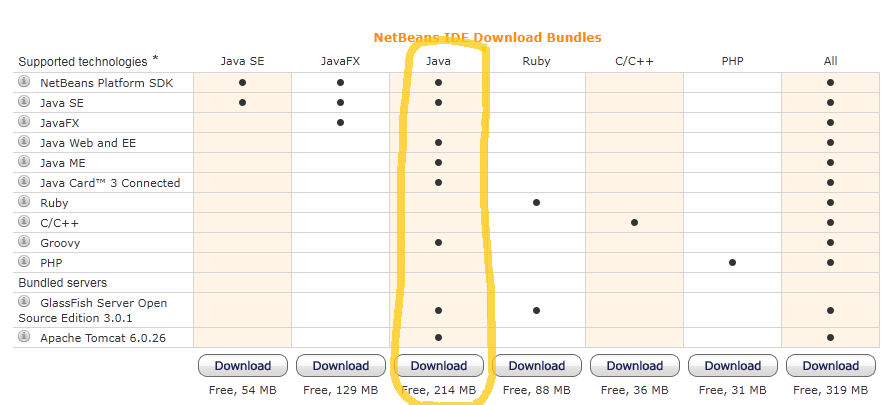
If you don't have NetBeans you can get it here: http://netbeans.org/downloads/index.html. Make sure you get the Java bundle:
![NetBeans Java Bundle]()
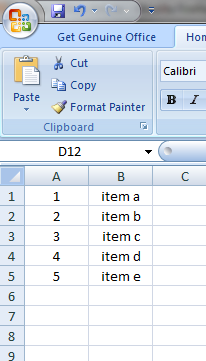
What we're going to do is create a simple Java Application to create a spreadsheet. We're going to have a text box, an "Add" button, a JList, and an "Export to Excel" button. When the "Add" button is pressed, the inputted text will be added to the JList. When the "Export to Excel" button is pressed, the application with take the values in the JList and create an Excel Spreadsheet with those values in the "B" column and a counter variable in the "A" column. For example sake, we'll also center the values in the cells. So if there are the following 5 values in the JList ('item a', 'item b', 'item c', 'item d', 'item e') the Excel Spreadsheet will look like this:
![Example Spreadsheet]()
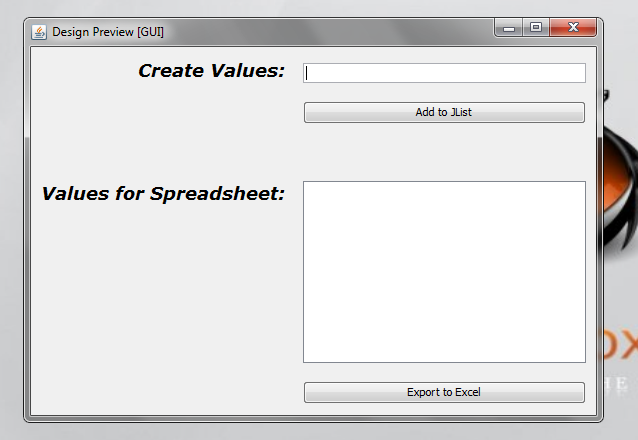
Once you have created a new "Java Application", create a new JFrame Form called "GUI" in the <default package> under "Source Packages". Add the text box, JList, and two buttons to you form to make it look like this:
![GUI Example]()
Be sure to create meaningful variable names for your text box and JList especially as you'll use them in the code later. I called my text box "txtInput" and my JList I called "jlValues".
Let's create code for the "Add" button so that when the "Add" button is pressed, the inputted text will be added to the JList and the text box empties for a new value to be entered. Simply double-click on the "Add" to create an event for it. Inside the ActionPerformed code block, put the following code (read the comments for code explanation!):
Now we are ready to download the POI and add it as a library to our project. Pay close attention to the following steps as they are crucial to our desired functionality.
Click on this one here:
![Download_Link Screen-Shot]() Choose any mirror and save it to your desktop.
Choose any mirror and save it to your desktop.
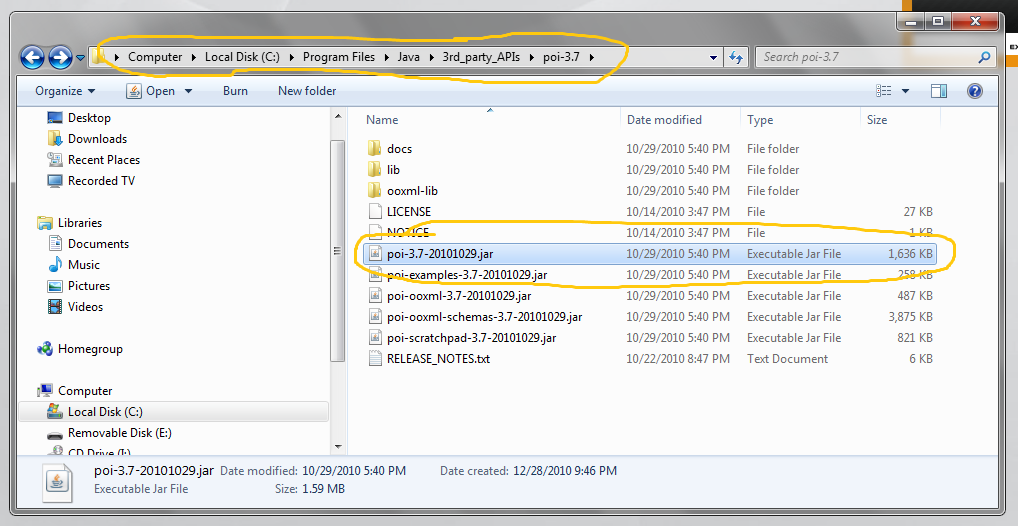
Unzip the folder to any directory that you choose, I put mine in "C:/Program Files/java/3rd_Party_APIs"
Here is where mine is located:
![POI Directory]()
![Library Setup Window]()
There are a lot of other things you can do with the Apache POI. For more information and code examples, look here: http://poi.apache.org/spreadsheet/quick-guide.html
Also, my example program "GUI.java" is attached.
Happy Excel Creating :)
GUI.java
For the purposes of this article, I will be using NetBeans 6.9. If you want to follow along with this tutorial, open NetBeans and create a new "Java Application" called something like "ExcelCreator".
If you don't have NetBeans you can get it here: http://netbeans.org/downloads/index.html. Make sure you get the Java bundle:
What we're going to do is create a simple Java Application to create a spreadsheet. We're going to have a text box, an "Add" button, a JList, and an "Export to Excel" button. When the "Add" button is pressed, the inputted text will be added to the JList. When the "Export to Excel" button is pressed, the application with take the values in the JList and create an Excel Spreadsheet with those values in the "B" column and a counter variable in the "A" column. For example sake, we'll also center the values in the cells. So if there are the following 5 values in the JList ('item a', 'item b', 'item c', 'item d', 'item e') the Excel Spreadsheet will look like this:
Once you have created a new "Java Application", create a new JFrame Form called "GUI" in the <default package> under "Source Packages". Add the text box, JList, and two buttons to you form to make it look like this:
Be sure to create meaningful variable names for your text box and JList especially as you'll use them in the code later. I called my text box "txtInput" and my JList I called "jlValues".
Let's create code for the "Add" button so that when the "Add" button is pressed, the inputted text will be added to the JList and the text box empties for a new value to be entered. Simply double-click on the "Add" to create an event for it. Inside the ActionPerformed code block, put the following code (read the comments for code explanation!):
private void btnAddActionPerformed(java.awt.event.ActionEvent evt) {
                          // TODO add your handling code here:
                          Object[] values = new Object[jlValues.getModel().getSize() + 1]; // creates an array that holds the values in the JList
                          for (int i = 0; i < values.length; i++) { // retreive all the pre-existing values in the JList
                              if (i != values.length - 1) { // make sure you get add the inputted text at the end
                                  values[i] = jlValues.getModel().getElementAt(i);
                              } else {
                                  values[i] = txtInput.getText(); // sets the inputted text at the end of the list
                                  txtInput.setText(""); // clears the text box to allow for faster entry
                              }
                          }
                          jlValues.setListData(values); // set the values to the array that holds the previous values plus the new entry
                      }
Now we are ready to download the POI and add it as a library to our project. Pay close attention to the following steps as they are crucial to our desired functionality.
1. Downloading the POI
Go to this URL to download the POI: http://poi.apache.org/download.html#POI-3.7Click on this one here:
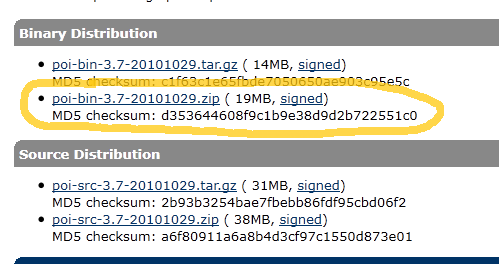 Choose any mirror and save it to your desktop.
Unzip the folder to any directory that you choose, I put mine in "C:/Program Files/java/3rd_Party_APIs"
Here is where mine is located:
2. Add the POI JAR as a Project Library
We need to add the highlighted JAR file to our projects library list. To do that, right click on the Project Name in the "Projects Window" and select "Properties". In the "Categories" panel on the left, select "Libraries". On the right, press the "Add Jar/Folder" button. Find your extracted folder that you downloaded in Step 1 and double click on the jar that I highlighted in the last screen-shot. If the window looks like the following, click okay at the bottom and you'll have successfully set up the library.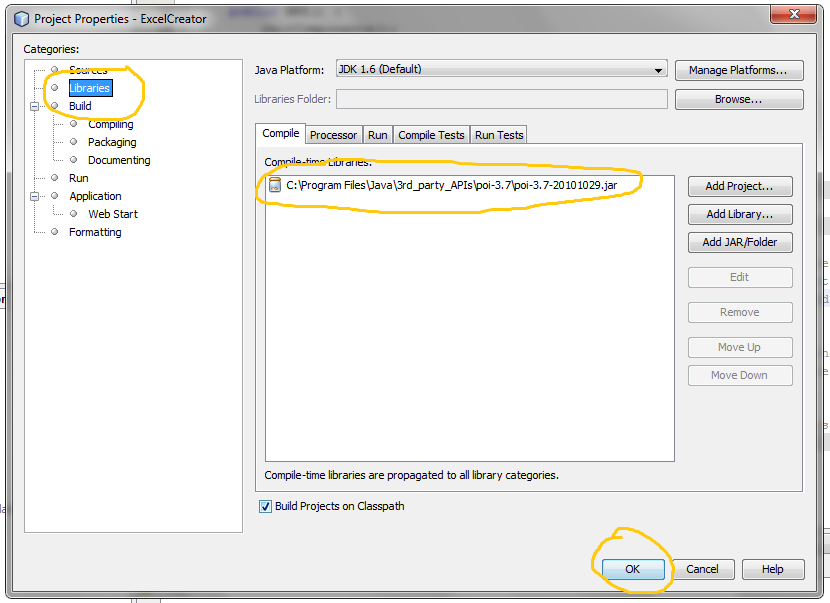
3. Add Import Statement
Go to the top of your GUI.java class and add the following import lines at the very top just before the class declaration:import org.apache.poi.hssf.usermodel.*;
import org.apache.poi.ss.usermodel.*;
public class GUI extends javax.swing.JFrame {
.....
Code to Create the Excel Spreadsheet
1. Create the WorkBook Object
The first thing that we need to do is create the WorkBook object itself and Create a Sheet in the Workbook:Workbook wb = new HSSFWorkbook();
CreationHelper createHelper = wb.getCreationHelper(); // allows us to create cell values that are String rather than simply numbers
Sheet sheet = wb.createSheet("Values"); // name the sheet whatever you like
2. Create Cells for Each Value in the JList
// Loop through the values in the JList and create the cells for them and the counter
                      for (int i = 0; i < this.jlValues.getModel().getSize(); i++) {
                          Row row = sheet.createRow((short) i); // creates a new row for each value in the JList
                          // creates a cellStyle for centering the values in the cells
                          CellStyle cellStyle = wb.createCellStyle();
                          cellStyle.setAlignment(HSSFCellStyle.ALIGN_CENTER);
                          // create the counter and put it in the column A
                          Cell counterCell = row.createCell(0); // 0 = column A
                          counterCell.setCellValue(i + 1); // the counter is not zero based
                          counterCell.setCellStyle(cellStyle); // uses the center-aligned cell style
                          // create the cells that hold the values in the JList and put them in column B
                          Cell valueCell = row.createCell(1); // 1 = column B
                          valueCell.setCellValue(createHelper.createRichTextString(this.jlValues.getModel().getElementAt(i).toString()));
                          valueCell.setCellStyle(cellStyle); // uses the center-aligned cell style
                      }
3. Create the Excel File via FileOutputStream and Open it for Viewing
try {
                          java.io.FileOutputStream fileOut = new java.io.FileOutputStream("src/values.xls"); // creates the Excel file and places it in the <default package>
                          wb.write(fileOut);
                          fileOut.close(); // ends writing the Stream
                          java.awt.Desktop.getDesktop().open(new java.io.File("src/values.xls")); //opens the Excel Spreadsheet for viewing
                      } catch (java.io.FileNotFoundException fnfe) {
                          javax.swing.JOptionPane.showMessageDialog(this, "The Excel Spreadsheet cannot be found  :(");
                      } catch (java.io.IOException ioe) {
                          javax.swing.JOptionPane.showMessageDialog(this, "There was an error creating the Excel Spreadsheet  :(");
                      }
That's it! You've created an Excel Spreadsheet with your Java Application!!!
There are a lot of other things you can do with the Apache POI. For more information and code examples, look here: http://poi.apache.org/spreadsheet/quick-guide.html
Also, my example program "GUI.java" is attached.
Happy Excel Creating :)
GUI.java
Have a question about something in this article? You can receive help directly from the article author. Sign up for a free trial to get started.
Comments (0)