Reducing EE Email Clutter using Outlook


Published:
Browse All Articles > Reducing EE Email Clutter using Outlook
Being an active EE Expert means to get a lot of (E)EMail, as you certainly know. If you are using Outlook, I'll show you how to minimize your inbox contents without losing anything – even improve the experience by changing the Subject line to facilitate sorting and by adding tags for quick recognition.
The "Framework" that I present below has been tested with Outlook 2003, 2007 and 2010. Since VBA Macros are used, you might have to allow macro execution when starting Outlook.
We utilize so-called User Properties, which have some particularities, but are great for holding additional user-definied content.
I have not tested the code provided if it works flawlessly with HTML mails, only with plain text.
Since the mail content and subject can change at any time, it might not work anymore after new releases were published.
There are many different types of emails you can get, distinguished by the text of the Subject line. Getting a newer email might render formerly received ones void, or newer ones are not interesting because you already have been informed. To build logic around that can get quite complex. I have tried to make the rules as easy to understand and implement as possible. Now, let's start with the enumeration of possible headers and actions:
Expert Alert: …
A new question your filter has trapped. This is usually the first mail you get, if you have set up filters with alerts.
Neglected Question Alert: …
A question which is neglected. You are Designated Expert in one of the zones, and this message is not depending on any filter you have set up.
If you receive this, you won't need the "Expert Alert" anymore, so the code will delete that one, if found. (Note that the subject line has two spaces after the colon.)
Comment Added: …
An Expert has posted to a question you have contributed to or subscribed. That might be interesting for you, as it could bring new insight or alternatives, or pose additional questions. Some good solutions originate in Experts working together, improving successively each other recommendations.
If you get a new "Comment Added" mail while having other emails of the same subject, it is time to decide what you want to keep:
Are you more interested in the first comment after your own, so you can click on the link and directly jump to that comment, and than read the remaining thread to keep up with everything?
Is it more important to always have the newest post in your inbox, so you know if there is an ongoing discussion?
Or aren't you interested at all in this, so it should be dismissed?
Anyway, "Expert Alerts" and "Neglected Question Alerts" are moot now – you have subscribed, probably posted a comment yourself; either way, you know already about that question.
Author Comment Added: …
The Author of the question has posted. This is most important, of course, because usually answers (or more questions!) arise from that.
An Author Comment can be handled like an Expert Comment; that is, only the newest or oldest need to be kept (see above).
Or an Author Comment is more important than any other comment, and replace all other earlier mails which are not Author Comments – or even those.
Good Answer! … or Good Assist! …
This are good news! You have received points.
After having received this mail you will usually not want to keep any other mail regarding the same topic, so the code will remove them. I recommend to always open the question to see which other posts have been accepted, whether the correct answer(s) have been selected, and so on.
Answer Accepted: … or Points Split: …
Not good. The question is closed, and you do not get points.
In all cases, to have a better overview over the received emails, the Subject line is changed by removing the identifying heading. The remainder of the subject is the question title.
The tag (and some other info) is added as a so-called User Property – something I have to explain in another article, because it is a too complex matter to keep discuss that here.
The following mails are more difficult, as they do not contain the referred question (or article) in the subject. Hence the email body needs to be parsed for keywords, and those replace the original subject:
Congratulations, you have earned a new rank!
Great, you really got (another) rank!
When receiving, the code should automatically generate the corresponding certificate, print it out, and open a bottle of champagne. Just kidding ;-).
What the code really does is parsing rank (Master, Guru etc.) and Zone out of the body to fill that into the subject.
A question you participated in will be deleted in four days
Either the Asker has decided to remove the question, or a Cleanup Volunteer did because of lack of recent posts.
You should review this question in case you want to object to the deletion.
A question you participated in will be closed in four days
The Asker, a Moderator or Zone Advisor has started the "Auto-Close" with 4 days grace period.
Since it is totally unclear if you will receive any points, you should review the question for details.
A different case is if you get mail about an article you wrote. The only processed mail besides article comments is:
"Please review your article"
A Page Editor has set your article to Author Review, and you need to return to the article to continue with editing.
In addition to the above (processed) mails, you will get the following ones, which are currently ignored by the code.
Objection Posted: …
The question was in the process of being deleted or closed, with a grace period of 4 days, and somebody has objected to that. Since this requires a reaction from your side, no particular automation is applied.
Designated Expert Zones Added
You have just earned enough points in a zone for becoming a Designated Expert in it, and you have not opted out to the Designated Expert feature as a whole. Since this means you get more "NQ" alerts though you might not be that confident in your related knowledge, removing the new zone in your Member Profile could be a good idea.
Those article-related mails (talking about points you have earned) are not processed either, because you won't get that many of them presumably:
Let's just consider the effect the code as-is has on your received email if all is set up. How to do that will be shown later. I assume you have a single inbox folder dedicated for EE email, called "EE inbox", with no other mails around and no subfolders to consider.
Note: I will show the Tag column here in square brackets – just to visualize. In fact tags are not stored with square brackets.
The VBA code processes emails by:
Let's assume we are contributing to a question with several other Experts, and there is a lot of traffic.
If we change the constant optKeepOld to false (I'll show the code further below), we will see the most recent post of each type:
In case you do not get the "Good Answer" mail, but a "… will be closed …" instead, the unprocessed mail leaves this:
The method used here requires you to have your EE specific mail dropped into a single, dedicated folder by creating a rule identifying it as such. If you do not separate your other mails from EE mails, they will get processed, which you might not want.
You can create rules based on the mail account (if you use a particular account), or the sender (noreply@experts-exchange.com ). Since I think it is pretty straight-forward to set up, I will leave it to you to figure it out ;-).
For the remainder of the article, I will call this folder "EE inbox". For testing purposes, you can setup a folder, and manually copy/move EE mails into it to see the result.
Import the code into the VBA Editor – press Alt-F11 to open that editor, open the "File" menu, and import the attached file (after renaming to *.cls).
Having created the rule, dedicated a folder for keeping EE mails, and importing the VBA code, you need to set a variable in the code to this folder. That folder is referenced in the Application_Startup macro, which contains code executed on startup of Outlook. I have provided three examples of how the complete path can look like:
(1) is your default inbox
(2) shows an example for providing a folder deeper into a folder tree
(3) uses an own PST file for EE
As soon as you have done that, you should call that macro – best just to position your cursor into it, and press F5.
Nothing more to do! If you have set this up as your "live" environment, incoming emails will be processed automatically. If you used a test folder, just move or copy some mails into that folder, and view the result.
The VBA code consists of some subs and functions to make it easier to accommodate it to your needs. I will show and explain the code in logical units; for the complete code, see the attached class file.
Coming back to the trigger code. As you have certainly seen it is "the core", where every action is initiated. First we make sure it is really a mail, and then we can apply our tests against it, by calling EESubj:
Since the function returns a Boolean, you can do something like adding categories, moving to another folder, and so on. The code contains some examples.
You might have noticed that "%Points%", "%Bonus%" and "%Grade%" – that allows for inserting exactly that info, extracted from text found in the email body. Point info can have two appearances, either as "normal" points, or points with bonus from answering neglected questions. The wording in the body is different, and we do not know in advance if the email is about a neglected or "normal" question, so we have to parse for both.
Back to the trigger procedure. As we know, there are EE mails which do not contain anything about the subject matter in the subject line, like "Please review your article". To get those more informative, EEBody is called:
The other function used the same way, EERank, is not that much different, so I will not show the code. The parsing is bit more tricky, as we need to extract partitial info out of sentences.
There are some more (helper) procedures and functions, which I won't show here, since their implementation is not of much interest. However, three key routines are located at the bottom of the file I provided. I'll only discuss them in short:
![My Toolbar: ReProcess, Jump2URL, JumpNdel]()
The code supplied is far from being perfect. What makes it work is it being simple, and easily expandable. There is a lot I can imagine to be added or changed.
If you have different roles on EE, such as Expert and Page Editor, you might want to use separate folders for each role. As soon as you have understood how the code works, it should be easy to expand to using more than a single folder. The subroutines used are not bound to a particular folder, with exception of the trigger code, and I have already supplied an example trigger definition for using a separate folder for PE work.![PE specific inbox]() I took care about being very flexible with the tags. For example, if you want not to differ between Author and Expert comments, just use the same tag for both. If you want to introduce or change tags – no problem.
I took care about being very flexible with the tags. For example, if you want not to differ between Author and Expert comments, just use the same tag for both. If you want to introduce or change tags – no problem.
Programmatically moving a post which will need to be considered later again (e.g. all New and NQ alerts in one folder, comments in another) are very difficult to handle. This is because the simple search feature used does support searching only in a single folder; the more sophisticated Advanced Search, which would allow for parsing subfolders, is asynchronous and way too complex to rectify its usage here.
To overcome the "single inbox folder" restriction, I use rules to assign color flags to different mail types. My NQ alerts are yellow, new questions are blue, aso. Then I have set up filter/search favourites for each of those, which allows me to look at new questions only, or work on comments first. Instead of filter favourites the grouping feature can be used – but expanding/collapsing is not that useful, IMO.
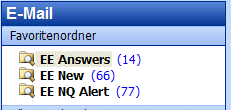
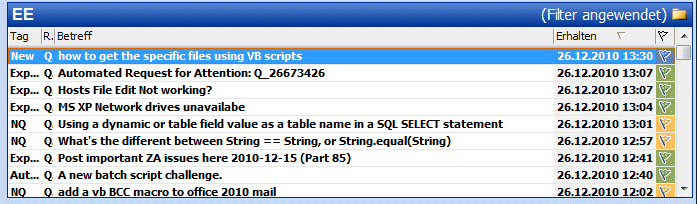
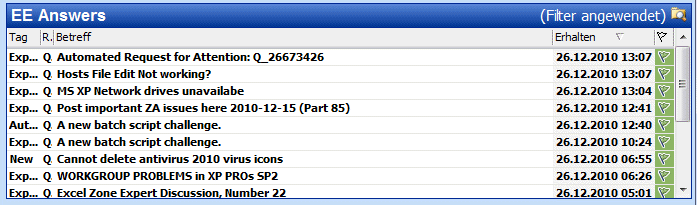
Article and question comments are processed the same, and hence look the same – with one exception: The "Reference" user property start with an A instead of a Q. I use that by just showing the first letter of it in my Outlook views. The following screenshots show that using search favourites and custom views help much:
![Search Folders on EE inbox, using color flag search]()
![EE inbox]()
![Comment type mails only of EE inbox]() ThisOutlookSession.cls.txt
ThisOutlookSession.cls.txt
The "Framework" that I present below has been tested with Outlook 2003, 2007 and 2010. Since VBA Macros are used, you might have to allow macro execution when starting Outlook.
We utilize so-called User Properties, which have some particularities, but are great for holding additional user-definied content.
I have not tested the code provided if it works flawlessly with HTML mails, only with plain text.
Since the mail content and subject can change at any time, it might not work anymore after new releases were published.
1. Basics – Different types of email you will receive, and what to do with them
There are many different types of emails you can get, distinguished by the text of the Subject line. Getting a newer email might render formerly received ones void, or newer ones are not interesting because you already have been informed. To build logic around that can get quite complex. I have tried to make the rules as easy to understand and implement as possible. Now, let's start with the enumeration of possible headers and actions:
Expert Alert: …
A new question your filter has trapped. This is usually the first mail you get, if you have set up filters with alerts.
Neglected Question Alert: …
A question which is neglected. You are Designated Expert in one of the zones, and this message is not depending on any filter you have set up.
If you receive this, you won't need the "Expert Alert" anymore, so the code will delete that one, if found. (Note that the subject line has two spaces after the colon.)
Comment Added: …
An Expert has posted to a question you have contributed to or subscribed. That might be interesting for you, as it could bring new insight or alternatives, or pose additional questions. Some good solutions originate in Experts working together, improving successively each other recommendations.
If you get a new "Comment Added" mail while having other emails of the same subject, it is time to decide what you want to keep:
Are you more interested in the first comment after your own, so you can click on the link and directly jump to that comment, and than read the remaining thread to keep up with everything?
Is it more important to always have the newest post in your inbox, so you know if there is an ongoing discussion?
Or aren't you interested at all in this, so it should be dismissed?
Anyway, "Expert Alerts" and "Neglected Question Alerts" are moot now – you have subscribed, probably posted a comment yourself; either way, you know already about that question.
Author Comment Added: …
The Author of the question has posted. This is most important, of course, because usually answers (or more questions!) arise from that.
An Author Comment can be handled like an Expert Comment; that is, only the newest or oldest need to be kept (see above).
Or an Author Comment is more important than any other comment, and replace all other earlier mails which are not Author Comments – or even those.
Good Answer! … or Good Assist! …
This are good news! You have received points.
After having received this mail you will usually not want to keep any other mail regarding the same topic, so the code will remove them. I recommend to always open the question to see which other posts have been accepted, whether the correct answer(s) have been selected, and so on.
Answer Accepted: … or Points Split: …
Not good. The question is closed, and you do not get points.
The tag (and some other info) is added as a so-called User Property – something I have to explain in another article, because it is a too complex matter to keep discuss that here.
The following mails are more difficult, as they do not contain the referred question (or article) in the subject. Hence the email body needs to be parsed for keywords, and those replace the original subject:
Congratulations, you have earned a new rank!
Great, you really got (another) rank!
When receiving, the code should automatically generate the corresponding certificate, print it out, and open a bottle of champagne. Just kidding ;-).
What the code really does is parsing rank (Master, Guru etc.) and Zone out of the body to fill that into the subject.
A question you participated in will be deleted in four days
Either the Asker has decided to remove the question, or a Cleanup Volunteer did because of lack of recent posts.
You should review this question in case you want to object to the deletion.
A question you participated in will be closed in four days
The Asker, a Moderator or Zone Advisor has started the "Auto-Close" with 4 days grace period.
Since it is totally unclear if you will receive any points, you should review the question for details.
"Please review your article"
A Page Editor has set your article to Author Review, and you need to return to the article to continue with editing.
Objection Posted: …
The question was in the process of being deleted or closed, with a grace period of 4 days, and somebody has objected to that. Since this requires a reaction from your side, no particular automation is applied.
Designated Expert Zones Added
You have just earned enough points in a zone for becoming a Designated Expert in it, and you have not opted out to the Designated Expert feature as a whole. Since this means you get more "NQ" alerts though you might not be that confident in your related knowledge, removing the new zone in your Member Profile could be a good idea.
Helpful Article: …
You've Got Bonus Points!
Congratulations! Your article has been published
Congratulations! Your Article was used in a Solution.
Congratulations! Your Article has been EE Approved
Congratulations! Your Article is an Editor's Choice
With the framework shown it should be easy to implement that yourself, if you like.
You've Got Bonus Points!
Congratulations! Your article has been published
Congratulations! Your Article was used in a Solution.
Congratulations! Your Article has been EE Approved
Congratulations! Your Article is an Editor's Choice
2. The Outcome by Example
Let's just consider the effect the code as-is has on your received email if all is set up. How to do that will be shown later. I assume you have a single inbox folder dedicated for EE email, called "EE inbox", with no other mails around and no subfolders to consider.
Note: I will show the Tag column here in square brackets – just to visualize. In fact tags are not stored with square brackets.
The VBA code processes emails by:
matching the subject against a header (e.g. "Author Comment Added: ")
if found, remove it
if found, fill the Tag column ("[Author]")
if found, search and remove mails not needed anymore ("Expert Alert: " resp. "[New]"), or delete this new mail if another email to be kept has been received already ("Comment Added: " resp. "[Expert]").
Applied to a simplified example:
21.12.2010 10:00:00 Expert Alert: Example Question
21.12.2010 22:00:00 Neglected Question Alert: Example Question
will first result in
21.12.2010 22:00:00 Neglected Question Alert: Example Question
21.12.2010 10:00:00 [New] Example Question
21.12.2010 22:00:00 [NQ] Example Question
and finally (since a [NQ] triggers removal of [New])
21.12.2010 22:00:00 [NQ] Example Question
21.12.2010 22:00:00 [NQ] Example Question
A more complex example – having heavy activity:
Let's assume we are contributing to a question with several other Experts, and there is a lot of traffic.
21.12.2010 09:00:00 Expert Alert: Why you should use EE
21.12.2010 09:00:01 Expert Alert: Completely unrelated Question
21.12.2010 10:00:00 Comment Added: Why you should use EE
21.12.2010 10:01:00 Author Comment Added: Why you should use EE
21.12.2010 10:01:30 Comment Added: Why you should use EE
21.12.2010 10:01:35 Comment Added: Why you should use EE
21.12.2010 10:05:00 Author Comment Added: Why you should use EE
Among many others not shown here, we are only interested in the "Why you should use EE" one. We cannot sort simply for it, since we would get all "Author Comment Added" first, then "Comment Added", and last "Expert Alerts". The code that changes the Subject lines makes it easier to keep track:
21.12.2010 09:00:01 Expert Alert: Completely unrelated Question
21.12.2010 10:00:00 Comment Added: Why you should use EE
21.12.2010 10:01:00 Author Comment Added: Why you should use EE
21.12.2010 10:01:30 Comment Added: Why you should use EE
21.12.2010 10:01:35 Comment Added: Why you should use EE
21.12.2010 10:05:00 Author Comment Added: Why you should use EE
21.12.2010 09:00:00 Why you should use EE [New]
21.12.2010 09:00:01 [New] Completely unrelated Question
21.12.2010 10:00:00 [Expert] Why you should use EE
21.12.2010 10:01:00 [Author] Why you should use EE
21.12.2010 10:01:30 [Expert] Why you should use EE
21.12.2010 10:01:35 [Expert] Why you should use EE
21.12.2010 10:05:00 [Author] Why you should use EE
That is looking much better, isn't it? We could just sort on the Subject line, and have a better overview. But the code does more. Again the [New] one is removed – we are contributing (or subscribed), and that mail is not needed anymore. Further, we don't need the whole bunch of emails, one or two are sufficient to know either Experts or the Author (or both) have commented. The code will now keep the oldest of each comment type (Expert and Author):
21.12.2010 09:00:01 [New] Completely unrelated Question
21.12.2010 10:00:00 [Expert] Why you should use EE
21.12.2010 10:01:00 [Author] Why you should use EE
21.12.2010 10:01:30 [Expert] Why you should use EE
21.12.2010 10:01:35 [Expert] Why you should use EE
21.12.2010 10:05:00 [Author] Why you should use EE
21.12.2010 09:00:01 [New] Completely unrelated Question
21.12.2010 10:00:00 [Expert] Why you should use EE
21.12.2010 10:01:00 [Author] Why you should use EE
and that can make a difference ;-).
21.12.2010 10:00:00 [Expert] Why you should use EE
21.12.2010 10:01:00 [Author] Why you should use EE
If we change the constant optKeepOld to false (I'll show the code further below), we will see the most recent post of each type:
21.12.2010 09:00:01 [New] Completely unrelated Question
21.12.2010 10:01:35 [Expert] Why you should use EE
21.12.2010 10:05:00 [Author] Why you should use EE
If the asker accepts one of our answers with 500 points and grade "A", the incoming mail of
21.12.2010 10:01:35 [Expert] Why you should use EE
21.12.2010 10:05:00 [Author] Why you should use EE
22.12.2010 05:00:00 Good Answer! Why you should use EE
will result in
21.12.2010 09:00:01 Completely unrelated Question [New]
22.12.2010 05:00:00 [P: 2,000 A] Why you should use EE [P: 2,000 A]
That is, all comment type emails are removed.
22.12.2010 05:00:00 [P: 2,000 A] Why you should use EE [P: 2,000 A]
In case you do not get the "Good Answer" mail, but a "… will be closed …" instead, the unprocessed mail leaves this:
21.12.2010 09:00:01 [New] Completely unrelated Question
21.12.2010 10:01:35 [Expert] Why you should use EE
21.12.2010 10:05:00 [Auhor] Why you should use EE
22.12.2010 05:00:00 A question you participated in will be closed in four days
and after being processed:
21.12.2010 10:01:35 [Expert] Why you should use EE
21.12.2010 10:05:00 [Auhor] Why you should use EE
22.12.2010 05:00:00 A question you participated in will be closed in four days
21.12.2010 09:00:01 [New] Completely unrelated Question
22.12.2010 05:00:00 [No pts] Why you should use EE
Again, all comments have been removed, leaving a single email.
22.12.2010 05:00:00 [No pts] Why you should use EE
3. Getting started
The method used here requires you to have your EE specific mail dropped into a single, dedicated folder by creating a rule identifying it as such. If you do not separate your other mails from EE mails, they will get processed, which you might not want.
You can create rules based on the mail account (if you use a particular account), or the sender (noreply@experts-exchange.c
For the remainder of the article, I will call this folder "EE inbox". For testing purposes, you can setup a folder, and manually copy/move EE mails into it to see the result.
Import the code into the VBA Editor – press Alt-F11 to open that editor, open the "File" menu, and import the attached file (after renaming to *.cls).
Having created the rule, dedicated a folder for keeping EE mails, and importing the VBA code, you need to set a variable in the code to this folder. That folder is referenced in the Application_Startup macro, which contains code executed on startup of Outlook. I have provided three examples of how the complete path can look like:
Public Sub Application_Startup()
                        ' (1) Set myOlEEItems = Outlook.Session.GetDefaultFolder(olFolderInbox).Items
                        ' (2) Set myOlEEItems = Outlook.Session.Folders("Mine").Folders("Inbox").Folders("EE").Items
                        ' (3) Set myOlEEItems = Outlook.Session.Folders("EE inbox").Items
End Sub(1) is your default inbox
(2) shows an example for providing a folder deeper into a folder tree
(3) uses an own PST file for EE
As soon as you have done that, you should call that macro – best just to position your cursor into it, and press F5.
Nothing more to do! If you have set this up as your "live" environment, incoming emails will be processed automatically. If you used a test folder, just move or copy some mails into that folder, and view the result.
4. The VBA Code
The VBA code consists of some subs and functions to make it easier to accommodate it to your needs. I will show and explain the code in logical units; for the complete code, see the attached class file.
Const optKeepOld = True ' true = always keep oldest mail; false = always keep recentPublic WithEvents myOlEEItems As Outlook.ItemsPrivate Sub myOlEEItems_ItemAdd(ByVal item As Object)
Dim ml As MailItem
If TypeName(item) = "MailItem" Then
Set ml = item
If EESubj(ml, "[New] ", "Expert Alert: ") Then
ElseIf EESubj(ml, "[NQ] ", "Neglected Question Alert: ", "[New] ") Then
' ml.Body = ""
ElseIf EESubj(ml, "[Expert]", "Comment Added: ", " [New][NQ]") Then
If Not ml Is Nothing Then ml.FlagIcon = olGreenFlagIcon
ElseIf EESubj(ml, "[Author]", "Author Comment Added: ", " [New][NQ]") Then
If Not ml Is Nothing Then ml.FlagIcon = olGreenFlagIcon
ElseIf EESubj(ml, "[P: %Points% %Grade%]", "Good Answer! ", " [New][NQ][Expert][Author]") Then
' ml.Move ml.Parent.Folders("Archive")
ElseIf EESubj(ml, "[P: %Points% %Grade%]", "Good Assist! ", " [New][NQ][Expert][Author]") Then
' ml.Move ml.Parent.Folders("Archive")
ElseIf EESubj(ml, "[No pts] ", "Answer Accepted: ", " [New][NQ][Expert][Author]") Then
ElseIf EESubj(ml, "[No pts] ", "Points Split: ", " [New][NQ][Expert][Author]") Then
' this one catches both "deleted" and "closed" "in four days"
ElseIf EEBody(ml, "[No pts]", "A question you participated in will be ", "[New][NQ][Expert][Author]") Then
' important Article info:
ElseIf EEBody(ml, "[Edit]", "Please review your article") Then
ml.FlagIcon = olGreenFlagIcon
ElseIf EERank(ml) Then
End If
' Just to make sure all changes are saved ...
On Error Resume Next
ml.Save
On Error GoTo 0
End If
End SubComing back to the trigger code. As you have certainly seen it is "the core", where every action is initiated. First we make sure it is really a mail, and then we can apply our tests against it, by calling EESubj:
Private Function EESubj(ml As MailItem, tag As String, head As String, Optional DelTags As String) As Boolean
                        tag = Trim(Replace(Replace(tag, "[", ""), "]", ""))
                        Call ml.UserProperties.Add("Tag", olText)
                        ' search only at the beginning, and exact match needed; if reprocessed, use stored tag
                        EESubj = (InStr(ml.Subject, head) = 1) Or ml.UserProperties("Tag") = tag
                        If EESubj Then
                          ml.Subject = Replace(ml.Subject, head, "")
                          If InStr(tag, "%") Then ' Further processing of the Body needed ...
                            tag = Replace(tag, "%Points%", "%Points%%NQPts%")  ' Hack: There are two variants of point info ...
                            tag = Replace(tag, "%Points%", GetFromBody(ml, "Points Earned Per Zone: ", 5))
                            tag = Replace(tag, "%NQPts%", GetFromBody(ml, "Points Earned: ", 5))
                            tag = Replace(tag, "%Bonus%", GetFromBody(ml, "+ Bonus Points: ", 5))
                            tag = Replace(tag, "%Grade%", GetFromBody(ml, "Grade: ", 1))
                            ' and we append the tag to the subject only in this cases ... - this is optional!
                            ml.Subject = ml.Subject & " [" & tag & "]"
                          End If
                          EESetRefInfo ml, tag
                          ml.Save
                          RemoveThread ml, DelTags
                        End If
                      End Function
removes the heading from the subject line
looks if we have a dynamic tag (containing a percent sign), and hence need some more parsing to fill out the template; in that case we append the resulting tag to the subject, in all other cases this is not done (automatically).
sets all User Properties we need (done in EESetRefInfo)
takes care of removing this or any older email, if one with the same subject and any of the tags provided as forth parameter is found.
returns true
Note: All tags are provided with square brackets for readability only. Tags are not stored that way (with exception when optionally appended to the subject), however it is much easier to detect the tags, and to search for them, this way.
Since the function returns a Boolean, you can do something like adding categories, moving to another folder, and so on. The code contains some examples.
You might have noticed that "%Points%", "%Bonus%" and "%Grade%" – that allows for inserting exactly that info, extracted from text found in the email body. Point info can have two appearances, either as "normal" points, or points with bonus from answering neglected questions. The wording in the body is different, and we do not know in advance if the email is about a neglected or "normal" question, so we have to parse for both.
Back to the trigger procedure. As we know, there are EE mails which do not contain anything about the subject matter in the subject line, like "Please review your article". To get those more informative, EEBody is called:
Private Function EEBody(ml As MailItem, tag As String, head As String, Optional DelTags As String) As Boolean
                      Dim link As String
                        tag = Trim(Replace(Replace(tag, "[", ""), "]", ""))
                        Call ml.UserProperties.Add("Tag", olText)
                        EEBody = (InStr(ml.Subject, head) = 1) Or ml.UserProperties("Tag") = tag
                        If EEBody Then
                          ml.Subject = GetFromBody(ml, "Article: ", 256) & GetFromBody(ml, "QUESTION: ", 256)
                          EESetRefInfo ml, tag
                          ml.Save
                          RemoveThread ml, DelTags
                        End If
End FunctionThe other function used the same way, EERank, is not that much different, so I will not show the code. The parsing is bit more tricky, as we need to extract partitial info out of sentences.
There are some more (helper) procedures and functions, which I won't show here, since their implementation is not of much interest. However, three key routines are located at the bottom of the file I provided. I'll only discuss them in short:
ReProcess
allows to go thru your EE inbox again in chronological order, or thru a list of selected mails, in case the trigger has not been run on all mails. That will occur if too many mails come in at once, or the VBA code has been halted due to an error message or a recent VBA code edit. It might be a good idea to dedicate a button in your toolbar to this macro.
EEJump2URL
(see code below) uses the URL constructed on receive of the mail, and stored in one of the User Properties, to open that post in your default Web browser.
allows to go thru your EE inbox again in chronological order, or thru a list of selected mails, in case the trigger has not been run on all mails. That will occur if too many mails come in at once, or the VBA code has been halted due to an error message or a recent VBA code edit. It might be a good idea to dedicate a button in your toolbar to this macro.
EEJump2URL
(see code below) uses the URL constructed on receive of the mail, and stored in one of the User Properties, to open that post in your default Web browser.
Public Sub EEJump2URL()
                      Dim item As Object
                        If TypeName(Outlook.ActiveWindow) = "Explorer" Then
                          Set item = Outlook.ActiveExplorer.Selection.item(1)
                        Else
                          Set item = Outlook.ActiveInspector.CurrentItem
                        End If
                        If TypeName(item) = "MailItem" Then
                          If item.UserProperties("URL") <> "" Then
                            Shell "cmd /c start " & item.UserProperties("URL")
                          End If
                        End If
                      End Sub
You do not need to open the mail (or view it in the preview area), search for the link, and then click on it, anymore. Just create a button calling the macro in your toolbar, select the mail and press that button. The button also works when pressed while the mail is open (if you put the button in the window for reading mail).
EEJumpNdel
is almost the same as EEJump2URL, but deletes the email in the same go. Useful for the Author/Expert comment type mails.
EEJumpNdel
is almost the same as EEJump2URL, but deletes the email in the same go. Useful for the Author/Expert comment type mails.

5. My Last Words
Further improvements, and tips for organizing better.The code supplied is far from being perfect. What makes it work is it being simple, and easily expandable. There is a lot I can imagine to be added or changed.
If you have different roles on EE, such as Expert and Page Editor, you might want to use separate folders for each role. As soon as you have understood how the code works, it should be easy to expand to using more than a single folder. The subroutines used are not bound to a particular folder, with exception of the trigger code, and I have already supplied an example trigger definition for using a separate folder for PE work.
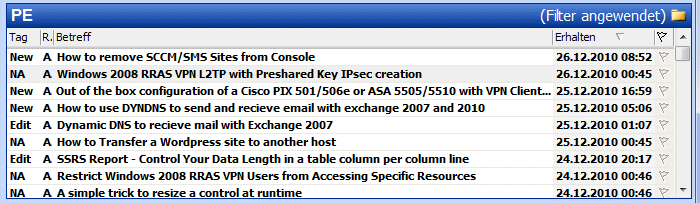 I took care about being very flexible with the tags. For example, if you want not to differ between Author and Expert comments, just use the same tag for both. If you want to introduce or change tags – no problem.
Programmatically moving a post which will need to be considered later again (e.g. all New and NQ alerts in one folder, comments in another) are very difficult to handle. This is because the simple search feature used does support searching only in a single folder; the more sophisticated Advanced Search, which would allow for parsing subfolders, is asynchronous and way too complex to rectify its usage here.
To overcome the "single inbox folder" restriction, I use rules to assign color flags to different mail types. My NQ alerts are yellow, new questions are blue, aso. Then I have set up filter/search favourites for each of those, which allows me to look at new questions only, or work on comments first. Instead of filter favourites the grouping feature can be used – but expanding/collapsing is not that useful, IMO.
Article and question comments are processed the same, and hence look the same – with one exception: The "Reference" user property start with an A instead of a Q. I use that by just showing the first letter of it in my Outlook views. The following screenshots show that using search favourites and custom views help much:
 ThisOutlookSession.cls.txt
Have a question about something in this article? You can receive help directly from the article author. Sign up for a free trial to get started.
Comments (4)
Commented:
Author
Commented:Author
Commented:Author
Commented: