Dealing with unintended Excel Active-X resizing quirks (VBA code simulates "self correction")


Published:
Browse All Articles > Dealing with unintended Excel Active-X resizing quirks (VBA code simulates "self correction")
Dealing with unintended Excel Active-X resizing quirks (VBA code simulates "self correction")
David Miller (dlmille)
It is my intent that when Excel "quirks" out and messes with these shapes, this utility can restore Excel to the "proper" state without the user even noticing (or, if the workbook_sheetactivate event is not used, when the user prompts via the refreshControlsOnSheet() routine.)
I’m a fan of using Active-X controls in my worksheets, in spite of some of their “quirks”. One key quirk that appears to affect folks more often than not is the resizing or presumed “disappearance” of controls that can sometimes happen for “unexplainable” reasons.
I’ve had controls “go weird” and get bigger/smaller and even disappear when I’ve connected via Remote Desktop into an Excel instance, or used an Excel app with lots of images and controls – and other times for no apparent reason (I wasn’t doing anything unusual and there were only a couple controls on a newly-built spreadsheet).
“Weird”, I would mutter as I restarted Excel or rebooted hoping it would all “go away”, which it generally did. It wasn’t until I notice others having this problem that I took a greater interest in providing some relief (while not perfect, at least we have a way to move on and get work done without throwing out our design!)
While the ListBox has an IntegralHeight property whose side-effect of a FALSE setting will keep that control from going askew, and while command buttons have properties such as move/size with cells, etc., other controls are not as graceful.
In the following, note how each control has been shaped, presumably “nice and tight” as if part of an Excel Spreadsheet app:
![Looks "good"!]()
At some point, you may have experienced controls “going awry” upon returning to a sheet, at some point in the future:
![Not so good...]()
Wouldn’t it be great, if we could just ensure all controls on the sheet are set properly, as designed, anytime we come back to this sheet? As part of an event, so it just takes care of itself?
I addressed a question recently http:/Q_26895496.html with a goal to dealing with the “quirk” and while this solution doesn’t get to the root cause, it does provide relief to the point that this particular “quirk” can virtually go unnoticed.
Every Active-X control has similar properties, and the ones we care about for this exercise are Top, Left, Height, Width, Placement and Locked. Leveraging some techniques I’ve been developing, we can use the set of routines discussed in this article to “record” those settings and ensure those pesky controls STAY PUT the way we designed them to be (their size, location, etc.) on a “permanent” basis.
First, I'll explain how to use this utility, and then later, I’ll discuss the code and provide an attached spreadsheet for your use.
1. Copy the module: SustainControlSettingsFunctions to your workbook. If you use the attachment, you can just drag this module from the example into your workbook.
2. Copy the Workbook_SheetActivate() code to your workbook, and paste it into your ThisWorkbook code page.
That's it, from a coding standpoint!
Now, lets' get back to your spreadsheet and see what's next:
1. Create whatever controls are going to be on the worksheet, and
2. At any point, run the setControlsOnSheet() routine, to either initially store the settings for all controls, refresh those settings, or add new settings (as it does this for every control on the active sheet). Note: to keep things simple, let's just run the setControlsOnSheet() macro from the Tools->Macro (pre-Excel 2007) or Developer's Ribbon (Excel 2007+). At this point, you could add a short-cut key to execute the setControlsOnSheet(), by selecting Options and identifying the control sequence you can press to execute the macro in future.
That's it! You've now added a level of "security" to the controls you've developed on your important and impressive Excel application!
Care should be taken to ensure all settings "look right" (e.g., Excel has as yet to get "quirky", or the user has just adjusted one to many of his controls and is ready to "save" their settings.) Otherwise, any improperly sized controls' settings would get stored or overwritten.
As an enhancement, this app could be embedded in a class module (see attachment II), or even better - as part of an add-in - thus keeping any related code out of the users "normal" programming environment. The sheet activate event trapping would be captured in the class module, rather than the user having to add it to his/her ThisWorkbook module.
Here's what you can paste in your ThisWorkbook codepage using the VBA Project Explorer:
This is made possible by three simple routines, and a sheet change event (note, you could enhance this to refresh settings on demand, or other event that makes the most sense for your application & style):
1. Public Sub setControlsOnSheet() 'the DRIVING routine that ensures all Active-X controls get their settings stored in a named range
2. Private Sub storeControlSettings(sControl As String) 'Called by the setControlsOnSheet() routine and does the work of pulling current settings and storing them, for one control
3. Private Sub refreshControlsOnSheet(sh As Object) 'Called by an event or action to retrieve and then refresh control settings to their previously saved state
The routine setControlsOnSheet():
The routine refreshControlsOnSheet():
Storage and Retrieval of control settings is managed through defined names, which are not visible to the user. The defined name for each control on a sheet is built up based on the active sheet name and the control name, creating a unique instance.
Here's the code you can insert into a new module in your workbook (or just drag and drop the SustainControlSettingsFunctions module from the attached demonstration file into your workbook's VBA Project Explorer area):
And here's the attached workbook, complete with code and a sample worksheet with a suite of Active-X controls setup for you to play with (try moving a control or resize it, then click to another tab and come back - as the settings are saved, they should revert to original condition):
Attachment I: Demonstration Sample
SustainControlOfActiveXResizing.xls
Attachment II: Demonstration Sample - code implemented as an add-in, to be less intrusive
SustainControlOfActiveXResizing-.xla
Enjoy!
David Miller (dlmille)
David Miller (dlmille)
Intro
Not everyone is a fan of Active-X controls in spreadsheets (as opposed to the UserForm approach, the older Form controls readily available to the Excel user from the Developer Ribbon, or the Controls ToolBox). It’s certainly understandable when users lose their cool when “quirky” things happen to their applications as a result of Active-X controls going awry.It is my intent that when Excel "quirks" out and messes with these shapes, this utility can restore Excel to the "proper" state without the user even noticing (or, if the workbook_sheetactivate event is not used, when the user prompts via the refreshControlsOnSheet() routine.)
I’m a fan of using Active-X controls in my worksheets, in spite of some of their “quirks”. One key quirk that appears to affect folks more often than not is the resizing or presumed “disappearance” of controls that can sometimes happen for “unexplainable” reasons.
I’ve had controls “go weird” and get bigger/smaller and even disappear when I’ve connected via Remote Desktop into an Excel instance, or used an Excel app with lots of images and controls – and other times for no apparent reason (I wasn’t doing anything unusual and there were only a couple controls on a newly-built spreadsheet).
“Weird”, I would mutter as I restarted Excel or rebooted hoping it would all “go away”, which it generally did. It wasn’t until I notice others having this problem that I took a greater interest in providing some relief (while not perfect, at least we have a way to move on and get work done without throwing out our design!)
While the ListBox has an IntegralHeight property whose side-effect of a FALSE setting will keep that control from going askew, and while command buttons have properties such as move/size with cells, etc., other controls are not as graceful.
In the following, note how each control has been shaped, presumably “nice and tight” as if part of an Excel Spreadsheet app:
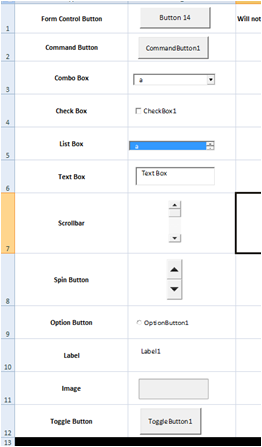
At some point, you may have experienced controls “going awry” upon returning to a sheet, at some point in the future:
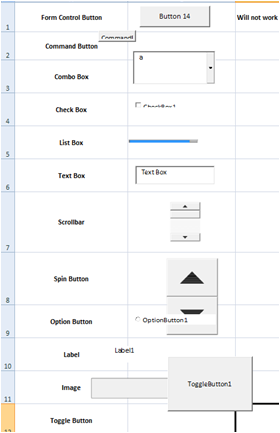
Wouldn’t it be great, if we could just ensure all controls on the sheet are set properly, as designed, anytime we come back to this sheet? As part of an event, so it just takes care of itself?
I addressed a question recently http:/Q_26895496.html with a goal to dealing with the “quirk” and while this solution doesn’t get to the root cause, it does provide relief to the point that this particular “quirk” can virtually go unnoticed.
Every Active-X control has similar properties, and the ones we care about for this exercise are Top, Left, Height, Width, Placement and Locked. Leveraging some techniques I’ve been developing, we can use the set of routines discussed in this article to “record” those settings and ensure those pesky controls STAY PUT the way we designed them to be (their size, location, etc.) on a “permanent” basis.
First, I'll explain how to use this utility, and then later, I’ll discuss the code and provide an attached spreadsheet for your use.
1. How to Implement
Using the VBA Project Explorer (ALT-F11), and the code (later in this article):1. Copy the module: SustainControlSettingsFunc
2. Copy the Workbook_SheetActivate() code to your workbook, and paste it into your ThisWorkbook code page.
That's it, from a coding standpoint!
Now, lets' get back to your spreadsheet and see what's next:
1. Create whatever controls are going to be on the worksheet, and
2. At any point, run the setControlsOnSheet() routine, to either initially store the settings for all controls, refresh those settings, or add new settings (as it does this for every control on the active sheet). Note: to keep things simple, let's just run the setControlsOnSheet() macro from the Tools->Macro (pre-Excel 2007) or Developer's Ribbon (Excel 2007+). At this point, you could add a short-cut key to execute the setControlsOnSheet(), by selecting Options and identifying the control sequence you can press to execute the macro in future.
That's it! You've now added a level of "security" to the controls you've developed on your important and impressive Excel application!
Care should be taken to ensure all settings "look right" (e.g., Excel has as yet to get "quirky", or the user has just adjusted one to many of his controls and is ready to "save" their settings.) Otherwise, any improperly sized controls' settings would get stored or overwritten.
As an enhancement, this app could be embedded in a class module (see attachment II), or even better - as part of an add-in - thus keeping any related code out of the users "normal" programming environment. The sheet activate event trapping would be captured in the class module, rather than the user having to add it to his/her ThisWorkbook module.
2. How it Works
Rather than make this routine process intensive (by putting event traps in every sheet created), the ThisWorkbook event for sheet activate will "reinitialize" all settings for all controls that exist on any sheet tab selected. No action would be taken, if no control settings were stored on a given sheet. As a result, the control settings on the sheet will be "restored" to their most recently saved settings, thus (hopefully) "forever" avoiding the Excel "quirky" resizing consequence.Here's what you can paste in your ThisWorkbook codepage using the VBA Project Explorer:
Private Sub Workbook_SheetActivate(ByVal Sh As Object)
                          Application.EnableEvents = False ' to avoid any code associated with a control which may fire as a result of changing settings

                          Application.Run "RefreshControlsOnSheet", Sh

                          Application.EnableEvents = True
End SubThis is made possible by three simple routines, and a sheet change event (note, you could enhance this to refresh settings on demand, or other event that makes the most sense for your application & style):
1. Public Sub setControlsOnSheet() 'the DRIVING routine that ensures all Active-X controls get their settings stored in a named range
2. Private Sub storeControlSettings(sCont
3. Private Sub refreshControlsOnSheet(sh As Object) 'Called by an event or action to retrieve and then refresh control settings to their previously saved state
The routine setControlsOnSheet():
1. Obtains the 6 common control settings, for every OLEObject (Active-X) control on the active sheet, and
2. Stores those settings into a string array, sControlSettings(), and
3. Adds/updates a defined name (which is hidden) with those settings.
2. Stores those settings into a string array, sControlSettings(), and
3. Adds/updates a defined name (which is hidden) with those settings.
The routine refreshControlsOnSheet():
1. Cycles through existing OLEObject control on the active sheet and
2. Retrieves any previously stored settings into a string array, sControlSettings(), and
3. Updates each respective control with those settings.
2. Retrieves any previously stored settings into a string array, sControlSettings(), and
3. Updates each respective control with those settings.
Storage and Retrieval of control settings is managed through defined names, which are not visible to the user. The defined name for each control on a sheet is built up based on the active sheet name and the control name, creating a unique instance.
Here's the code you can insert into a new module in your workbook (or just drag and drop the SustainControlSettingsFunc
Option Explicit
                      Const CONTROL_OPTIONS = "Height;Left;Locked;Placement;Top;Width" 'some potentially useful settings to store and sustain
                      Private Sub refreshControlsOnSheet(Sh As Object)
                      'routine enumerates all objects on the worksheet (sh), determines which have stored settings, then refreshes those settings
                      'from storage (in the defined names arena)
                      Dim myControl As OLEObject
                      Dim sBuildControlName As String
                      Dim sControlSettings As Variant

                              For Each myControl In ActiveSheet.OLEObjects
                                  sBuildControlName = "_" & myControl.Name & "_Range" 'builds a range name based on the control name
                                  'test for existance of previously-saved settings
                                  On Error Resume Next
                                  sControlSettings = Evaluate(sBuildControlName) 'ActiveWorkbook.Names(sBuildControlName).RefersTo 'load the array of settings
                                  If Err.Number = 0 Then ' the settings for this control are in storage, so refresh settings for the control
                                      myControl.Height = sControlSettings(1)
                                      myControl.Left = sControlSettings(2)
                                      myControl.Locked = sControlSettings(3)
                                      myControl.Placement = sControlSettings(4)
                                      myControl.Top = sControlSettings(5)
                                      myControl.Width = sControlSettings(6)
                                  End If
                                  Err.Clear
                                  On Error GoTo 0
                              Next myControl

                      End Sub
                      Private Sub storeControlSettings(sControl As String)
                      Dim sBuildControlName As String
                      Dim sControlSettings(1 To 6) As Variant ' set to the number of control settings to be stored
                      Dim oControl As Variant

                          Set oControl = ActiveSheet.OLEObjects(sControl)

                          'store the settings to retain, so they can be reset on demand, thus avoiding Excel's resizing "problem"
                          'create array of settings to be stored, with order dictated by CONTROL_OPTIONS for consistency/documentation

                          sControlSettings(1) = oControl.Height
                          sControlSettings(2) = oControl.Left
                          sControlSettings(3) = oControl.Locked
                          sControlSettings(4) = oControl.Placement
                          sControlSettings(5) = oControl.Top
                          sControlSettings(6) = oControl.Width


                          sBuildControlName = "_" & sControl & "_Range" 'builds a range name based on the control name

                          Application.Names.Add Name:="'" & ActiveSheet.Name & "'!" & sBuildControlName, RefersTo:=sControlSettings, Visible:=False 'Adds the control's settings to the defined names area and hides the range name

                      End Sub

                      Public Sub setControlsOnSheet()
                      Dim myControl As OLEObject
                      Dim xMsg As Integer

                          xMsg = MsgBox("This app will store key settings for all controls on your active worksheet, as they CURRENTLY exist.  Are you sure you want to continue (will overwrite past settings)?", vbYesNo, "Hit Yes to save control settings...")
                          If xMsg = vbYes Then

                              For Each myControl In ActiveSheet.OLEObjects 'theoretically, one could manage settings for all controls of this type...
                                  storeControlSettings (myControl.Name)
                              Next myControl

                              MsgBox "Settings for current controls on sheet have been stored", vbOKOnly
                          End If
                          Application.EnableEvents = True 'to ensure we're set to "fire" on worksheet changes
End SubAnd here's the attached workbook, complete with code and a sample worksheet with a suite of Active-X controls setup for you to play with (try moving a control or resize it, then click to another tab and come back - as the settings are saved, they should revert to original condition):
Attachment I: Demonstration Sample
SustainControlOfActiveXResizing.xls
Attachment II: Demonstration Sample - code implemented as an add-in, to be less intrusive
SustainControlOfActiveXResizing-.xla
Enjoy!
David Miller (dlmille)
Have a question about something in this article? You can receive help directly from the article author. Sign up for a free trial to get started.
Comments (17)
Commented:
Windows Registry Editor Version 5.00
[HKEY_CURRENT_USER\Softwar
"LegacyAnchorResize"=dword
[HKEY_CURRENT_USER\Softwar
"UpdateDeviceInfoForEmf"=d
Commented:
Commented:
Commented:
Commented:
View More