

Browse All Articles > Improved? Move/Copy Add-in Replacement
Improved? Move/Copy Add-in Replacement - How to avoid the annoying, “A formula or sheet you want to move or copy contains the name XXX, which already exists on the destination worksheet.”
David Miller (dlmille)
![It looks so innocent. And yet...]()
After selecting a batch of sheets, I clicked the right mouse button and hit Move or Copy, chose the destination workbook, and hit Ok. I was then inundated with prompt after prompt as Microsoft advised me that
![A formula or sheet you want to move or copy contains the name blah, blah, blah...]()
If I hit Yes, Excel would prompt again on the next range name that also existed in the destination sheet. If I hit No, I found I had to create a new name for that range.
![Name Conflict]()
Then, again, I had another range name to deal with.
Please…Will this EVER end?
After about 20 of these, I held the Y key down (trying to have the entry repeat) and had intermittent success. On one spreadsheet tab copy, I gave up after a couple minutes and pulled up the task manager to NUKE Excel.
This wasn’t the first time it had happened to me, but I promised myself it was going to be the last! It turns out at least one of the ways you can get this error when you try to copy a sheet that has a common range name at both the sheet as well as the workbook scope level. I did some quick research and found that with VBA, you can disable alerts Application.DisplayAlerts=False while you perform move/copy operations, to avoid these types of prompts. Once your code is complete, you can turn alerts back on Application.DisplayAlerts=True . I wrote a quick macro and got the job done, in time to make it home to pack and leave on my vacation trip.
While on vacation, I watched the kids, swam, played games, and pondered this particular problem. It seemed to me (when I was Google-ing on the issue) that the problem comes up time and again. Mentally, I designed a solution, leveraging a couple tricks I learned about intercepting Excel menu commands to run my own code. Some handy references I used/adapted to take over the command: (for the command bar approach - aka Excel 2003 - see: http://stackoverflow.com/questions/722409/how-to-capture-worksheet-being-added-through-copy-paste-in-excel-vba. For the XML approach - aka Excel 2007/2010 see: http://social.msdn.microsoft.com/Forums/en-US/vsto/thread/e9aadf58-dbdf-43a1-aae7-e20310880e94/ and http://msdn.microsoft.com/en-us/library/ee691832.aspx).
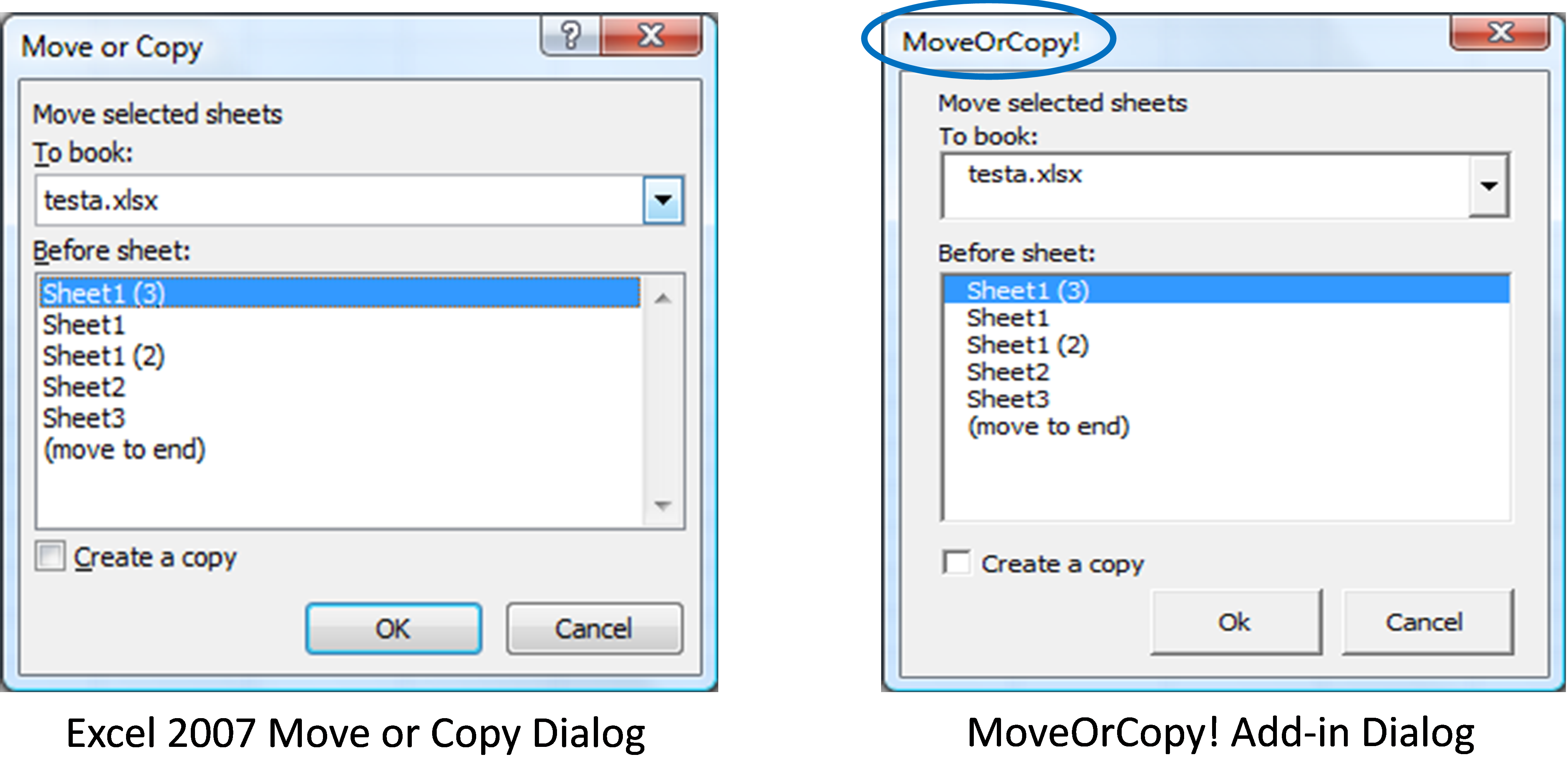
As a result, I created the MoveOrCopy! Add-In that I now use as a permanent add-in in my Excel arsenal. Please, download it and give it a shot. While its loaded, anytime you execute Move/Copy via Excel menus, the add-in steps in and prompts you just as Excel does (e.g., where to move/copy the selected sheets, etc.) with one exception – the code takes the DEFAULT on all prompts thanks to the Application.DisplayAlerts=False command).
![Native Move or Copy vs MoveOrCopy! dialog]()
I suppose someone might need to know when they are copying common range names to a destination, so they could manually rename them to avoid conflicts. I’m not sure why there’s not a default setting in Excel for this, but perhaps in their infinite wisdom, they were being risk averse. I prefer the default. I can’t recall ever having wanted to do otherwise, though there may be times when that is necessary.
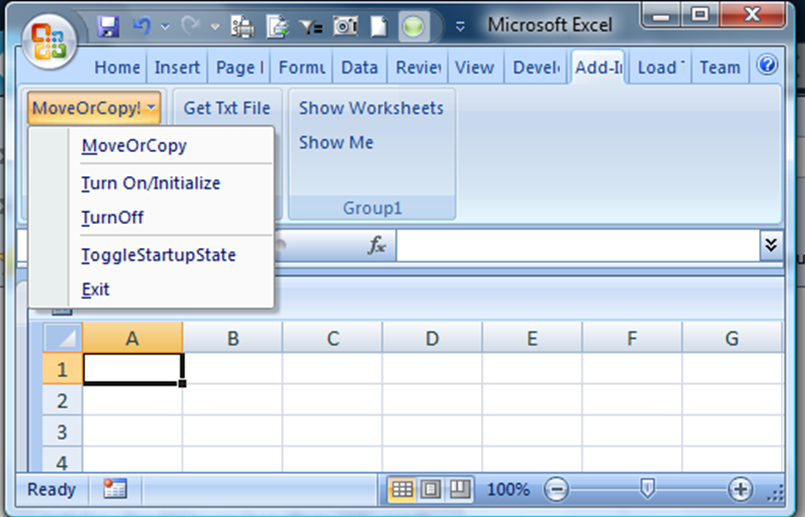
As a result, I included a couple options on the add-in menu:
![MoveOrCopy! Add-In Menu]()
Here’s the code for the MoveOrCopy! Userform (see cbOk_Click() routine for the primary code doing the move/copy function:
Attachment I:MoveOrCopy! Add-in for Excel 2003 & earlier (untested on versions < 2003)
MoveOrCopy-.xla
Attachment II:MoveOrCopy! Add in for Excel 2007-2010
MoveOrCopy-.xlam
Just download and save to a trusted location. Run it and see how it performs, for yourself. If you’d like to make it a permanent addition as I have, just save it to your add-ins directory, and set Excel Options so MoveOrCopy! loads every time you start Excel.
Happy Copying!
=-=-=-=-=-=-=-=-=-=-=-=-=-=-=-=-=-=-=-=-=-=-=-=-=-=-=-=-=-=-=-=-=-=-=-=-=-=-=-=-=
If you liked this article and want to see more from this author, please click here.
If you found this article helpful, please click the Yes button near the:
Was this article helpful?
label that is just below and to the right of this text. Thanks!
=-=-=-=-=-=-=-=-=-=-=-=-=-=-=-=-=-=-=-=-=-=-=-=-=-=-=-=-=-=-=-=-=-=-=-=-=-=-=-=-=
David Miller (dlmille)
It was one of those days…
I was working frantically, as couple weeks back, trying to get everything done before I left for Thanksgiving Holiday. I was helping a colleague get some performance reports completed, so we could meet our team deadline. One of the activities involved consolidating some sheets from several workbooks into one master.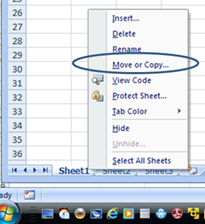
After selecting a batch of sheets, I clicked the right mouse button and hit Move or Copy, chose the destination workbook, and hit Ok. I was then inundated with prompt after prompt as Microsoft advised me that

“A formula or sheet you want to move or copy contains the name XXX, which already exists on the destination worksheet. Do you want to use the version of the name?“
If I hit Yes, Excel would prompt again on the next range name that also existed in the destination sheet. If I hit No, I found I had to create a new name for that range.
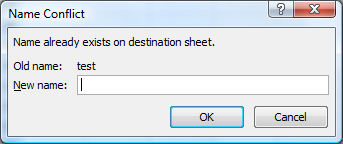
Then, again, I had another range name to deal with.
Please…Will this EVER end?
After about 20 of these, I held the Y key down (trying to have the entry repeat) and had intermittent success. On one spreadsheet tab copy, I gave up after a couple minutes and pulled up the task manager to NUKE Excel.
This wasn’t the first time it had happened to me, but I promised myself it was going to be the last! It turns out at least one of the ways you can get this error when you try to copy a sheet that has a common range name at both the sheet as well as the workbook scope level. I did some quick research and found that with VBA, you can disable alerts Application.DisplayAlerts=
While on vacation, I watched the kids, swam, played games, and pondered this particular problem. It seemed to me (when I was Google-ing on the issue) that the problem comes up time and again. Mentally, I designed a solution, leveraging a couple tricks I learned about intercepting Excel menu commands to run my own code. Some handy references I used/adapted to take over the command: (for the command bar approach - aka Excel 2003 - see: http://stackoverflow.com/questions/722409/how-to-capture-worksheet-being-added-through-copy-paste-in-excel-vba. For the XML approach - aka Excel 2007/2010 see: http://social.msdn.microsoft.com/Forums/en-US/vsto/thread/e9aadf58-dbdf-43a1-aae7-e20310880e94/ and http://msdn.microsoft.com/en-us/library/ee691832.aspx).
As a result, I created the MoveOrCopy! Add-In that I now use as a permanent add-in in my Excel arsenal. Please, download it and give it a shot. While its loaded, anytime you execute Move/Copy via Excel menus, the add-in steps in and prompts you just as Excel does (e.g., where to move/copy the selected sheets, etc.) with one exception – the code takes the DEFAULT on all prompts thanks to the Application.DisplayAlerts=
I suppose someone might need to know when they are copying common range names to a destination, so they could manually rename them to avoid conflicts. I’m not sure why there’s not a default setting in Excel for this, but perhaps in their infinite wisdom, they were being risk averse. I prefer the default. I can’t recall ever having wanted to do otherwise, though there may be times when that is necessary.
As a result, I included a couple options on the add-in menu:
1) Turn On/Initialize – use MoveOrCopy! substitute,
2) Turn Off – return to Excel’s Native Move/Copy process,
3) Toggle Startup State – ON or OFF, saving your startup preference in the registry
2) Turn Off – return to Excel’s Native Move/Copy process,
3) Toggle Startup State – ON or OFF, saving your startup preference in the registry
Here’s the code for the MoveOrCopy! Userform (see cbOk_Click() routine for the primary code doing the move/copy function:
Private Sub cbCancel_Click()
                          Unload Me
                      End Sub

                      Private Sub cbOk_Click()
                      Dim lItem As Long
                      Dim srcWkb As Workbook
                      Dim destWkb As Workbook
                      Dim srcShts As Worksheet
                      Dim objShts As Variant
                      Dim i As Long
                      Dim bEnd As Boolean

                          Application.DisplayAlerts = False

                          Set srcWkb = ActiveWorkbook
                          Set objShts = ActiveWindow.SelectedSheets

                          If cbDest.Value = NEW_BOOK Then
                              Set destWkb = Application.Workbooks.Add
                          Else
                              Set destWkb = Application.Workbooks(cbDest.Value)
                          End If

                          If lbDestSht.Value = MOVE_END Then
                              If cbCopy Then
                                  objShts.Copy after:=destWkb.Sheets(destWkb.Sheets.Count)
                              Else
                                  objShts.Move after:=destWkb.Sheets(destWkb.Sheets.Count)
                              End If
                          Else
                              For i = 1 To destWkb.Sheets.Count
                                  If destWkb.Sheets(i).Name = lbDestSht.Value Or cbDest.Value = NEW_BOOK Then 'copy or move selected sheets BEFORE the selected destination sheet
                                      If cbCopy Then
                                          objShts.Copy before:=destWkb.Sheets(i)
                                      Else
                                          objShts.Move before:=destWkb.Sheets(i)
                                      End If
                                      Exit For
                                  End If
                              Next i
                          End If

                          Application.DisplayAlerts = True

                          Unload UserForm1

                      End Sub

                      Private Sub cbSource_Change()
                      Dim mySht As Worksheet

                          lbDestSht.Clear
                          For Each mySht In Application.Workbooks(cbSource.Value).Worksheets
                              lbDestSht.AddItem mySht.Name
                          Next mySht

                      End Sub

                      Private Sub cbDest_Change()
                          If cbDest.Value <> NEW_BOOK Then
                              Call loadShts(Application.Workbooks(Me.cbDest.Value))
                          Else
                              lbDestSht.Clear
                          End If
                      End Sub

                      Private Sub UserForm_Initialize()
                      Dim myWkb As Workbook
                      Dim lItem As Long

                          'Position Userform relative to sheet selection, as with Native Excel Move/Copy UI

                          UserForm1.Top = Application.Top + Application.Height * 0.93 - UserForm1.Height
                          UserForm1.Left = Application.Left + UserForm1.Height * 0.2


                          cbDest.Clear
                          cbDest.AddItem NEW_BOOK

                          For Each myWkb In Application.Workbooks
                              cbDest.AddItem myWkb.Name
                          Next myWkb

                          For lItem = 0 To cbDest.ListCount - 1
                              If cbDest.List(lItem) = ActiveWorkbook.Name Then
                                  cbDest.ListIndex = lItem
                              End If
                          Next lItem

                          Call loadShts(ActiveWorkbook)

                      End Sub
                      Private Sub loadShts(myWkb As Workbook)
                      Dim lItem As Long
                      Dim myWks As Object

                          lbDestSht.Clear
                          For Each myWks In myWkb.Sheets
                              lbDestSht.AddItem myWks.Name
                          Next myWks

                          lbDestSht.AddItem MOVE_END

                          lbDestSht.Selected(0) = True

End SubOption Explicit
Public Sub MoveOrCopy_toggleStartup()
Dim myName As Name
Dim bStartupState As Boolean
On Error Resume Next
bStartupState = GetSetting("MoveOrCopy!", "StartUp", "State", Environ("username"))
If Err.Number <> 0 Then
bStartupState = True
End If
On Error GoTo 0
bStartupState = Not bStartupState
SaveSetting appname:="MoveOrCopy!", section:="StartUp", Key:="State", setting:=bStartupState
MsgBox "On Excel Restart, MoveOrCopy! will be in " & IIf(bStartupState, "ON", "OFF") & " mode."
End Sub
Option Explicit
                      Public Const NEW_BOOK = "(new book)"
                      Public Const MOVE_END = "(move to end)"
                      Public bUserDefined As Boolean
                      Function appVer() As Integer

                          If UCase(Right(ThisWorkbook.Name, 4)) = ".XLA" Then 'running as a 2003 add-in
                              appVer = Application.WorksheetFunction.Min(Application.Version, 11)
                          Else
                              appVer = Application.Version
                          End If
                      End Function
                      Sub moveOrCopy_Initialize()
                          bUserDefined = True
                          If appVer < 12 Then 'check application version.  < 12 means earlier than Excel 2007, so use commandbar approach
                              Call ChangeMenuOptions(bUserDefined, 848) 'True - user defined on move/copy
                          Else
                              'do nothing
                          End If

                          MsgBox "Just proceed with Move/Copy on sheet tabs as you have 'Normally'.  However, use the ""Turn Off"" feature to revert back to Excel Native Move/Copy"
                      End Sub
                      Sub moveOrCopy_deInitialize()
                          bUserDefined = False
                          If appVer < 12 Then
                              Call ChangeMenuOptions(bUserDefined, 848) 'True - user defined on move/copy
                          Else
                              'do nothing
                          End If
                          MsgBox "You have now reverted back to Excel Native Move/Copy"
                      End Sub
                      Sub MoveOrCopyUI()
                          If Application.Workbooks.Count > 0 Then
                              Load UserForm1
                              UserForm1.Show
                          Else
                              MsgBox "MoveOrCopy! will not operate if no workbooks are open in Excel", vbCritical, "Aborting..."
                          End If
                      End Sub
                      'Source: Adapted from http://social.msdn.microsoft.com/Forums/en-US/vsto/thread/e9aadf58-dbdf-43a1-aae7-e20310880e94/
                      '------------------------------------------------------------------------------------
                      'Supporting XML embedded in this 2007/2010 file:
                      '<customUI xmlns="http://schemas.microsoft.com/office/2009/07/customui">
                      '  <commands>
                      '    <command idMso="SheetMoveOrCopy" onAction="CustomMoveOrCopy" />
                      '  </commands>
                      '</customUI>
                      Public Sub CustomMoveOrCopy(ByVal control As Variant, ByRef cancelDefault As Variant)

                          If bUserDefined Then
                              cancelDefault = True
                              Call MoveOrCopyUI
                          Else
                              cancelDefault = False
                          End If

                      End Sub
                      'Source: Adapted from http://stackoverflow.com/questions/722409/how-to-capture-worksheet-being-added-through-copy-paste-in-excel-vba
                      '-----------------------------------------------------------------------------------
                      Public Sub ChangeMenuOptions(bUserDef As Boolean, ParamArray ControlID() As Variant)
                      '848 Move or Copy Sheet...
                      '889 Rename Sheet
                      '847 Delete Sheet
                      Dim iControl As Integer
                      Dim oControl As Object

                          For iControl = LBound(ControlID) To UBound(ControlID)
                              For Each oControl In Application.CommandBars.FindControls(ID:=ControlID(iControl))
                                  If bUserDef Then
                                      oControl.OnAction = "MoveOrCopyUI"
                                  Else
                                      oControl.Reset
                                  End If
                              Next oControl
                          Next iControl
                      End Sub
'----------------------------------------------------------------------------------- Attachments
Attachment I:MoveOrCopy! Add-in for Excel 2003 & earlier (untested on versions < 2003)
MoveOrCopy-.xla
Attachment II:MoveOrCopy! Add in for Excel 2007-2010
MoveOrCopy-.xlam
Just download and save to a trusted location. Run it and see how it performs, for yourself. If you’d like to make it a permanent addition as I have, just save it to your add-ins directory, and set Excel Options so MoveOrCopy! loads every time you start Excel.
Happy Copying!
=-=-=-=-=-=-=-=-=-=-=-=-=-
If you liked this article and want to see more from this author, please click here.
If you found this article helpful, please click the Yes button near the:
Was this article helpful?
label that is just below and to the right of this text. Thanks!
=-=-=-=-=-=-=-=-=-=-=-=-=-
Have a question about something in this article? You can receive help directly from the article author. Sign up for a free trial to get started.
Comments (4)
Commented:
Author
Commented:Dave
Commented:
Sid
Commented: