How to quickly and accurately populate Word documents with Excel data, charts, and images (including Automated Bookmark generation)


Published:
Browse All Articles > How to quickly and accurately populate Word documents with Excel data, charts, and images (including Automated Bookmark generation)
How to quickly and accurately populate Word documents with Excel data, charts and images (including Automated Bookmark generation)
David Miller (dlmille)
Synopsis
In this article you’ll learn how to use ExcelToWord! to copy data,charts, shapes and/or images to Word in a structured fashion, whether as a one-off solution or as a product of iterating through a list/database. ExcelToWord! output options include printing, saving to Word, PDF, and eMail. The downloadable add-in and test examples for learning ExcelToWord! can be found at the bottom of this article.
Intro
This article focuses on a set of tools that can be used to configure Word and Excel to help you get more out of Office by more quickly and accurately updating Word documents with Excel data. There’s a bit of setup involved – in re-designing your Word document/template, and in structuring your Excel data. However, if your Excel data is already relatively structured, and you have more than a few data-points that need populating from Excel to Word, then you should find these tools helpful.
How does it all work?
The basic setup works with two templates: 1) Word template and 2) Excel template (a workbook with a worksheet that has the data needing to be farmed to the Word template). The Word template is a designed document that has fields (Bookmarks) which should be populated from the Excel template. Once the template design is complete, the act of opening the template causes Word to create a new document (not just open the template, itself), thus the act of saving the document after Excel data update will not invalidate the original template, itself ready to generate that next form-letter, invoice, report, etc.
Beyond basic mail merge, there are several ways to connect your Word template to Excel data:
I’m sure there are others, as well. Option #3 is just a more structured (and perhaps maintainable) approach to #1, leveraging Word bookmarks to quickly identify where the Word ranges are that require update from Excel.
As I had already successfully completed a couple solutions in this arena, I decided to leverage #3 via the use of Bookmarks for this article.
So, what do I need to do with the Word template?
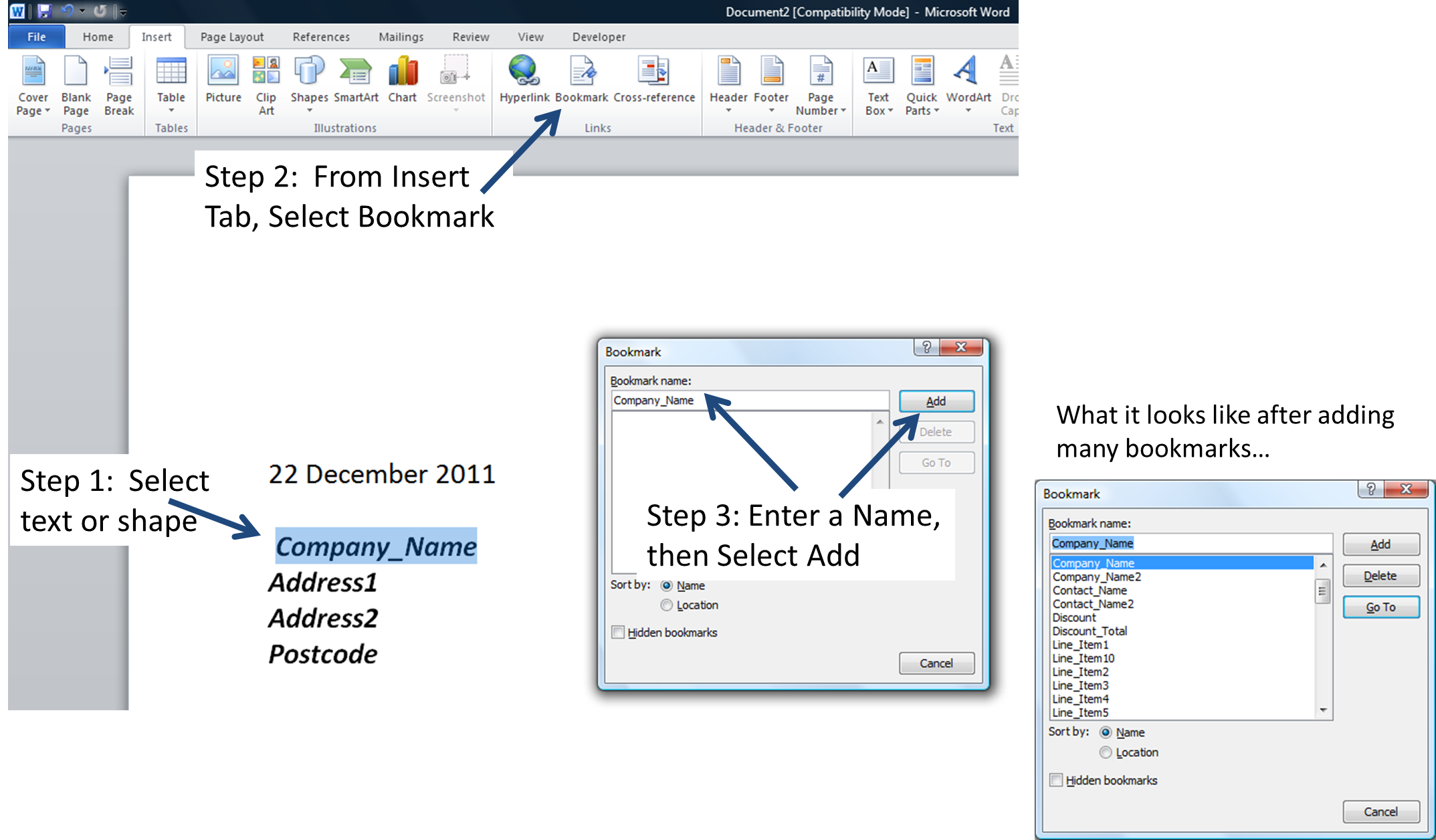
If you’ve followed me to this point, you’ve already figured out that the Word document/template side of things is relatively straight-forward: bookmarks need to be created in the document, anywhere data is needed from Excel. You can create them, manually, by selecting a text string or shape where the bookmark should go and then by leveraging the insert->bookmark menus in Word. The utility associated with this article will support two additional methods that automate the task of bookmark creation: generic BM_1, BM_2, etc., or intelligent, personalized bookmark_name approach. Either still requires you to specify where the bookmark actually goes, leveraging the pattern [[BM]] in the generic case, and [[bookmark_name]] in the more intelligent case. With the utility from this article, creation and maintenance of your bookmarks should be much faster, more accurate, and easier to implement.
This next section discusses three approaches to creating bookmarks in your Word template. Choose one based on your circumstances, then when you’ve completed the document with all the required bookmarks or bookmark indicators,save it as a template, and pair the template with an Excel dataset (read on):
Steps for bookmark or bookmark indicator creation (see the three methods documented, below these steps):
Bookmark method one (the manual approach):
Follow the steps, indicated above. Note, you cannot create duplicate bookmarks, so just increment your bookmark, when you need duplicate data pasted (e.g., Contact_Name2).
Note: In addition to any creative solutions you might develop, there is a unique opportunity to mix methods #1 with #2 or #3. You could create a Shape in the Word template, and set a manual bookmark to that Shape (first selecting the Shape, then from the menu, Insert->Bookmark). Size and place that Shape, as appropriate. The application will paste any Excel Shape/Image/Chart into the Word’s Shape (via Fill), allowing you to have more control of how images are presented in the final Word document.
For method one, see demonstrated example, below.
![figure-1: Manually creating a Word bookmark]()
Bookmark method two (the generic approach):
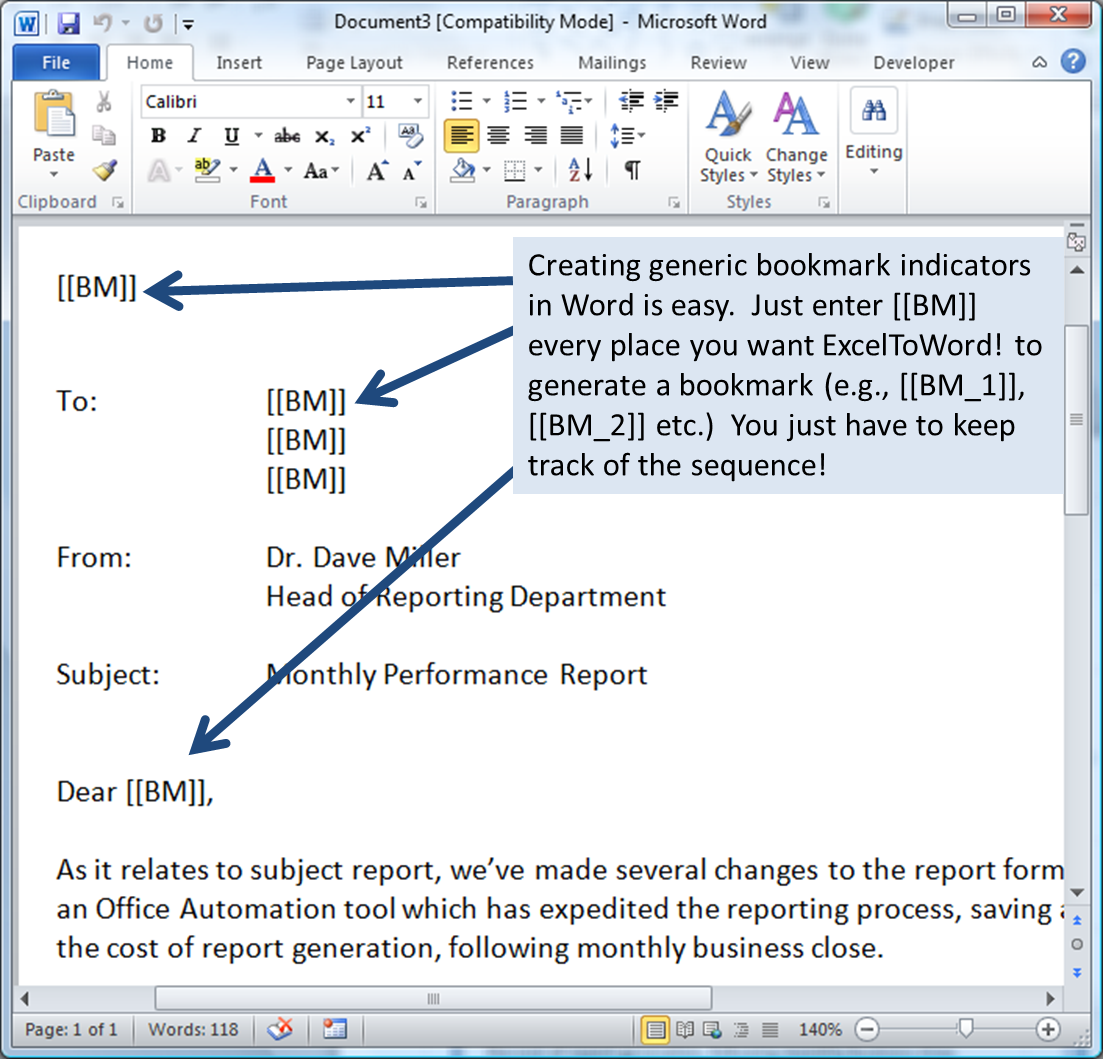
In this example, perhaps there are so many bookmarks, that the act of creating and maintaining unique, identifiable names can be difficult. It might be much easier to enumerate them from BM_1 to BM_50, for example, while keeping a ledger of each bookmark number and its Excel counterpart in your Excel workbook. While some tracking is required, to ensure accuracy, this might be the most efficient approach of the three.
Identify where each bookmark should go, and, for the representative text string , type [[BM]] at each location where you want to paste Excel data. Don’t worry, later on there will be a utility you’ll use to transform each [[BM]] into [[BM_1]], [[BM_2]], etc., creating respective bookmarks in the process. For method two, see demonstrated example, below:
![figure-2: Creating generic bookmark indicators in Word]()
Bookmark method three: (the intelligent, personalized approach):
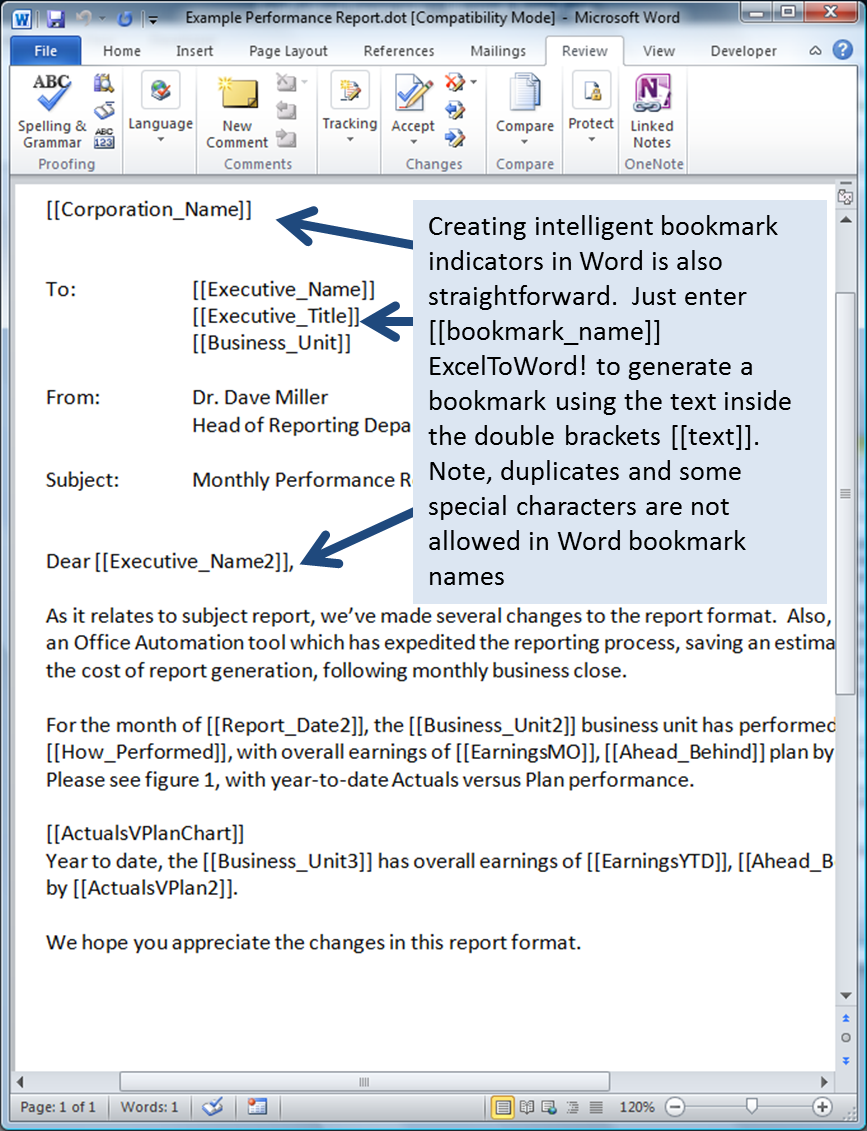
In this last example, you’ve chosen perhaps the most accurate approach. As with method two, modify the document by creating bookmark indicators, but this time, for the representative text string use the [[bookmark_name]] approach.
Method Three rules for bookmarks in the Word template:
Note, the utility has an option to allow you to use both Bookmark method one and Bookmark method three, simultaneously (the utility would search range names first, then, if not found, it would search the workbook for the bookmark indicator). This creates the unique opportunity to embed pictures/charts in the Excel workbook, atop an underlying range name – thus these can be exported to the Word document, as well.
For Bookmark method three, see demonstrated example, below:
![figure-3: Creating intelligent, personalized bookmark indicators in Word]()
*Note: See - http://peltiertech.com/Excel/ChartsHowTo/NameAChart.html on how to name an embedded Excel chart. Alternatively, there’s a menu option to name a shape/image/or chart – just select the shape, then use the Name Embedded Shape/Chart option from the ExcelToWord! menu. Follow a similar approach to naming any other type of Excel embedded shape/image. If range names was the selected option, then ExcelToWord! will not only look at range names, but chart/shape names as well. In fact, if you selected you wanted range/shape names and bookmark indicators as a configuration option, ExcelToWord! will look first for matching range names, then charts/shapes within scope (e.g., current worksheet or the entire workbook, when you setup the configuration), and finally bookmark indicators, stopping the search with the first one found.
Ok, so what do I need to do to structure my Excel workbook so all this will work?
The utility’s logic in this case, is very straight-forward. The driving engine for this methodology is the Word bookmarks. By enumerating a Word document’s bookmarks, we already know the names of the data-points that we need to find in Excel, we just need a consistent approach for documenting them during document creation (of the Excel workbook) so we can use simple VBA code to find them.
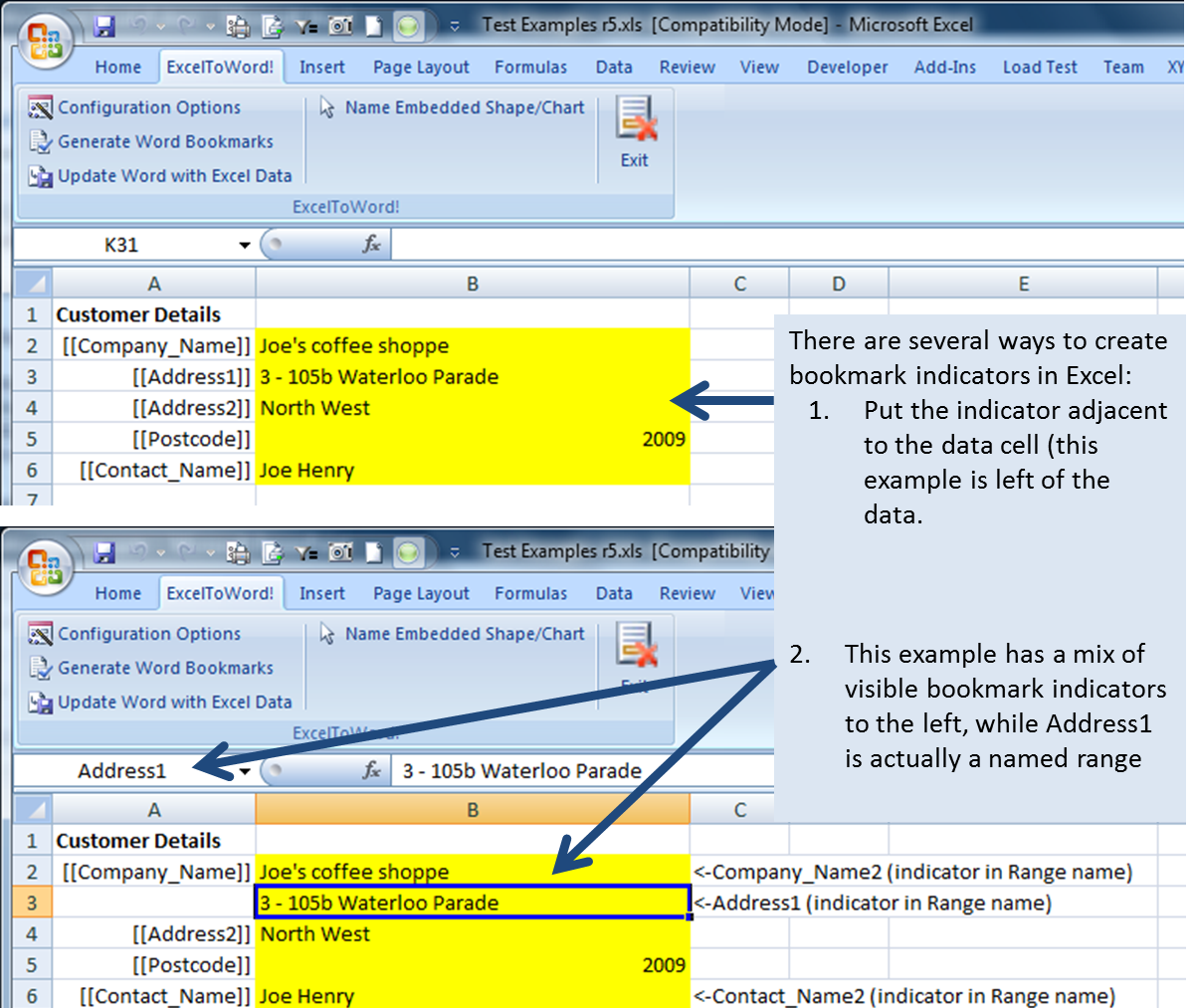
There many of ways you could manage this side of the process. Here are two ways that are supported by the utility:
![figure-4: Creating bookmark indicators in Excel]() After completing your construction of the Excel template workbook, be sure to save it, as well.
After completing your construction of the Excel template workbook, be sure to save it, as well.
Ok – I have the Word and Excel template’s created. Now, how do I get this to work?
Follow these steps to use the ExcelToWord! Add-in utility:
When you execute the Update Word with Excel data routine, the final Word document can be printed, extracted to PDF, saved or deleted at the end of the routine (these options are set in the Configure routine).
This is working great, but I have to process a letter for 50 customers. How can I do this in one step, to avoid having to run the Update 50 times?”
You may have noticed in the Configuration Options panel, that there is a section called Cycle thru list or database. The function means exactly that. By identifying three cell references in the workbook, you can leverage the Incrementer function - a function that starts with the starting point and increments through to the ending point, while initiating the Update process on each increment:
As with range names, identified Incrementer references can be located anywhere in the workbook, based on your design.
Based on the After Update option selected, in the Configuration Options panel, the resulting document would be printed, extracted to PDF*, or saved, with each Increment, as the Update Word with Excel data process is cycled. Note: PDF or Word filenames will be modified to include _XX in their filename, where XX would indicate the generated increment.
*Note: You must have PDF writer capability to use this feature. However, there are "free" solutions if you have Office 2007/2010. While Office 2010 has the functionality to extract Office documents to PDF formatted files, Microsoft has also provided an Office 2007 PDF Add-on supporting the same functionality. (see:http://labnol.blogspot.com/2006/09/office-2007-save-as-pdf-download.html, or 'http://www.ehow.com/how_7184784_save-word-docs-pdf-vba.html)
Ok – I’ve got this list of items – could be 1, could be up to 20. How can I deal with this to avoid a bunch of blank lines?
Let’s say in your Word template, you have a list of items, as in the invoice example (see figure 7, below):
![figure-5: Using variable lists]()
As a result of this template design, there are 1 to many rows of bookmarks, enumerating invoice items. When ExcelToWord! is initiated, if the Excel template has data for only the first few line items (the remainder are blank/not needed, in implementation, the remaining line items in the Word document would look like blank lines in the Word Template – a potentially unattractive gap between a list of line items, and the rest of the invoice.
This is handled through the creation of a table in your Word template, where each row in the table represents a line item (which might have several columns of text and/or bookmarks – for example):
[[LineItem1]], [[Quantity1]], [[Amount1]]
[[LineItem2]], [[Quantity2]], [[Amount2]]
[[LineItem3]], [[Quantity3]], [[Amount3]]
…
…
[[LineItem20]], [[Quantity20]], [[Amount20]] ‘<- the last line item
The above would be a Word table, having 3 columns, 20 rows, with each line items’ data on a separate row.
Through the Configuration panel of ExcelToWord! you can specify that tables containing rows with NO text/data be removed when the document is generated via the Update process. In this way, the table will dynamically conform to available data.
See example demonstration of steps 4-6, below:
![figure-6: The Configurator userform in action]()
The primary utility depends on three major routines:
While not the entire codeset (which is downloadable by all) I tried to post what I believed was the most interesting/relevant to the app.
Here’s the code for reading the Word document, making bookmarks as a result of scanning for bookmark indicators:
And, finally, here’s the Configuration Options panel data handling routines that maintain a cadre of settings that are saved at the workbook and worksheet level, via hidden range names:
Exporting Excel Range to Picture:
I learned a lot in the development process: from the initial three building-block solutions with LANCE_S_P and creativefusion, through to developing this complete, automated solution which I hope you will find useful. The tool is feature-rich with more bells and whistles than I had originally anticipated, but as I was writing the article and enhancing the code, new ideas that came to mind that just had to be developed (at times, I found myself documenting features ahead of tool development!).
Enjoy!
Attachment I: Attached, please find the ExcelToWord! Add-In which provides the functionality described in this article to your existing projects. The .xla is for all users (tested Office 2002+), while the .xlam is for Excel 2007+ users, and leverages the Ribbon for menu options.
ExcelToWordv011.xlam ExcelToWordv011.xla
Attachment II: Also attached, please a cadre of Word and Excel templates used for testing, as well as the demo Word and Excel templates used in this article. You can learn ExcelToWord! starting with these example templates, today!
Test-Examples---Excel-and-Word-t.zip
Kudos to matthewspatrick for his Word template, used in the writing of this article. (and aikimark for spreading the word!)
=-=-=-=-=-=-=-=-=-=-=-=-=-=-=-=-=-=-=-=-=-=-=-=-=-=-=-=-=-=-=-=-=-=-=-=-=-=-=-=-=
If you liked this article and want to see more from this author, please click here.
If you found this article helpful, please click the Yes button near the:
Was this article helpful?
label that is just below and to the right of this text. Thanks!
=-=-=-=-=-=-=-=-=-=-=-=-=-=-=-=-=-=-=-=-=-=-=-=-=-=-=-=-=-=-=-=-=-=-=-=-=-=-=-=-=
David Miller (dlmille)
Synopsis
In this article you’ll learn how to use ExcelToWord! to copy data,charts, shapes and/or images to Word in a structured fashion, whether as a one-off solution or as a product of iterating through a list/database. ExcelToWord! output options include printing, saving to Word, PDF, and eMail. The downloadable add-in and test examples for learning ExcelToWord! can be found at the bottom of this article.
Intro
You inherited this job where you have to copy data from Excel into Word, save/print the Word document and/or Email it to a distribution list on a daily/weekly/monthly basis.
Your boss came to you with a Word document he/she worked on over the weekend and asked you to update key fields in the document, and print/email the document for her monthly leadership team meeting.
You have an impressive, massive Word document that is used as a template to report company performance, each month, and you have to pull together 50 Excel data-points and 5 charts, then update the Word document in key places, saving and distributing the document by email, within 24 hours of “business close” for the prior month.
Sound familiar? I don’t know about you, but each of these demands sounds like they could be full-blown IT applications, and yet we’re stuck holding the bag, manually delivering these results, day in and day out. When we finally get the data side of the equation in order (generally, in Excel), we still have to tediously enter data in Word – sometimes reading off Excel and typing in Word, and sometimes copying and pasting. In fact, we have less time these days, for analysis and real business thinking, because we have to do more and more administrative tasks to either get our jobs done, please the boss, or both. Stressful!
This article focuses on a set of tools that can be used to configure Word and Excel to help you get more out of Office by more quickly and accurately updating Word documents with Excel data. There’s a bit of setup involved – in re-designing your Word document/template, and in structuring your Excel data. However, if your Excel data is already relatively structured, and you have more than a few data-points that need populating from Excel to Word, then you should find these tools helpful.
How does it all work?
The basic setup works with two templates: 1) Word template and 2) Excel template (a workbook with a worksheet that has the data needing to be farmed to the Word template). The Word template is a designed document that has fields (Bookmarks) which should be populated from the Excel template. Once the template design is complete, the act of opening the template causes Word to create a new document (not just open the template, itself), thus the act of saving the document after Excel data update will not invalidate the original template, itself ready to generate that next form-letter, invoice, report, etc.
Beyond basic mail merge, there are several ways to connect your Word template to Excel data:
1. Write a specialized application to find certain text strings in Word for replacement from Excel data.
2. Link specific fields in Word directly to Excel: http://www.meadinkent.co.uk/excel-to-word.htm
3. Leverage the use of Word Bookmarks (very common approach, with many tips in the public domain), e.g., straight-forward example: See VBADUD’s BlogSpot, and http://www.datawright.com.au/other/update_word_file_using_Bookmarks_and_VBA.htm is much more sophisticated, but it looks like a very structured approach.
2. Link specific fields in Word directly to Excel: http://www.meadinkent.co.uk/excel-to-word.htm
3. Leverage the use of Word Bookmarks (very common approach, with many tips in the public domain), e.g., straight-forward example: See VBADUD’s BlogSpot, and http://www.datawright.com.au/other/update_word_file_using_Bookmarks_and_VBA.htm is much more sophisticated, but it looks like a very structured approach.
I’m sure there are others, as well. Option #3 is just a more structured (and perhaps maintainable) approach to #1, leveraging Word bookmarks to quickly identify where the Word ranges are that require update from Excel.
As I had already successfully completed a couple solutions in this arena, I decided to leverage #3 via the use of Bookmarks for this article.
Success Stories – It can be done!
In past solutions, however (and indeed, most published tips/blogs on the subject that I’ve found), the user was required to create specific bookmarks in Word, manually. Now, that’s a fairly tedious process, in and of itself. Not only do you need to identify where each bookmark goes, but you have to select a text string and use Word menus to create each bookmark, one at a time (there’s some similarity to creating a named range in Excel). This was my first attempt at this , with LANCE_S_P having a database of data and needing to automate the population of a Word document. In that solution, we created the bookmarks, manually, and leveraged Excel VBA to automate the data update process, up to and including automatically pasting an Excel chart into the Word document. This was a big win for me, because up to this point, Word had been a 4-letter word.
Progressing from that, to another related solution, where LANCE_S_P had the job of updating a massive Word document with many data-points and charts requiring periodic update, I wrote a simple utility that would automatically generate bookmark positions (see: http:/Q_27114358.htm). There was some setup involved – and this is important – LANCE_S_P wanted to leverage some type of indicator in his Word document, that VBA could find, in order to automate the creation of bookmarks. The approach we took looked for the string [[BM]], which would identify generic Bookmarks in his large document, subsequently numbering them in a sequence, creating Bookmark BM_1, BM_2, etc. While he would have to manage the sequence, ensuring his Excel data matched up properly, this became a timesaving enhancement.
Finally, in my last related solution, I worked with creativefusion to automate his process: http:/Q_27432741.html. Building on the prior two solutions, I developed a simple utility to automate the creation of more intelligent, personalized bookmarks, based on searching the Word template for the string pattern: [[bookmark_name]]. Also, we came up with logic to handle templates that could have one to many rows of data (e.g., as in an item list for invoice processing).
At this point, and fresh on my mind, I thought it appropriate to share the fruits of this labor.
1. Create (or modify) a Word document, saving it as a Word template.
.So, what do I need to do with the Word template?
If you’ve followed me to this point, you’ve already figured out that the Word document/template side of things is relatively straight-forward: bookmarks need to be created in the document, anywhere data is needed from Excel. You can create them, manually, by selecting a text string or shape where the bookmark should go and then by leveraging the insert->bookmark menus in Word. The utility associated with this article will support two additional methods that automate the task of bookmark creation: generic BM_1, BM_2, etc., or intelligent, personalized bookmark_name approach. Either still requires you to specify where the bookmark actually goes, leveraging the pattern [[BM]] in the generic case, and [[bookmark_name]] in the more intelligent case. With the utility from this article, creation and maintenance of your bookmarks should be much faster, more accurate, and easier to implement.
This next section discusses three approaches to creating bookmarks in your Word template. Choose one based on your circumstances, then when you’ve completed the document with all the required bookmarks or bookmark indicators,save it as a template, and pair the template with an Excel dataset (read on):
Steps for bookmark or bookmark indicator creation (see the three methods documented, below these steps):
1. Create a (or modify an existing) Word template (or document). Note: we’ll be saving the document ultimately as a Word template.
2. Identify where Excel data-points or charts* are required.
3. Indicate where the bookmark should go by typing a representative text string that is recognizable to you and others who may have to support this effort, going forward.
4. (Method 1 - the manual approach - only. Method 2 and 3 do not require this step) - Select that string, and then insert a bookmark, carefully naming it with a unique, identifiable name.
5. Save the document as a Word template.
2. Identify where Excel data-points or charts* are required.
3. Indicate where the bookmark should go by typing a representative text string that is recognizable to you and others who may have to support this effort, going forward.
4. (Method 1 - the manual approach - only. Method 2 and 3 do not require this step) - Select that string, and then insert a bookmark, carefully naming it with a unique, identifiable name.
5. Save the document as a Word template.
Bookmark method one (the manual approach):
Follow the steps, indicated above. Note, you cannot create duplicate bookmarks, so just increment your bookmark, when you need duplicate data pasted (e.g., Contact_Name2).
Note: In addition to any creative solutions you might develop, there is a unique opportunity to mix methods #1 with #2 or #3. You could create a Shape in the Word template, and set a manual bookmark to that Shape (first selecting the Shape, then from the menu, Insert->Bookmark). Size and place that Shape, as appropriate. The application will paste any Excel Shape/Image/Chart into the Word’s Shape (via Fill), allowing you to have more control of how images are presented in the final Word document.
For method one, see demonstrated example, below.
Bookmark method two (the generic approach):
In this example, perhaps there are so many bookmarks, that the act of creating and maintaining unique, identifiable names can be difficult. It might be much easier to enumerate them from BM_1 to BM_50, for example, while keeping a ledger of each bookmark number and its Excel counterpart in your Excel workbook. While some tracking is required, to ensure accuracy, this might be the most efficient approach of the three.
Identify where each bookmark should go, and, for the representative text string , type [[BM]] at each location where you want to paste Excel data. Don’t worry, later on there will be a utility you’ll use to transform each [[BM]] into [[BM_1]], [[BM_2]], etc., creating respective bookmarks in the process. For method two, see demonstrated example, below:
Bookmark method three: (the intelligent, personalized approach):
In this last example, you’ve chosen perhaps the most accurate approach. As with method two, modify the document by creating bookmark indicators, but this time, for the representative text string use the [[bookmark_name]] approach.
Method Three rules for bookmarks in the Word template:
1. Must be formatted as follows: [[bookmark_name]] – the [[ ]] brackets are required, and inside the brackets, only AlphaNumeric and Underscores are allowed (Word doesn't allow spaces in Bookmark names)
2. There can be no duplicates. Word doesn't allow duplicate Bookmarks (when they are ultimately generated by the utility. If you have a duplicate, just create an additional Bookmark, incrementing the number, e.g., [[Contact_Name2]]
2. There can be no duplicates. Word doesn't allow duplicate Bookmarks (when they are ultimately generated by the utility. If you have a duplicate, just create an additional Bookmark, incrementing the number, e.g., [[Contact_Name2]]
Note, the utility has an option to allow you to use both Bookmark method one and Bookmark method three, simultaneously (the utility would search range names first, then, if not found, it would search the workbook for the bookmark indicator). This creates the unique opportunity to embed pictures/charts in the Excel workbook, atop an underlying range name – thus these can be exported to the Word document, as well.
For Bookmark method three, see demonstrated example, below:
*Note: See - http://peltiertech.com/Excel/ChartsHowTo/NameAChart.html on how to name an embedded Excel chart. Alternatively, there’s a menu option to name a shape/image/or chart – just select the shape, then use the Name Embedded Shape/Chart option from the ExcelToWord! menu. Follow a similar approach to naming any other type of Excel embedded shape/image. If range names was the selected option, then ExcelToWord! will not only look at range names, but chart/shape names as well. In fact, if you selected you wanted range/shape names and bookmark indicators as a configuration option, ExcelToWord! will look first for matching range names, then charts/shapes within scope (e.g., current worksheet or the entire workbook, when you setup the configuration), and finally bookmark indicators, stopping the search with the first one found.
2. Create (or modify) an Excel workbook.
.Ok, so what do I need to do to structure my Excel workbook so all this will work?
The utility’s logic in this case, is very straight-forward. The driving engine for this methodology is the Word bookmarks. By enumerating a Word document’s bookmarks, we already know the names of the data-points that we need to find in Excel, we just need a consistent approach for documenting them during document creation (of the Excel workbook) so we can use simple VBA code to find them.
There many of ways you could manage this side of the process. Here are two ways that are supported by the utility:
1. Somewhat similar to the approach taken with the Word template, but using named ranges as opposed to bookmarks, you could create a named range for each Excel data-point, then use code similar to the following to find the Word bookmark (absent the [[ ]] brackets – as Excel names disallow these characters). I’ve not automated the generation of range names as I did for Word bookmarks, as option #2, below, I believe might be somewhat superior.
2. You could leverage an approach (similar to my approach with creativefusion, mentioned in my storytelling, above) where the Excel bookmark indicator is simply typed in a cell, and the data-point adjacent (right, below, left, or above – at your option, or based on your worksheet design) that text would be leveraged for updating Word. The bookmark_name in this case needs to have the [[bookmark_name]] form to ensure you’ve precisely located the data-point, as the VBA code will be using the Find command searching the entire workbook for that term (and you could have duplicate Customer_Name fields in the workbook, but unlikely you’d have duplicate [[Customer_Name]] fields – so you can purposefully locate each term, but save the steps needed to create a range name (as needed in the #1 approach, above).
Note, for this option #2, if you have a “duplicate” Word bookmark (e.g., [[Customer_Name2]]) it will need to be created as well, in Excel, even though the actual adjacent data field should be referencing the original data-point. Note: “duplicate” in the sense of the SAME identifier, just more than one occurrence, as opposed to a true duplicate which is not allowed in Word.
For this option #2, see example demonstration, below:
2. You could leverage an approach (similar to my approach with creativefusion, mentioned in my storytelling, above) where the Excel bookmark indicator is simply typed in a cell, and the data-point adjacent (right, below, left, or above – at your option, or based on your worksheet design) that text would be leveraged for updating Word. The bookmark_name in this case needs to have the [[bookmark_name]] form to ensure you’ve precisely located the data-point, as the VBA code will be using the Find command searching the entire workbook for that term (and you could have duplicate Customer_Name fields in the workbook, but unlikely you’d have duplicate [[Customer_Name]] fields – so you can purposefully locate each term, but save the steps needed to create a range name (as needed in the #1 approach, above).
Note, for this option #2, if you have a “duplicate” Word bookmark (e.g., [[Customer_Name2]]) it will need to be created as well, in Excel, even though the actual adjacent data field should be referencing the original data-point. Note: “duplicate” in the sense of the SAME identifier, just more than one occurrence, as opposed to a true duplicate which is not allowed in Word.
For this option #2, see example demonstration, below:
 After completing your construction of the Excel template workbook, be sure to save it, as well.
3. Follow the steps from the [b]ExcelToWord! [/b] add-in
.Ok – I have the Word and Excel template’s created. Now, how do I get this to work?
Follow these steps to use the ExcelToWord! Add-in utility:
1. Download the add-in – save it to a Trusted Location.
2. Load your Excel template workbook, and start the add-in
3. From the Add-ins menu, select the ExcelToWord! menu
4. Configure your setup, using the Configuration option from the ExcelToWord! menu
5. Generate bookmarks in your Word template (note the newly generated template will be saved as name_BM.dot)
6. Update Word with Excel data (a Word document will be created from your template)
7. Repeat item #6, above, for as many updates as needed. Note: your Excel workbook might be designed such that you can initiate Excel data changes (manually, through data queries, or by indexing to the next record).
As long as the data is associated with the Excel bookmark indicators, the Update process will generate a new document with the revised data (there’s no need to re-generate bookmarks (step #5) unless you’ve changed the structure of your original Word template.
2. Load your Excel template workbook, and start the add-in
3. From the Add-ins menu, select the ExcelToWord! menu
4. Configure your setup, using the Configuration option from the ExcelToWord! menu
5. Generate bookmarks in your Word template (note the newly generated template will be saved as name_BM.dot)
6. Update Word with Excel data (a Word document will be created from your template)
7. Repeat item #6, above, for as many updates as needed. Note: your Excel workbook might be designed such that you can initiate Excel data changes (manually, through data queries, or by indexing to the next record).
As long as the data is associated with the Excel bookmark indicators, the Update process will generate a new document with the revised data (there’s no need to re-generate bookmarks (step #5) unless you’ve changed the structure of your original Word template.
When you execute the Update Word with Excel data routine, the final Word document can be printed, extracted to PDF, saved or deleted at the end of the routine (these options are set in the Configure routine).
Advanced Usage – Incrementing to generate multiple outputs
This is working great, but I have to process a letter for 50 customers. How can I do this in one step, to avoid having to run the Update 50 times?”
You may have noticed in the Configuration Options panel, that there is a section called Cycle thru list or database. The function means exactly that. By identifying three cell references in the workbook, you can leverage the Incrementer function - a function that starts with the starting point and increments through to the ending point, while initiating the Update process on each increment:
1. Location of the counter (e.g., a cell reference where the number entered provides your workbook formulas an index against a list or database, where data-points in Excel are updated based on that reference. Use of OFFSET, VLOOKUP, etc., could be performed leveraging the index),
2. Location of the Incrementer starting point (e.g., a cell reference where the value/formula for the starting number (integer) is provided), and
3. Location of the Incrementer ending point (e.g., the last increment. It could be the number of rows in a list or number of records in a database, or any other value that indicates the Incrementer’s ending point)
2. Location of the Incrementer starting point (e.g., a cell reference where the value/formula for the starting number (integer) is provided), and
3. Location of the Incrementer ending point (e.g., the last increment. It could be the number of rows in a list or number of records in a database, or any other value that indicates the Incrementer’s ending point)
As with range names, identified Incrementer references can be located anywhere in the workbook, based on your design.
Based on the After Update option selected, in the Configuration Options panel, the resulting document would be printed, extracted to PDF*, or saved, with each Increment, as the Update Word with Excel data process is cycled. Note: PDF or Word filenames will be modified to include _XX in their filename, where XX would indicate the generated increment.
*Note: You must have PDF writer capability to use this feature. However, there are "free" solutions if you have Office 2007/2010. While Office 2010 has the functionality to extract Office documents to PDF formatted files, Microsoft has also provided an Office 2007 PDF Add-on supporting the same functionality. (see:http://labnol.blogspot.com/2006/09/office-2007-save-as-pdf-download.html, or 'http://www.ehow.com/how_7184784_save-word-docs-pdf-vba.html)
Advanced Usage II – Using variable lists
Ok – I’ve got this list of items – could be 1, could be up to 20. How can I deal with this to avoid a bunch of blank lines?
Let’s say in your Word template, you have a list of items, as in the invoice example (see figure 7, below):
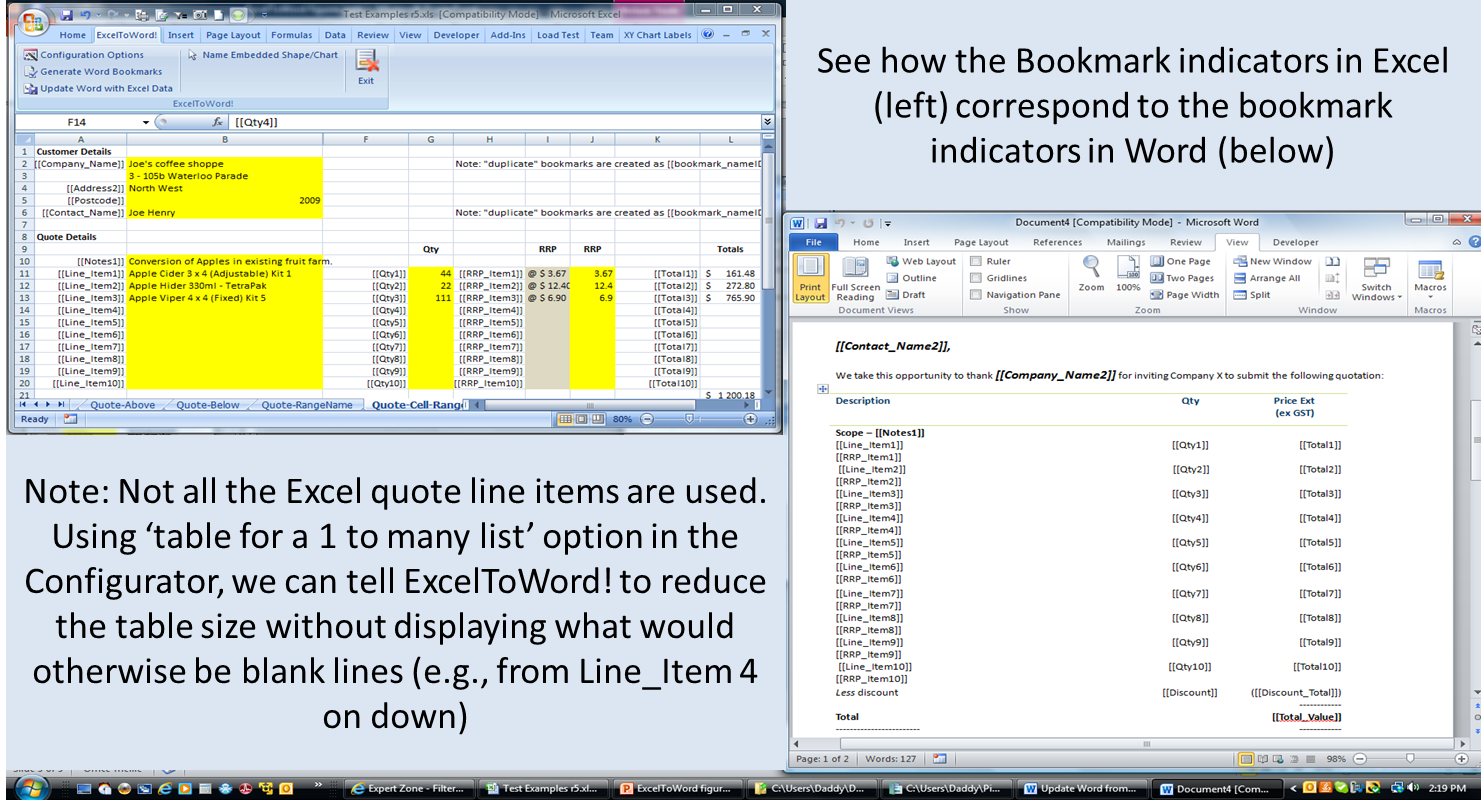
As a result of this template design, there are 1 to many rows of bookmarks, enumerating invoice items. When ExcelToWord! is initiated, if the Excel template has data for only the first few line items (the remainder are blank/not needed, in implementation, the remaining line items in the Word document would look like blank lines in the Word Template – a potentially unattractive gap between a list of line items, and the rest of the invoice.
This is handled through the creation of a table in your Word template, where each row in the table represents a line item (which might have several columns of text and/or bookmarks – for example):
[[LineItem1]], [[Quantity1]], [[Amount1]]
[[LineItem2]], [[Quantity2]], [[Amount2]]
[[LineItem3]], [[Quantity3]], [[Amount3]]
…
…
[[LineItem20]], [[Quantity20]], [[Amount20]] ‘<- the last line item
The above would be a Word table, having 3 columns, 20 rows, with each line items’ data on a separate row.
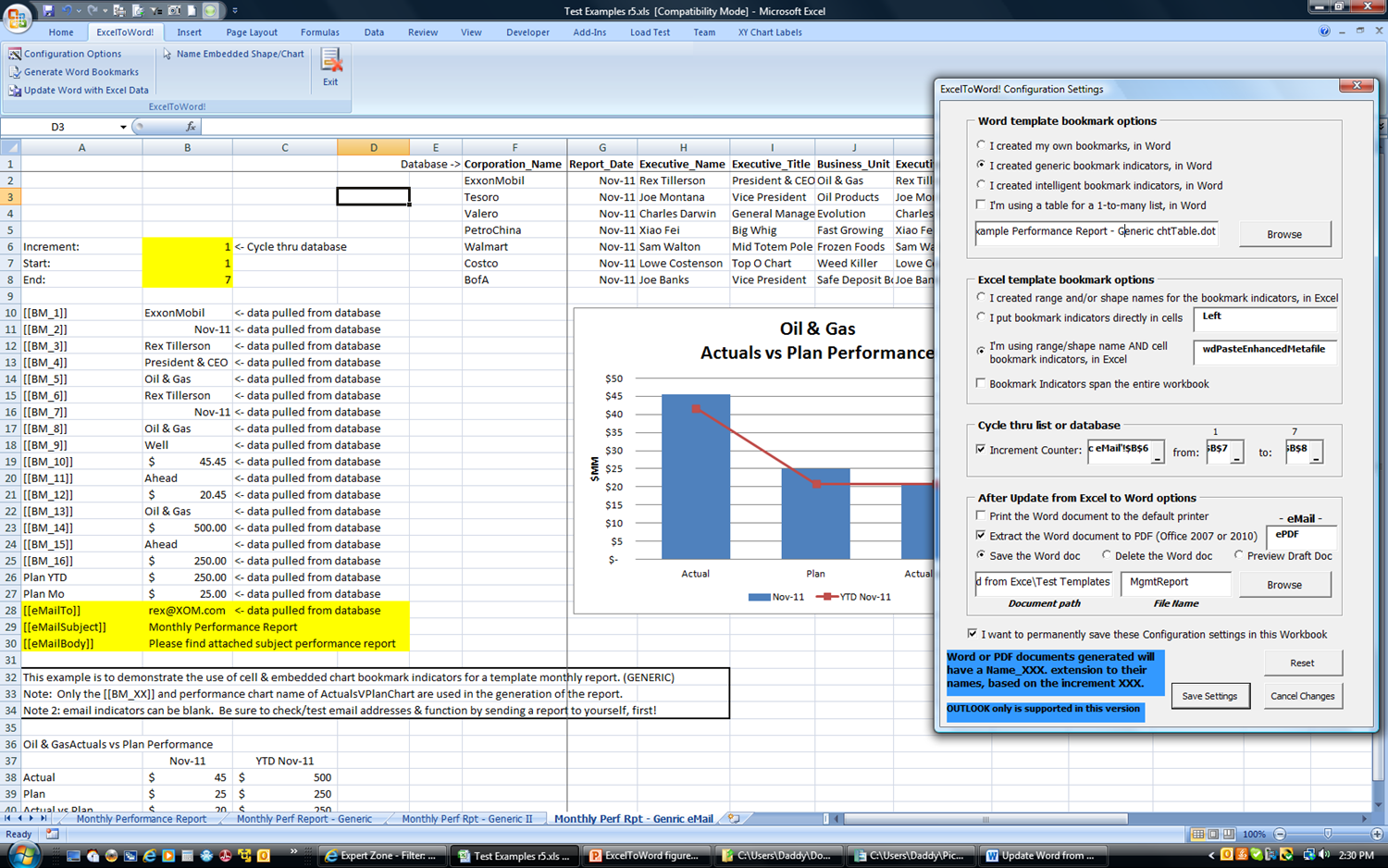
Through the Configuration panel of ExcelToWord! you can specify that tables containing rows with NO text/data be removed when the document is generated via the Update process. In this way, the table will dynamically conform to available data.
See example demonstration of steps 4-6, below:
Appendix - The Code
The primary utility depends on three major routines:
1. readWordDocMakeBookmarks()
2. setWordBookmark()* -, the code then searches for the [[bookmark_name]] indicators in the text. Once found, a bookmark is generated based on the specific text range.
3. copyDataToWord() – once a template with bookmarks is created (through whatever means – manual, generic, or intelligent/personalized), the code opens that template file as a Word document, enumerating all Word bookmarks, searching Excel for each data point (via range name, or workbook find – based on Configuration settings) and replacing each bookmark with its Excel data counterpart. Finally, print, extract to PDF, save, and/or delete is executed to complete the process.
2. setWordBookmark()* -, the code then searches for the [[bookmark_name]] indicators in the text. Once found, a bookmark is generated based on the specific text range.
3. copyDataToWord() – once a template with bookmarks is created (through whatever means – manual, generic, or intelligent/personalized),
*Note: The code for finding bookmarks in Word was achieved leveraging RegEx – specifically the RegExpFind function (see matthewspatrick's most excellent article on the subject: http:\A_1336.html). My RegEx pattern \[{2}[A-Za-z0-9_]+\]{2} looks for the [[ ]] brackets to define where the bookmark name would be, with alphanumeric and underscore allowed inside the brackets. Bookmark indicators with any other characters or spaces are included inside the brackets will be ignored (Word doesn't allow spaces in Bookmark names, and through convenience, disallowed any other characters). Check your template_BM.dot to ensure all your Bookmarks were created, just to be sure you didn’t use any disallowed characters!
While not the entire codeset (which is downloadable by all) I tried to post what I believed was the most interesting/relevant to the app.
Here’s the code for reading the Word document, making bookmarks as a result of scanning for bookmark indicators:
Option Explicit
Public Sub generateWordBookmarks(Optional control As Object) 'IRibbonControl
Dim xMsg As Long
Dim myMsg As String
'The Configuration Options panel should not have saved a set of invalid options, but to be sure,
'complete a final pass of run-through validations prior to the update. Recall, it could be days, weeks, or months since this workbook
'was originally created and successfully completed an ExcelToWord! update. As a result, file paths, templates, etc., could have been
'deleted, renamed, or relocated...
If Application.Workbooks.Count = 0 Then
MsgBox "No files open to process"
Exit Sub
End If
If ActiveSheet.Type <> xlWorksheet Then
MsgBox "You can only run ExcelToWord! functions from Excel Worksheets (e.g., Not from Chart Sheets, etc.)", vbCritical
ElseIf myEvaluate(CONFIG_SCOPE) = "" Or (myEvaluate(CONFIG_SCOPE) = "Worksheet" And _
myEvaluate(CONFIG_SHEET) = "") Then 'scope has not been defined, go to Configurator
xMsg = MsgBox("Configurator settings have not been defined. Proceed to Configuration Options?", vbYesNo, "Proceed to Configuration Options?")
If xMsg = vbYes Then Call showConfigurator
Else
'first, validate all entries in the current configuration (as source files may have been deleted/renamed since the configuration was set up.
Call setPublicVariables 'load configuration for current activity
'check for Word template existence
If Not validateFileFolderSelection(strWD_TemplFile, "Word", "template", False) Then
MsgBox "The path\filename no longer exists" & Chr(10) & Chr(10) & strWD_TemplFile & Chr(10) & Chr(10) & "Please return to Configuration Options and Fix entry, or delete entry and BROWSE for file", vbOKOnly, "Configurator Error"
ElseIf strWD_TemplOpt = "OWN" Then
MsgBox "Configuration Options set to ""OWN"" therefore cancelling request to generate bookmarks. Instead, you may proceed directly to the Update Word from Excel process."
Else
Call readWordDocMakeBookmarks(IIf(strWD_TemplOpt = "GENERIC", True, False), strWD_TemplFile)
End If
End If
End Sub
Private Sub readWordDocMakeBookmarks(bGeneric As Boolean, fPathFname As String)
'Dim oWA As Word.Application 'early binding
Dim oWA As Object 'late binding
'Dim oWD As Word.Document 'early binding
Dim oWD As Object 'late binding
'Dim para As Paragraph 'early binding
Dim para As Object
Dim bmks As Variant
Dim i As Integer
'Dim myDict As Scripting.Dictionary 'early binding
Dim myDict As Object 'late binding
Dim cntDict As Long
Dim regExPattern As String
Dim bResult As Boolean
Dim fName As String, fPath As String, fBMName As String
Dim fNameExt As String
Dim tempBMK As String
Dim objWkbSht As Object
'Rules for Bookmarks - NO duplicates, NO spaces. Must start with [[ and end with ]], may include alphanumeric and underscore only
'This app will find proposed bookmarks in word document, and make them according to the book mark "name" inside the [[name]] brackets
'It will then save the file as a NEW TEMPLATE to be used with this application, named template_BM.dotx
'On the active sheet of the active workbook will be a range name called "WordDoc" that will be the name of the Word template
'to be found in the active workbook's path.
'If bookmarks already exist in the document, the new bookmark will overwrite the old. Formfields having same name as proposed bookmarks will prompt
'option to skip that bookmark (encouraging user to clean up, after) or abort the update process.
'start new instance of Word, regardless if an instance exists
'Set oWA = New Word.Application 'early binding
Set oWA = CreateObject("Word.Application") 'late binding
'Set myDict = New Scripting.Dictionary 'early binding
Set myDict = CreateObject("Scripting.Dictionary") 'late binding
fPath = getPathFromPathFName(fPathFname)
fName = Right(fPathFname, Len(fPathFname) - Len(fPath))
fNameExt = Right(fName, Len(fName) - InStr(fName, ".") + 1) 'get file extension
fBMName = Left(fName, InStr(fName, ".") - 1) & "_BM" & fNameExt
Set oWD = oWA.Documents.Open(filename:=fPath & fName, ReadOnly:=True, AddToRecentFiles:=False) 'ReadOnly - never subject original template to corruption, .Add opens document based on template, .Open opens the Word TEMPLATE
oWA.Visible = oWA_VISIBLE
regExPattern = "\[{2}[A-Za-z0-9_]+\]{2}" 'looks for strings like [[alphanumeric or underscore]] spaces in BM's not permitted, also no duplicates
For Each para In oWD.Paragraphs
bmks = RegExpFind(para.Range.Text, regExPattern)
On Error GoTo flagError
If Not IsNull(bmks) Then
For i = 0 To UBound(bmks)
Application.StatusBar = "Processing bookmark " & bmks(i) & "..."
cntDict = cntDict + 1 'new bookmark counter
'do some validation - ensure GENERIC bookmarks all are of the type [[BM]], and that INTELLIGENT/PERSONALIZED bookmarks are unique via dictionary
If bGeneric And bmks(i) <> "[[BM]]" Then Err.Raise 3, Description:="GENERIC bookmark is invalid - must be EXACTLY ""[[BM]]""" & _
Chr(10) & "BookMark: " & bmks(i) & Chr(10) & "Paragraph: " & para.Range.Text
If bGeneric Then
tempBMK = Left(bmks(i), Len(bmks(i)) - 2) & "_" & cntDict & "]]" 'embed counter in bookmark name
Else
tempBMK = bmks(i)
End If
'continue validation - ensure bookmark is unique, and if so, then generate bookmark
If Not myDict.Exists(tempBMK) Then
myDict.Add tempBMK, cntDict
'now, modify the Word Template, setting the bookmark
bResult = setWordBookMark(oWD, para, tempBMK, bGeneric)
If Not bResult Then Err.Raise 2, Description:="Cannot create bookmark in Word for some reason" & Chr(10) & "BookMark: " & bmks(i) & Chr(10) & "Paragraph: " & para.Range.Text
Else
Err.Raise 1, Description:="Error: Duplicate found on proposed bookmark " & tempBMK & ": Bookmark proposed does not follow rules: " _
& Chr(10) & Chr(10) & "Rules for Bookmarks - NO duplicates, NO spaces. Must start with [[ and end with ]]," & _
" may include alphanumeric and underscore only"
End If
Next i
End If
On Error GoTo 0
Next para
Application.StatusBar = "Saving Bookmark Template: " & fPath & fBMName & "..."
'Note - FileFormat:= not needed - save in same format
oWD.SaveAs filename:=fPath & fBMName, _
LockComments:=False, Password:="", AddToRecentFiles:=True, _
WritePassword:="", ReadOnlyRecommended:=False, EmbedTrueTypeFonts:=False, _
SaveNativePictureFormat:=False, SaveFormsData:=False, SaveAsAOCELetter:=False
'now, add this to the set of options for this sheet/workbook, for retrieval on the ExcelToWord! Update process
strWD_TemplateBMFile = fPath & fBMName
Set objWkbSht = IIf(bXL_SpanWorkbook, ActiveWorkbook, ActiveSheet)
objWkbSht.Names.Add Name:="ETW_strWD_TemplateBMFile", RefersTo:=strWD_TemplateBMFile, Visible:=NAME_VISIBLE
Application.StatusBar = False
MsgBox "Successful Creation of " & myDict.Count & " Bookmarks" & Chr(10) & Chr(10) & "Revised Template File Has Been Saved: " & fBMName
gracefulExit:
Application.StatusBar = False
myDict.RemoveAll
Set myDict = Nothing
oWA.Quit
Exit Sub
flagError:
If Err.Number < 5 Then
MsgBox "Error: " & Err.Number & "->" & Err.Description & Chr(10) & "Please correct problem with template/workbook and try again", vbCritical, "Aborting!..."
Else
MsgBox "VBA Error: " & Err.Number & "->" & Err.Description & Chr(10) & "Hit ok to enter Debugger", vbOKOnly, "Please correct VBA code - Aborting"
Stop 'hit F8 to resume at error line for debug mode
Resume
End If
Resume gracefulExit
End Sub
'Private Function setWordBookMark(oWD As Word.Document, para As Word.Paragraph, bmStr As Variant, bGeneric As Boolean) As Boolean 'early binding
Private Function setWordBookMark(oWD As Object, para As Object, bmStr As Variant, bGeneric As Boolean) As Boolean 'late binding
'Dim oWA As Word.Application 'early binding
Dim oWA As Object 'late binding
'Dim oBMK As Word.Bookmark 'early binding
Dim oBMK As Object 'late binding
Dim BM_Name As String
Dim xMsg As Long
Dim bDelete As Boolean
'Searches for Word bookmark indicators, then creates a bookmark for each.
'Generic bookmark indicators are incremented and "flagged" (e.g., [[BM_XX]]) with numeric increments, in the text of the template, as well.
bDelete = True
BM_Name = Left(Right(bmStr, Len(bmStr) - 2), Len(Right(bmStr, Len(bmStr) - 2)) - 2) 'eliminate the left and right [[ ]] braces from BookMark name
Set oWA = oWD.Parent
oWA.Selection.Find.ClearFormatting
With oWA.Selection.Find
If bGeneric Then
.Text = "[[BM]]"
.Replacement.Text = bmStr
Else
.Text = bmStr
End If
.Forward = True
.Wrap = wdFindContinue
.Format = False
.MatchCase = False
.MatchWholeWord = False
.MatchWildcards = False
.MatchSoundsLike = False
.MatchAllWordForms = False
End With
If bGeneric Then
oWA.Selection.Find.Execute Replace:=wdReplaceOne
Else
oWA.Selection.Find.Execute
End If
If BookmarkExists(oWD, BM_Name) Then 'existing bookmarks will be overwritten, but test formfields, first
Set oBMK = oWD.Bookmarks(BM_Name)
If ISFormfield(oBMK) Then
xMsg = MsgBox("Bookmark: " & BM_Name & " already exists as a Form Field - do you want to SKIP this bookmark (YES - SKIP, keeping the bookmark/formfield ""as-is"" (note, you'll want to eliminate or restate a new name for the [[" & BM_Name & "]] in the Word template),CANCEL - Abort the process?", vbYesNoCancel, "YES - Skip & Continue, CANCEL - Abort")
If xMsg = vbYes Then
setWordBookMark = True
Exit Function
Else
setWordBookMark = False
Exit Function
End If
End If
oBMK.Delete
End If
'now, create the bookmark
With oWD.Bookmarks 'now add the bookmark
.Add Range:=oWA.Selection.Range, Name:=BM_Name
.DefaultSorting = wdSortByName
.ShowHidden = False
End With
setWordBookMark = True
End Function
'Private Sub enumerateWordBookMarks(oWA As Word.Application) 'early binding
Private Sub enumerateWordBookMarks(oWA As Object) 'late binding
'Dim BkMk As Word.Bookmark 'early binding
Dim BkMk As Object 'late binding
For Each BkMk In oWA.ActiveDocument.Bookmarks
Debug.Print BkMk.Name
Next BkMk
End Sub
'Source: Adapted from http://www.vbaexpress.com/kb/getarticle.php?kb_id=562
'--------------------------------------------------------------------------
'Private Function BookmarkExists(oWD As Word.Document, sBookmark As String) As Boolean 'early binding
Private Function BookmarkExists(oWD As Object, sBookmark As String) As Boolean 'late binding
'Checks if a bookmark exists in the active document
If oWD.Bookmarks.Exists(sBookmark) Then
BookmarkExists = True
Else
BookmarkExists = False
End If
End Function
'Private Function ISFormfield(oBMK As Word.Bookmark) As Boolean 'early binding
Private Function ISFormfield(oBMK As Object) As Boolean 'late binding
'Dim oFormField As Word.FormField 'early binding
Dim oFormField As Object 'late binding
'Dim oWD As Word.Document 'early binding
Dim oWD As Object 'late binding
'Checks if bookmark IS a formfield
Set oWD = oBMK.Parent
If oWD.FormFields.Count = 0 Then
ISFormfield = False
Else
For Each oFormField In oWD.FormFields()
If oFormField.Name = oBMK.Name Then
ISFormfield = True
End If
Next
End If
End Function
'--------------------------------------------------------------------------Option Explicit
Public Const RANGE_OBJ = 1
Public Const RANGE_NAME = 2
Public Const SHAPE_OBJ = 3
Public Const CHART_OBJ = 4
Public Const CHART_EMB = 5
Public myBM As BM_Indicators
Public Sub updateWordFromExcel(Optional control As Object) 'IRibbonControl
Dim validError As String
Dim strNameScope As String
Dim xMsg As Long
Dim strPathFName As String
Dim wkb As Workbook
Dim wks As Worksheet
'Dim oWA As Word.Application 'early binding
Dim oWA As Object 'late binding
'Dim oWD As Word.Document 'early binding
Dim oWD As Object 'late binding
'Dim bkMk As Word.Bookmark 'early binding
Dim BkMk As Object 'late binding
Dim fPath As String
Dim fName2 As String
Dim PDFname As String
Dim PDFname2 As String
Dim fRange As Range
Dim tbl As Object
Dim rw As Object
Dim cl As Object
Dim dataRow As Boolean
'Dim FSO As FileSystemObject 'early binding
Dim FSO As Object 'late binding
Dim BM_col As New BM_Indicators 'collection of bookmark indicators in Excel workbook
Dim eMail_Col As New BM_Indicators ' use same container for email address
Dim myObj As BM_Indicator
Dim bMultiCellOShape As Boolean
Dim bPasteChartSheet As Boolean
Dim bPasteChartEmbed As Boolean
Dim myObjCopy As Object
Dim bResult As Boolean
Dim i As Long
Dim lLoop As Long
Dim rIncrement As Range
Dim lStart As Long
Dim lEnd As Long
Dim xCalc As Long
Dim bDraftPreview As Boolean
Dim bPasteEnhMeta As Boolean
Dim fileAttach As String
'Dim OutApp As Outlook.Application 'early binding
Dim OutApp As Object 'late binding
If Application.Workbooks.Count = 0 Then
MsgBox "No files open to process"
Exit Sub
End If
If ActiveSheet.Type <> xlWorksheet Then
MsgBox "You can only run ExcelToWord! functions from Excel Worksheets (e.g., Not from Chart Sheets, etc.)", vbCritical
Exit Sub
End If
xCalc = Application.Calculation
Application.StatusBar = "Update Word From Excel: Initialization..."
'The Configuration Options panel should not have saved a set of invalid options, but to be sure,
'complete a final pass of run-through validations prior to the update. Recall, it could be days, weeks, or months since this workbook
'was originally created and successfully completed an ExcelToWord! update. As a result, file paths, templates, etc., could have been
'deleted, renamed, or relocated...
'Checking all relevant options
If myEvaluate(CONFIG_SCOPE) = "" Or (myEvaluate(CONFIG_SCOPE) = "Worksheet" And _
myEvaluate(CONFIG_SHEET) = "") Then 'scope has not been defined, go to Configurator
xMsg = MsgBox("Configurator settings have not been defined. Proceed to Configuration Options?", vbYesNo, "Proceed to Configuration Options?")
If xMsg = vbYes Then
GoTo backToUserform
Else
GoTo gracefulExit
End If
End If
'first, validate all entries in the current configuration (as source files may have been deleted/renamed since the configuration was set up.
Call setPublicVariables 'load configuration for current activity
'check scope
strNameScope = myEvaluate(CONFIG_SCOPE)
If strNameScope = "" Then
validError = "CONFIG_SCOPE ERROR: Please revisit the Configuration Options panel, as there's some confusion about the scope. " & _
"No value for scope (Worksheet or Workbook)"
GoTo backToUserform
End If
'ensure word template exists - the one that should have been generated
If strWD_TemplOpt <> "OWN" Then
If strWD_TemplateBMFile = vbNullString Or Not validateFileFolderSelection(strWD_TemplFile, "Word", "template", False) Then
validError = "Word Template File ERROR: The path\filename no longer exists, or needs to be re-generated" & vbCrLf & vbCrLf & "[path\filename]: " & strWD_TemplFile & vbCrLf & vbCrLf & "You may need to just Generate Word Bookmarks, or ..."
GoTo backToUserform
End If
Else
strWD_TemplateBMFile = strWD_TemplFile 'OWN option does not require BM File generation, but name it now, as the rest of the code depends on it
End If
'notify user with options if word document filename exists at that path - overwrite or cancel
If bAftUpdSave Then
'ensure word document path still exists
If strWD_DocPath = vbNullString Or Not validateFileFolderSelection(strWD_DocPath, "Word", "document", True) Then
validError = "New Word Document Path ERROR: The path\filename no longer exists" & vbCrLf & vbCrLf & "[path\filename]: " & strWD_DocPath
GoTo backToUserform
ElseIf strWD_DocFile = vbNullString Then
validError = "New Word Document File ERROR: The filename chosen is no longer valid. You might try save/close Excel, then reload your workbook and check Configuration Options"
GoTo backToUserform
End If
End If
'open word template as a document
'Set FSO = New FileSystemObject 'early binding
Set FSO = CreateObject("Scripting.FileSystemObject") 'late binding
Set wkb = ActiveWorkbook
Set wks = wkb.ActiveSheet
fPath = getPathFromPathFName(strWD_TemplateBMFile)
If bAftUpdPDF Then 'get path for PDF file generation & advise user
If bAftUpdSave Then
PDFname = strWD_DocPath & "\" & strWD_DocFile & ".pdf"
MsgBox "PDF File will be saved in directory:" & vbCrLf & vbCrLf & strWD_DocPath & vbCrLf & vbCrLf & "The same as the generated Word Document", vbOKOnly
Else
PDFname = Left(strWD_TemplateBMFile, InStr(strWD_TemplateBMFile, ".") - 1) & ".pdf"
MsgBox "PDF file will be saved in directory:" & vbCrLf & vbCrLf & fPath & vbCrLf & vbCrLf & "The same as the existing Word Template", vbOKOnly
End If
End If
If FSO.fileExists(strWD_TemplateBMFile) Then
'start new instance of Word, regardless if an instance exists
'Set oWA = New Word.Application 'early binding
Set oWA = CreateObject("Word.Application")
'Prepare for Increment generation
If bXL_Increment Then
lStart = Range(strXL_RefStart).Value
lEnd = Range(strXL_RefEnd).Value
Else
lStart = 1
lEnd = 1
End If
For lLoop = 0 To lEnd - lStart
If bXL_Increment Then 'set Incrementer value so data refresh is forced
Range(strXL_RefCounter).Value = lStart + lLoop
If xCalc = xlCalculationManual Then Application.Calculate
End If
Set oWD = oWA.Documents.Add(Template:=strWD_TemplateBMFile) 'Create New Document From Template
oWA.Visible = oWA_VISIBLE
'traverse all bookmarks and ensure that those bookmarks exist in Excel, looking at selected options - range, labels, or both
For Each BkMk In oWD.Bookmarks 'first pass to build collection of Excel bookmark indicator (objects) associated with each Word bookmark
'find corresponding Excel key that matches bookmark
'look in range names first, then shape names (e.g., charts,images, etc.)
'then bookmark indicators, as prescribed by the Configuration options selected
Application.StatusBar = "[" & lLoop + 1 & "]:" & "Testing for Bookmark: " & BkMk.Name & "..."
'search range names, then shape names option
Select Case strXL_TemplOpt:
Case "RANGE": 'search range names, then shape names for bookmark indicators
bResult = searchRangeShapes(BM_col, BkMk, bXL_SpanWorkbook)
Case "RANGE_AND_CELL": 'search range names, then shape names, then CELLS for bookmark indicators
bResult = searchRangeShapes(BM_col, BkMk, bXL_SpanWorkbook)
If Not bResult Then 'if not found in range, then look at CELL level
bResult = searchCells(BM_col, BkMk.Name, bXL_SpanWorkbook)
End If
Case "CELL": 'search CELLS for bookmark indicators
bResult = searchCells(BM_col, BkMk.Name, bXL_SpanWorkbook)
End Select
If Not bResult Then 'bookmark not found!
xMsg = MsgBox("Cannot Find Excel data for bookmark: " & BkMk.Name & ". Continue anyway?", vbOKCancel, "Hit OK to Continue, Cancel to Abort")
If xMsg = vbCancel Then GoTo gracefulExit
End If
Next BkMk
'now search for eMail marker in workbook [[eMail]]
If strAftUpdEmail <> "" Then
bResult = searchCells(eMail_Col, "eMailTo", bXL_SpanWorkbook) 'just add the eMail indicator to the bookmark indicators collection
If bResult Then
bResult = searchCells(eMail_Col, "emailSubject", bXL_SpanWorkbook)
If bResult Then
bResult = searchCells(eMail_Col, "emailBody", bXL_SpanWorkbook)
End If
End If
If Not bResult Then 'bookmark not found!
xMsg = MsgBox("Cannot Find Excel data for eMail address: [[eMailTo]], [[eMailSubject]], or [[eMailBody]] is missing. Continue anyway?", vbOKCancel, "Hit OK to Continue, Cancel to Abort")
If xMsg = vbCancel Then GoTo gracefulExit
End If
On Error Resume Next
Set OutApp = GetObject(, "Outlook.Application")
If OutApp Is Nothing Then
'Set OutApp = New Outlook.Application 'early binding
Set OutApp = CreateObject("Outlook.Application") 'late binding
End If
On Error GoTo 0
End If
'now loop through collection of found bookmark indicators, and output results to Word template
For Each BkMk In oWD.Bookmarks 'second pass: now we have matching Excel bookmark indicators and Word objects
Application.StatusBar = "[" & lLoop + 1 & "]:" & "Second Pass: Updating Word bookmarks from Excel for Bookmark: " & BkMk.Name & "..."
bMultiCellOShape = False
bPasteChartSheet = False
bPasteChartEmbed = False
On Error Resume Next 'recall, user may have allowed "Continue anyway" if bookmark indicator wasn't found
Set myObj = BM_col(BkMk.Name)
If Err.Number <> 0 Then 'assumed missed bookmark, but continue
'do nothing
On Error GoTo 0
ElseIf Not myObj Is Nothing Then
On Error GoTo 0
'determine if type resolves to a single cell, a range > 1 cell, or a shape
Select Case myObj.BM_Type
Case RANGE_NAME:
bMultiCellOShape = IIf(myObj.obj.RefersToRange.Count > 1, True, False)
Set myObjCopy = myObj.obj.RefersToRange
Case RANGE_OBJ:
bMultiCellOShape = False
Set myObjCopy = myObj.obj
Case SHAPE_OBJ:
bMultiCellOShape = True
Set myObjCopy = myObj.obj
Case CHART_OBJ:
Set myObjCopy = myObj.obj.ChartArea
bPasteChartSheet = True
Case CHART_EMB:
Set myObjCopy = myObj.obj
bPasteChartEmbed = True
End Select
If bPasteChartSheet Or bPasteChartEmbed Then
'need to test if the bookmark in Word is a Shape, or Text
Dim r As Object
Set r = oWA.Selection.GoTo(what:=wdGoToBookmark, Name:=BkMk.Name)
If r.Text <> "" Then 'the bookmark is referencing text - a normal text-based bookmark indicator
myObjCopy.Copy
On Error Resume Next
BkMk.Range.PasteSpecial Placement:=wdInLine, DataType:=iXL_TemplOptShapePaste
If Err.Number <> 0 Then
BkMk.Range.PasteSpecial Placement:=wdInLine, DataType:=wdPasteEnhancedMetafile
bPasteEnhMeta = True
End If
On Error GoTo 0
Application.CutCopyMode = False
ElseIf Not pastePicToBkMk(oWA, myObjCopy, BkMk) Then 'the bookmark is referencing a Shape, so paste via fill effects of the Shape
'paste shape/image/chart as picture into Word Shape bookmark
xMsg = MsgBox("Could not paste shape/image as a fill picture for bookmark: " & BkMk.Name & "." & _
vbCrLf & vbCrLf & "Continue anyway?", vbYesNo, "Hit YES to Continue, NO to Abort")
If xMsg = vbNo Then GoTo gracefulExit
End If
ElseIf bMultiCellOShape Then
myObjCopy.Copy
On Error Resume Next
BkMk.Range.PasteSpecial Placement:=wdInLine, DataType:=iXL_TemplOptShapePaste
If Err.Number <> 0 Then
BkMk.Range.PasteSpecial Placement:=wdInLine, DataType:=wdPasteEnhancedMetafile
bPasteEnhMeta = True
End If
On Error GoTo 0
Application.CutCopyMode = False
Else
If myObjCopy.Value <> "" Then
BkMk.Range.Text = Application.WorksheetFunction.Text(myObjCopy.Value, myObjCopy.NumberFormat)
Else
BkMk.Range.Text = myObjCopy.Value 'use base format for all else
End If
Application.CutCopyMode = False
End If
End If
On Error GoTo 0
Next BkMk
'The following code assumes that the application requires a list of items which can vary from 1 to unlimited
If bWD_Table Then
'So, there are 1 to many rows of BookMarks - e.g., invoice lineItems, For Example:
'lineItem1, description1, amount1
'lineItem2, description2, amount2
'...
'lineItem-n, description-n, amount-n
'
'As a result, if the Excel template uses only the first few line items, the remaining line items would be a blank
'copy from Excel to Word, leaving blank lines in the Word Template - and perhaps an unattractive gap between a list of line items,
'and the rest of the invoice.
'
'The following loop traverses all tables in the template and deletes lineItems that are blank
Application.StatusBar = "[" & lLoop + 1 & "]:" & "Cleaning Word Template Tables..."
'If there are any tables in the Word template, and their row is empty, then delete that empty row
For Each tbl In oWD.Tables
For Each rw In tbl.Rows 'examine each row
dataRow = False
For Each cl In rw.Cells 'look at all cells in each row
If Len(Trim(Application.WorksheetFunction.Clean(cl.Range.Text))) > 0 Then
dataRow = True 'if there's data in any cell, then there's data in the row
Exit For
End If
Next cl
If Not dataRow Then
rw.Delete 'delete any rows in the table that all cells on that row are empty
End If
Next rw
Next tbl
End If
'The document is now complete, all that remains is to print, extract to PDF, and/or save, then close the file, per Configuration Options
If bAftUpdPrint Then
Application.StatusBar = "[" & lLoop + 1 & "]:" & "Printing Word Document..."
oWD.PrintOut
End If
If bAftUpdPDF Then
'Save Word Document as PDF
'for Office 2007 with Office PDF Add-On from http://labnol.blogspot.com/2006/09/office-2007-save-as-pdf-download.html, or
'http://www.ehow.com/how_7184784_save-word-docs-pdf-vba.html
If bXL_Increment Then
PDFname2 = Left(PDFname, Len(PDFname) - 4) & "_" & Format(lLoop + 1, "000") & ".pdf"
End If
Application.StatusBar = "[" & lLoop + 1 & "]:" & "Generating PDF file: " & PDFname2
On Error Resume Next
oWD.ExportAsFixedFormat OutputFileName:=PDFname2, ExportFormat:= _
wdExportFormatPDF, OpenAfterExport:=False, OptimizeFor:= _
wdExportOptimizeForPrint, Range:=wdExportAllDocument, _
Item:=wdExportDocumentContent, IncludeDocProps:=True, KeepIRM:=True, _
CreateBookmarks:=wdExportCreateNoBookmarks, DocStructureTags:=True, _
BitmapMissingFonts:=True, UseISO19005_1:=False
If Err.Number <> 0 Then
MsgBox "Unable to SaveAs/ExportTo PDF - you are either: " & vbCrLf & vbCrLf & _
"1) Running Excel 2003 or earlier, " & vbCrLf & _
"2) Running Excel 2007 without the required Office 2007 Save as PDF Add-on (See http://www.microsoft.com/download/en/details.aspx?id=7)" & vbCrLf & _
" or " & vbCrLf & _
"3) There's a problem with your Save as PDF capability in either Excel 2007 or Excel 2010." & vbCrLf & vbCrLf & _
"Please repair and try again", vbCritical, "Skipping Save as PDF step..."
End If
On Error GoTo 0
End If
If bAftUpdSave Then
'Save Word document, in current format (e.g., doc, docx, etc.) then close file
If bXL_Increment Then
fName2 = strWD_DocFile & "_" & Format(lLoop + 1, "000")
Else
fName2 = strWD_DocFile
End If
Application.StatusBar = "[" & lLoop + 1 & "]:" & "Saving Word Document: " & strWD_DocPath & "\" & fName2
oWD.SaveAs Filename:=strWD_DocPath & "\" & fName2
oWD.Close
Set oWD = Nothing
ElseIf bAftUpdDelete Then 'otherwise, done with file, without save
oWD.Close savechanges:=False
Else 'then just preview the new Word document
oWA.Visible = True
bDraftPreview = True
MsgBox "Toggle to Word document for Preview", vbOKOnly, "Terminating operation after 1st draft generated"
GoTo gracefulExit
End If
If strAftUpdEmail <> "" And Not eMail_Col Is Nothing Then
'eMail the PDF or Word document
If UCase(strAftUpdEmail) = UCase("ePDF") Then 'process email w/ PDF
fileAttach = PDFname2
Else 'process email w/ Word document
fileAttach = oWD.Name
End If
If fileAttach <> "" Then
Call processEmail(OutApp, eMail_Col("emailTo").obj, eMail_Col("emailSubject").obj, eMail_Col("emailBody").obj, fileAttach)
End If
End If
'clean up before next pass
BM_col.RemoveAll
Set BM_col = Nothing
If Not eMail_Col Is Nothing Then 'prepare for next eMail address, if we're emailing
eMail_Col.RemoveAll
Set eMail_Col = Nothing
End If
Next lLoop
Application.StatusBar = False
MsgBox "Successful ExcelToWord! production process", vbOKOnly
Else
MsgBox "Template file: " & strWD_TemplateBMFile & " not found at " & fPath & " - please create Template and try again", vbCritical, "Aborting"
End If
GoTo gracefulExit
backToUserform:
xMsg = MsgBox(validError & vbCrLf & vbCrLf & "Open Configuration Options to make changes?", vbYesNo, _
"Configurator Error: Hit YES to pull up Configuration Options, NO to Abort")
If xMsg = vbYes Then Call showConfigurator
gracefulExit:
Application.StatusBar = False
If Not bDraftPreview Then 'only if successful generation of draft will this be skipped
'clean up open word document and application, if any
If Not oWD Is Nothing Then oWD.Close savechanges:=False
If Not oWA Is Nothing Then oWA.Quit
End If
BM_col.RemoveAll
Set BM_col = Nothing
If bPasteEnhMeta Then MsgBox "Could not paste all objects according to style selected, so pasted as Enhanced Metafile, instead"
End Sub
'Private Function searchRangeShapes(BM_col As BM_Indicators, bkMk As Word.Bookmark, bXL_SpanWorkbook As Boolean) As Boolean 'early binding
Private Function searchRangeShapes(BM_col As BM_Indicators, BkMk As Object, bXL_SpanWorkbook As Boolean) As Boolean 'late binding
Dim wkb As Workbook
Dim wks As Worksheet
Dim cht As Chart
Dim myActWks As Worksheet
Dim rName As Name
Dim shp As Shape
Dim strSearch As String
Dim xMsg As Long
Dim myQuote_char As String
Set wkb = ActiveWorkbook
Set myActWks = wkb.ActiveSheet
'Search for Range name matching Excel Bookmark Indicator name, at ActiveSheet level, then Workbook level, exiting on first instance found
If Not bXL_SpanWorkbook Then 'search within ActiveSheet scope, only
If InStr(myActWks.Name, SPACE_CHAR) <> 0 Then
myQuote_char = QUOTE_CHAR
Else
myQuote_char = vbNullString
End If
strSearch = UCase(myQuote_char & myActWks.Name & myQuote_char & "!" & BkMk.Name)
On Error Resume Next
Set rName = myActWks.Names(strSearch)
If Err.Number = 0 Then
BM_col.Add BkMk.Name, rName, RANGE_NAME
searchRangeShapes = True
Exit Function 'stop when first instance is found
End If
On Error GoTo 0
Else
On Error Resume Next
Set rName = wkb.Names(BkMk.Name)
If Err.Number = 0 Then
BM_col.Add BkMk.Name, rName, RANGE_NAME
searchRangeShapes = True
Exit Function 'stop when first instance is found
End If
On Error GoTo 0
'finally, find first range name that matches at the worksheet level - span workbook has workbook level name priority,
'then worksheet name, starting with activesheet as priority
'Check ActiveSheet
If InStr(myActWks.Name, SPACE_CHAR) <> 0 Then
myQuote_char = QUOTE_CHAR
Else
myQuote_char = vbNullString
End If
strSearch = UCase(myQuote_char & myActWks.Name & myQuote_char & "!" & BkMk.Name)
On Error Resume Next
Set rName = myActWks.Names(strSearch)
If Err.Number = 0 Then
BM_col.Add BkMk.Name, rName, RANGE_NAME
searchRangeShapes = True
Exit Function 'stop when first instance is found
End If
On Error GoTo 0
'now check the rest of the sheets
For Each wks In wkb.Worksheets
If wks.Name <> myActWks.Name Then
If InStr(wks.Name, SPACE_CHAR) <> 0 Then
myQuote_char = QUOTE_CHAR
Else
myQuote_char = vbNullString
End If
strSearch = UCase(myQuote_char & wks.Name & myQuote_char & "!" & BkMk.Name)
On Error Resume Next
Set rName = wks.Names(strSearch)
If Err.Number = 0 Then
BM_col.Add BkMk.Name, rName, RANGE_NAME
searchRangeShapes = True
Exit Function 'stop when first instance is found
End If
On Error GoTo 0
End If
Next wks
End If
'if we didn't find it in a Range, then let's look at shapes - e.g., charts, images, and other assorted shapes, using the Shapes collection
'search workbook_level names, then worksheet names, on every sheet, until found
If Not bXL_SpanWorkbook Then
On Error Resume Next
Set shp = myActWks.Shapes(BkMk.Name)
If Err.Number = 0 Then
If shp.Type = msoChart Then 'embedded chart
BM_col.Add BkMk.Name, shp, CHART_EMB
Else
BM_col.Add BkMk.Name, shp, SHAPE_OBJ
End If
searchRangeShapes = True
Exit Function 'stop when first instance is found
End If
On Error GoTo 0
'Chart sheets can exist, even though bXL_SpanWorkbook is false, so test for those
On Error Resume Next
Set cht = wkb.Charts(BkMk.Name)
If Err.Number = 0 Then
BM_col.Add BkMk.Name, cht, CHART_OBJ
searchRangeShapes = True
Exit Function
End If
On Error GoTo 0
Else 'search workbook_level shape names, then worksheet shape names, on every sheet
'check for chart sheet, first
On Error Resume Next
Set cht = wkb.Charts(BkMk.Name)
If Err.Number = 0 Then
BM_col.Add BkMk.Name, cht, CHART_OBJ
searchRangeShapes = True
Exit Function
End If
'then look at embedded shapes at the worksheet level
For Each wks In wkb.Worksheets
On Error Resume Next
Set shp = wks.Shapes(BkMk.Name)
If Err.Number = 0 Then
If shp.Type = msoChart Then 'embedded chart
BM_col.Add BkMk.Name, shp, CHART_EMB
Else
BM_col.Add BkMk.Name, shp, SHAPE_OBJ
End If
searchRangeShapes = True
Exit Function 'stop when first instance is found
End If
Next wks
End If
'otherwise, fail out
End Function
Private Function searchCells(BM_col As BM_Indicators, strBkMk As String, bXL_SpanWorkbook As Boolean) As Boolean
Dim fRange As Range
Dim wkb As Workbook
Dim wks As Worksheet
Dim myActWks As Worksheet
Dim focusRange As Range
'routine searches for Excel bookmark indicators, identifying each corresponding data-point adjacent to the indicator inside the BM_Indicators class collection
Set wkb = ActiveWorkbook
Set myActWks = wkb.ActiveSheet
For Each wks In wkb.Worksheets
If bXL_SpanWorkbook Or (bXL_SpanWorkbook = False And wks.Name = myActWks.Name) Then 'search all worksheets, or active sheet
Set fRange = wks.Cells.Find(what:="[[" & strBkMk & "]]", LookIn:=xlValues, lookat:=xlWhole)
If Not fRange Is Nothing Then
On Error Resume Next
Select Case strXL_TemplOptCell
Case "Left": Set focusRange = fRange.Offset(0, 1)
Case "Above": Set focusRange = fRange.Offset(1, 0)
Case "Right": Set focusRange = fRange.Offset(0, -1)
Case "Below": Set focusRange = fRange.Offset(-1, 0)
End Select
If Err.Number <> 0 Then
MsgBox "You indicated bookmark indicators would be adjacent " & UCase(strXL_TemplOptCell) & " of the data, while bookmark indicator " & strBkMk & " at " & "'" & fRange.Worksheet.Name & "'!" & fRange.Address & " throws an error when that offset is performed." & vbCrLf & vbCrLf & "Please recast bookmark: " & strBkMk, vbCritical, "Aborting..."
searchCells = False
Exit Function
End If
On Error GoTo 0
BM_col.Add strBkMk, focusRange, RANGE_OBJ
searchCells = True
Exit Function 'stop when first instance is found
End If
End If
Next wks
End Function
'Private Function pastePicToBkMk(oWA As Word.Application, myObjCopy As Object, bkMk As Word.Bookmark) As Boolean 'early binding
Private Function pastePicToBkMk(oWA As Object, myObjCopy As Object, BkMk As Object) As Boolean 'late binding
Dim strTmpPicFile As String
Dim r As Object
'logic to change bookmark shape fill effects, importing temporary image
On Error GoTo errHandler
'first, save the image to a temporary file
strTmpPicFile = export(myObjCopy)
'then, navigate to the bookmark, and change the fill effects, importing the image
Set r = oWA.Selection.GoTo(what:=wdGoToBookmark, Name:=BkMk.Name)
'no line around shape and ensure picture fits re: aspect ratio
r.ShapeRange.Fill.Transparency = 0#
r.ShapeRange.Line.Visible = msoFalse
r.ShapeRange.LockAspectRatio = msoFalse
'replace recorded filename with temporary file name just generated
r.ShapeRange.Fill.UserPicture strTmpPicFile
pastePicToBkMk = True
GoTo gracefulExit
errHandler:
pastePicToBkMk = False
gracefulExit:
On Error Resume Next
Kill strTmpPicFile 'delete temporary file
On Error GoTo 0
End Function 'Source Adapted from: http://www.experts-exchange.com/Software/Office_Productivity/Office_Suites/MS_Office/Excel/Q_27403520.html
'May have originated from other cites:
' http://www.jpsoftwaretech.com/blog/2009/04/export-excel-range-to-a-picture-file-redux/, or
' http://peltiertech.com/WordPress/export-chart-as-image-file/
Public Function export(shp As Object) As String
Dim pic_object As Shape
Dim pic_height As Double
Dim pic_with As Double
Dim fName As String
Dim tmp_object As Chart
'Exports Shape/Image/Chart to a JPG file by first pasting it into a temporary chart object, then exporting that object as a JPG file
Set pic_object = Workbooks(shp.Parent.Parent.Name).Sheets(shp.Parent.Name).Shapes(shp.Name)
fName = ActiveWorkbook.path & "\" & pic_object.Name & ".png"
pic_height = pic_object.Height
pic_width = pic_object.Width
pic_object.CopyPicture appearance:=xlScreen, Format:=xlPicture
Set tmp_object = ActiveSheet.ChartObjects.Add(1, 1, pic_object.Width, pic_object.Height).Chart
With tmp_object
.ChartArea.Border.LineStyle = 0
.Paste
.export filename:=fName
.Parent.Delete
End With
export = fName
End FunctionAnd, finally, here’s the Configuration Options panel data handling routines that maintain a cadre of settings that are saved at the workbook and worksheet level, via hidden range names:
Option Explicit
'Configurator Options --------------------
Public Const CONFIG_SETTINGS = "ETW_strWD_TemplOpt,ETW_bWD_Table,ETW_strWD_TemplFile,ETW_strWD_TemplateBMFile,ETW_strXL_TemplOpt,ETW_strXL_TemplOptShapePaste,ETW_strXL_TemplOptCell,ETW_bXL_SpanWorkbook,ETW_bXL_Increment,ETW_strXL_RefCounter,ETW_strXL_RefStart,ETW_strXL_RefEnd,ETW_bAftUpdPrint,ETW_bAftUpdPDF,ETW_bAftUpdSave,ETW_strAftUpdEmail,ETW_bAftUpdDelete,ETW_bAftUpdPreview,ETW_strWD_DocPath,ETW_strWD_DocFile,ETW_bSaveConfig"
Public Const RANGE_REF = "ETW_strXL_RefCounter,ETW_strXL_RefStart,ETW_strXL_RefEnd"
Public Const ChartShapeImagePasteOptions = "wdPasteBitmap,wdPasteDeviceIndependentBitmap,wdPasteEnhancedMetafile,wdPasteMetafilePicture,wdPasteOLEObject"
Public Const EmailWordOrPDFOptions = ",eWord,ePDF"
Public iXL_TemplOptShapePaste As Integer
Public Const adjacent = "Left,Above,Right,Below" '0,1,2,3. 0-Default = Left
Public Const CONFIG_SCOPE = "ETW_ConfiguratorScope"
Public Const CONFIG_SHEET = "ETW_ConfigSheet"
Public Const NAME_VISIBLE = False 'whether config names are visible or not - TRUE for debug purposes, only
Public strWD_TemplOpt As String 'Word template options: User created "OWN", "GENERIC", or "INTELLIGENT" bookmarks
Public bWD_Table As Boolean 'TRUE: User has a 1-to-many row table, with bookmarks indicators embedded. Option to delete empty rows from table, during processing
Public strWD_TemplFile As String 'Original word template - the starting point
Public strWD_TemplateBMFile As String 'Generated Word template, with bookmarks either user/system generated
Public strXL_TemplOpt As String 'Excel template options: User created named ranges/shapes, bookmark indicators to the left/above/right/below of data, or both
Public strXL_TemplOptShapePaste As String 'option for Picture or OLE Object link to Excel with shape paste (e.g., chart)
Public strXL_TemplOptCell As String 'bookmark indicators to the left, above, right, or below the data
Public bXL_SpanWorkbook As Boolean 'True - configuration options span entire workbook, as opposed to active sheet
Public bXL_Increment As Boolean 'True - Update Word from Excel will cycle based on counter, start & end point
Public strXL_RefCounter As String
Public strXL_RefStart As String
Public strXL_RefEnd As String
Public bAftUpdPrint As Boolean 'True - print after Word document is updated
Public bAftUpdPDF As Boolean 'True - PDF file will be extracted after Word template is updated
Public bAftUpdSave As Boolean 'True - Word document will be saved from Word template
Public bAftUpdDelete As Boolean 'True - Word document will be deleted after the update process (e.g., after printing or PDF process, etc.
Public strAftUpdEmail As String 'ePDF or eWord - Will email the PDF or Word output, as selected
Public bAftUpdPreview As Boolean 'True - just preview Word Draft after generation (only the 1st generated document)
Public strWD_DocPath As String 'path for saving Word document
Public strWD_DocFile As String 'Word document filename
Public bSaveConfig As Boolean 'True - save Configuration Options for next step
'-----------------------------------------
Public Const WORDDOC_PATH = "ETW_WordDocPath" 'stores the last path the user selected when browsing to set a word document path
Public Const WORDTMPL_PATH = "ETW_WordTemplPath" 'stores the last path the user selected when browsing for a word template
Public Const oWA_VISIBLE = False 'True - Word application will be visible during automation
Public Const SPACE_CHAR = " "
Public Const QUOTE_CHAR = "'"
Public closeOut As Boolean
'-------------------------------- Late Binding variables needed ------------------------------
Public Const wdPasteEnhancedMetafile = 9
Public Const wdPasteBitmap = 4
Public Const wdPasteDeviceIndependentBitmap = 5
Public Const wdPasteMetaFilePicture = 3
Public Const wdPasteOLEObject = 0
Public Const wdGoToBookmark = -1
Public Const wdInLine = 0
Public Const wdExportFormatPDF = 17
Public Const wdExportOptimizeForPrint = 0
Public Const wdExportAllDocument = 0
Public Const wdExportDocumentContent = 0
Public Const wdExportCreateNoBookmarks = 0
Public Const wdRelativeHorizontalPositionColumn = 2
Public Const wdRelativeVerticalPositionParagraph = 2
Public Const wdRelativeHorizontalSizePage = 1
Public Const wdRelativeVerticalSizePage = 1
Public Const wdShapePositionRelativeNone = -999999
Public Const wdShapeSizeRelativeNone = -999999
Public Const wdWrapBoth = 0
Public Const wdFindContinue = 1
Public Const wdReplaceOne = 1
Public Const wdSortByName = 0
Public Const xlOpenXMLAddIn = 55 'for pre-Excel 2007
'----------------------------------------------
Public Sub showConfigurator(Optional control As Object) 'IRibbonControl
If Application.Workbooks.Count = 0 Then
MsgBox "No files open to process"
Exit Sub
End If
If ActiveSheet.Type <> xlWorksheet Then
MsgBox "You can only run ExcelToWord! functions from Excel Worksheets (e.g., Not from Chart Sheets, etc.)", vbCritical
Else
Load Configurator
Configurator.Show
End If
End Sub
Public Sub initializeConfiguratorOptions()
Dim strNamedScope As String
Dim objWkbSht As Object
Dim tmpVar As Variant
Dim bEvalSheet As Boolean
'Initial Configuration Settings into Public Variables
On Error Resume Next
strNamedScope = myEvaluate(CONFIG_SCOPE)
bEvalSheet = myEvaluate(CONFIG_SHEET)
On Error GoTo 0
'determine if any Configuration Settings exist
If (strNamedScope = "Worksheet" And bEvalSheet) Or (strNamedScope = "Workbook" And Not bEvalSheet) Then 'there are settings at Workbook or this sheet's scope
Call setPublicVariables
Else 'there were no saved settings in the Workbook, or on the Active Sheet
Call baseInitialization
End If
End Sub
Public Sub setPublicVariables()
Dim varConfig As Variant
Dim i As Integer
Dim tmpVar As Variant
varConfig = Split(CONFIG_SETTINGS, ",")
For i = 0 To UBound(varConfig)
On Error Resume Next
If InStr(UCase(RANGE_REF), UCase(varConfig(i))) <> 0 Then 'get range object, as opposed to string value
Set tmpVar = myEvaluate(varConfig(i))
If Err.Number <> 0 Then
GoTo errHandler
End If
tmpVar = "'" & tmpVar.Worksheet.Name & "'!" & tmpVar.Address
Else
tmpVar = myEvaluate(varConfig(i))
End If
Call setVar(varConfig(i), tmpVar)
errHandler:
On Error GoTo 0
Next i
End Sub
Private Sub baseInitialization()
strWD_TemplOpt = "OWN"
bWD_Table = False
strWD_TemplFile = vbNullString
strWD_TemplateBMFile = vbNullString
strXL_TemplOpt = "RANGE"
strXL_TemplOptShapePaste = "wdPasteEnhancedMetafile"
iXL_TemplOptShapePaste = wdPasteEnhancedMetafile
strXL_TemplOptCell = "Left"
bXL_SpanWorkbook = IIf(myEvaluate(CONFIG_SCOPE) = "Worksheet", False, True) 'in case another sheet already has options saved
bXL_Increment = False
strXL_RefCounter = vbNullString
strXL_RefStart = vbNullString
strXL_RefEnd = vbNullString
bAftUpdPrint = False
bAftUpdPDF = False
bAftUpdSave = True
strAftUpdEmail = vbNullString
bAftUpdPreview = False
bAftUpdDelete = False
strWD_DocPath = vbNullString
strWD_DocFile = vbNullString
bSaveConfig = False
End Sub
Public Function validateFileFolderSelection(ByVal fName As String, fType As String, src As String, bFolderOnly As Boolean) As Boolean
'Dim FSO As FileSystemObject 'early binding
Dim FSO As Object 'late binding
'Set FSO = New FileSystemObject 'early binding
Set FSO = CreateObject("Scripting.FileSystemObject") 'late binding
validateFileFolderSelection = True
'Test for word or excel filename & that the file exists
If Trim(fName) = vbNullString Then
validateFileFolderSelection = False
ElseIf bFolderOnly Then
If Not FSO.FolderExists(fName) Then
validateFileFolderSelection = False
End If
ElseIf Not FSO.fileExists(fName) Then
validateFileFolderSelection = False
End If
End Function
Public Function browseForTemplate(strPath As String, strFilter1 As String, strFilter2, strTitle As String, bgetFolderOnly) As String
Dim dialogFile As FileDialog
Dim fName As String
' Open the file dialog
Set dialogFile = Application.FileDialog(IIf(bgetFolderOnly, msoFileDialogFolderPicker, msoFileDialogFilePicker))
With dialogFile
If Not bgetFolderOnly Then
.Filters.Clear
.Filters.Add strFilter1, strFilter2, 1
End If
.AllowMultiSelect = False
.InitialView = msoFileDialogViewDetails
.InitialFileName = strPath
.Title = strTitle
.Show
End With
If dialogFile.SelectedItems.Count > 0 Then
browseForTemplate = dialogFile.SelectedItems(1)
Else
browseForTemplate = ""
End If
'cleanup
Set dialogFile = Nothing
End Function
Public Function getVar(strRef As Variant) As Variant
Select Case strRef
Case "ETW_strWD_TemplOpt": getVar = strWD_TemplOpt
Case "ETW_bWD_Table": getVar = bWD_Table
Case "ETW_strWD_TemplFile": getVar = strWD_TemplFile
Case "ETW_strWD_TemplateBMFile": getVar = strWD_TemplateBMFile
Case "ETW_strXL_TemplOpt": getVar = strXL_TemplOpt
Case "ETW_strXL_TemplOptShapePaste": getVar = strXL_TemplOptShapePaste
Case "ETW_strXL_TemplOptCell": getVar = strXL_TemplOptCell
Case "ETW_bXL_SpanWorkbook": getVar = bXL_SpanWorkbook
Case "ETW_bXL_Increment": getVar = bXL_Increment
Case "ETW_strXL_RefCounter": getVar = strXL_RefCounter
Case "ETW_strXL_RefStart": getVar = strXL_RefStart
Case "ETW_strXL_RefEnd": getVar = strXL_RefEnd
Case "ETW_bAftUpdPrint": getVar = bAftUpdPrint
Case "ETW_bAftUpdPDF": getVar = bAftUpdPDF
Case "ETW_bAftUpdSave": getVar = bAftUpdSave
Case "ETW_bAftUpdDelete": getVar = bAftUpdDelete
Case "ETW_strAftUpdEmail": getVar = strAftUpdEmail
Case "ETW_bAftUpdPreview": getVar = bAftUpdPreview
Case "ETW_strWD_DocPath": getVar = strWD_DocPath
Case "ETW_strWD_DocFile": getVar = strWD_DocFile
Case "ETW_bSaveConfig": getVar = bSaveConfig
End Select
End Function
Private Function setVar(strRef As Variant, myVal As Variant) As String
On Error Resume Next
Select Case strRef
Case "ETW_strWD_TemplOpt": strWD_TemplOpt = myVal
Case "ETW_bWD_Table": bWD_Table = myVal
Case "ETW_strWD_TemplFile": strWD_TemplFile = myVal
Case "ETW_strWD_TemplateBMFile": strWD_TemplateBMFile = myVal
Case "ETW_strXL_TemplOpt": strXL_TemplOpt = myVal
Case "ETW_strXL_TemplOptShapePaste": strXL_TemplOptShapePaste = myVal
iXL_TemplOptShapePaste = setVarShapePaste(myVal)
Case "ETW_strXL_TemplOptCell": strXL_TemplOptCell = myVal
Case "ETW_bXL_SpanWorkbook": bXL_SpanWorkbook = myVal
Case "ETW_bXL_Increment": bXL_Increment = myVal
Case "ETW_strXL_RefCounter": strXL_RefCounter = myVal
Case "ETW_strXL_RefStart": strXL_RefStart = myVal
Case "ETW_strXL_RefEnd": strXL_RefEnd = myVal
Case "ETW_bAftUpdPrint": bAftUpdPrint = myVal
Case "ETW_bAftUpdPDF": bAftUpdPDF = myVal
Case "ETW_bAftUpdSave": bAftUpdSave = myVal
Case "ETW_bAftUpdDelete": bAftUpdDelete = myVal
Case "ETW_strAftUpdEmail": strAftUpdEmail = myVal
Case "ETW_bAftUpdPreview": bAftUpdPreview = myVal
Case "ETW_strWD_DocPath": strWD_DocPath = myVal
Case "ETW_strWD_DocFile": strWD_DocFile = myVal
Case "ETW_bSaveConfig": bSaveConfig = myVal
End Select
On Error GoTo 0
End Function
Private Function setVarShapePaste(strOpt As Variant) As Integer
'I selected what I thought the most relevant of paste options in Word parlance, with several physical picture options, and a link option to the original workbook
Select Case strOpt
Case "wdPasteBitmap": setVarShapePaste = wdPasteBitmap
Case "wdPasteDeviceIndependentBitmap": setVarShapePaste = wdPasteDeviceIndependentBitmap
Case "wdPasteEnhancedMetafile": setVarShapePaste = wdPasteEnhancedMetafile
Case "wdPasteMetafilePicture": setVarShapePaste = wdPasteMetaFilePicture
Case "wdPasteOLEObject": setVarShapePaste = wdPasteOLEObject
End Select
End Function
Public Sub resetConfigurator()
Dim varConfig As Variant
Dim wks As Worksheet
Dim i As Integer
varConfig = Split(CONFIG_SETTINGS, ",")
'deletes all Configurator references in Workbook - at Workbook and Sheet-level
On Error Resume Next
ActiveWorkbook.Names(CONFIG_SCOPE).Delete
ActiveWorkbook.Names(WORDDOC_PATH).Delete
ActiveWorkbook.Names(WORDTMPL_PATH).Delete
'delete at Workbook Scope, if any
For i = 0 To UBound(varConfig)
ActiveWorkbook.Names(varConfig(i)).Delete
Next i
'delete at Worksheet Scope, if any
For Each wks In ActiveWorkbook.Worksheets
wks.Names(CONFIG_SHEET).Delete
For i = 0 To UBound(varConfig)
wks.Names(varConfig(i)).Delete
Next i
Next wks
On Error GoTo 0
End SubExporting Excel Range to Picture:
JP @ http://www.jpsoftwaretech.com/export-excel-range-to-a-picture-file-redux/, and
Jon Peltier @ http://peltiertech.com/WordPress/export-chart-as-image-file/
Emailing Attachments via Outlook - Ron deBruin @ http://www.rondebruin.nl/mail/folder2/files.htm
Jon Peltier @ http://peltiertech.com/WordPress/export-chart-as-image-file/
I learned a lot in the development process: from the initial three building-block solutions with LANCE_S_P and creativefusion, through to developing this complete, automated solution which I hope you will find useful. The tool is feature-rich with more bells and whistles than I had originally anticipated, but as I was writing the article and enhancing the code, new ideas that came to mind that just had to be developed (at times, I found myself documenting features ahead of tool development!).
Enjoy!
Attachments
Attachment I: Attached, please find the ExcelToWord! Add-In which provides the functionality described in this article to your existing projects. The .xla is for all users (tested Office 2002+), while the .xlam is for Excel 2007+ users, and leverages the Ribbon for menu options.
ExcelToWordv011.xlam ExcelToWordv011.xla
Attachment II: Also attached, please a cadre of Word and Excel templates used for testing, as well as the demo Word and Excel templates used in this article. You can learn ExcelToWord! starting with these example templates, today!
Test-Examples---Excel-and-Word-t.zip
Kudos to matthewspatrick for his Word template, used in the writing of this article. (and aikimark for spreading the word!)
=-=-=-=-=-=-=-=-=-=-=-=-=-
If you liked this article and want to see more from this author, please click here.
If you found this article helpful, please click the Yes button near the:
Was this article helpful?
label that is just below and to the right of this text. Thanks!
=-=-=-=-=-=-=-=-=-=-=-=-=-
Have a question about something in this article? You can receive help directly from the article author. Sign up for a free trial to get started.
Comments (33)
Commented:
I've found a solution for the 255 character limit. I know nothing about script programming, but I have some programming knowledge in C.
Go to the following area of code:
Open in new window
All you have to do is comment out the following by adding a ' before two lines:
Open in new window
The "Application.WorksheetFunc
Regards from South Africa,
Jandré Dippenaar
Commented:
Commented:
For example if you add [[bookmark]] in the standard file name. Anyone adding that feature? :-)
Commented:
بانه
thanks alot
Commented:
Regards,
Berry Metzger
View More