

Browse All Articles > Mailbox Recovery Exchange 2010
In previous versions of Exchange Server, we had the recovery storage group, or RSG, which allowed us to restore a copy of the EDB file associated with the Mailbox Database and recover individual mailboxes or mail/calendar/contact items.
In Exchange 2010, we no longer have Storage Groups and therefore no Recovery Storage Group. Instead we have the Recovery Database. This Recovery Database can only be mounted on one server at a time. As Mailbox Databases are not linked to servers they can be mounted on any server within the same Exchange Organisation.
Following on from my article here: https://www.experts-exchange.com/articles/Software/Server_Software/Email_Servers/Exchange/Backing-up-Exchange-2010-Information-Store-using-Windows-Backup.html where we discussed how the Windows Backup Utility can be used to backup just the EDB and LOG files. We will now look at how we can use this to restore the EDB file and recover the contents. We will cover the following:
On the first screen, select the backup location as per the image below. If you have the backup stored on another drive on the same server then select This Server, otherwise select A backup stored on another location and click Next.
![restore-01.jpg]() The next screen you see (image below) will be asking you the location of the backup you want to restore. Choose either Local drives or Remote shared folder. Click Next.
The next screen you see (image below) will be asking you the location of the backup you want to restore. Choose either Local drives or Remote shared folder. Click Next.
![restore-02.jpg]() Make your selection and click next. On the following screen you will have to provide the location of where the backup is stored. This will be different depending on the location you specified on the previous screen. Locate your backup and click next.
Make your selection and click next. On the following screen you will have to provide the location of where the backup is stored. This will be different depending on the location you specified on the previous screen. Locate your backup and click next.
The next screen will be the date selection that you want to restore from (image below). Select the date from the calendar and the time the backup was taken, and then click next.
![restore-04.jpg]() Select the files and folders option from the following screen (there is no need to restore the full volume) and click next. You will see a full list of files and folders as displayed below. You need to select the files from the list. Make sure you select all the contents of the folder where the mailbox store is stored. Including the log files.
Select the files and folders option from the following screen (there is no need to restore the full volume) and click next. You will see a full list of files and folders as displayed below. You need to select the files from the list. Make sure you select all the contents of the folder where the mailbox store is stored. Including the log files.
![restore-06.jpg]() Once you have made the selection, click next. The following screen will ask you where you want to store the recovered data. Complete the detail and then click next. On the final screen click recover.
Once you have made the selection, click next. The following screen will ask you where you want to store the recovered data. Complete the detail and then click next. On the final screen click recover.
Assuming the following Information:
![new-mailboxdatabase.jpg]() This will create the Recovery Database. We can confirm the database has been created and that it is a recovery database by running the following command from the Exchange Management Shell:
This will create the Recovery Database. We can confirm the database has been created and that it is a recovery database by running the following command from the Exchange Management Shell:
![get-mailboxdatabase.jpg]() The important part of this screenshot is that the database listed as RecoveryDatabase1 has the value of True under the Recovery setting.
The important part of this screenshot is that the database listed as RecoveryDatabase1 has the value of True under the Recovery setting.
We now have a recovery database created. The next step is to replay any log files we have to bring the store up to date.
The utility we use to perform the replay is ESEUTIL, this utility is the same in all versions since Exchange Server 2000.
We need to know the log file numbering before we can run ESEUTIL. To do this, navigate to the folder you restored the EDB & Log files to (in the case of this article it is C:\EDBRestore) and look for the file that starts with an E and has 2 numbers after the E and an extension of .chk, so for example E00.chk. This is what is known as the checkpoint file, or the working log file. All the other log files will start with the same 3 digits and they are created when the checkpoint file gets full.
So assuming your checkpoint file is called E00.chk we now need to run the command to replay the log files in the Exchange Management Console.
Once the Exchange Management Shell is open type the following commands:
The final part of this step is to mount the Recovery Database. To do this we run the following command from the Exchange Management Shell:
So for example, we have a user called mark_wills and he has deleted the entire contents of his mailbox and you need to recover all his mail.
We have a copy of the mailbox belonging to mark_wills in our Recovery Database. To restore the required mailbox, we would use the Exchange Management Shell and run the following command:
The next option is to recover the mark_wills mailbox from the Recovery Database and place it into a folder called "mark_wills Recovery" within a mailbox called tigermatt.
In Exchange 2010, we no longer have Storage Groups and therefore no Recovery Storage Group. Instead we have the Recovery Database. This Recovery Database can only be mounted on one server at a time. As Mailbox Databases are not linked to servers they can be mounted on any server within the same Exchange Organisation.
Following on from my article here: https://www.experts-exchange.com/articles/Software/Server_Software/Email_Servers/Exchange/Backing-up-Exchange-2010-Information-Store-using-Windows-Backup.html where we discussed how the Windows Backup Utility can be used to backup just the EDB and LOG files. We will now look at how we can use this to restore the EDB file and recover the contents. We will cover the following:
Restore the EDB & Log files
Create a Recovery Database from the EDB file
Use the ESEUTIL utility to replay the log files
Recover the required mailbox/mail items
Restore the EDB & Log files
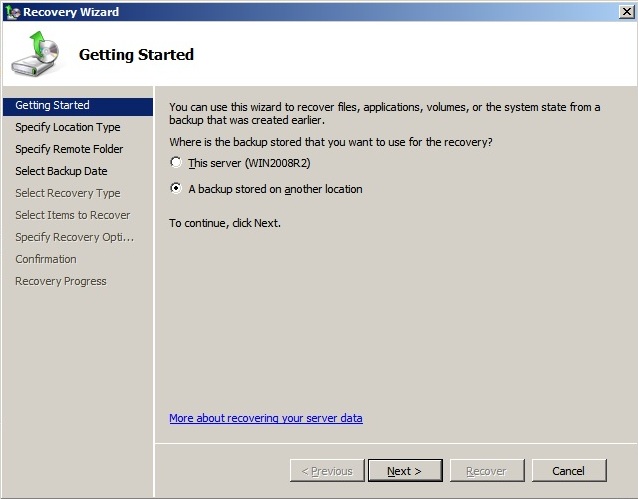
Using the Windows Server Backup utility (Start > Administrative tools), in the action pane on the right hand side, select Recover.On the first screen, select the backup location as per the image below. If you have the backup stored on another drive on the same server then select This Server, otherwise select A backup stored on another location and click Next.
 The next screen you see (image below) will be asking you the location of the backup you want to restore. Choose either Local drives or Remote shared folder. Click Next.
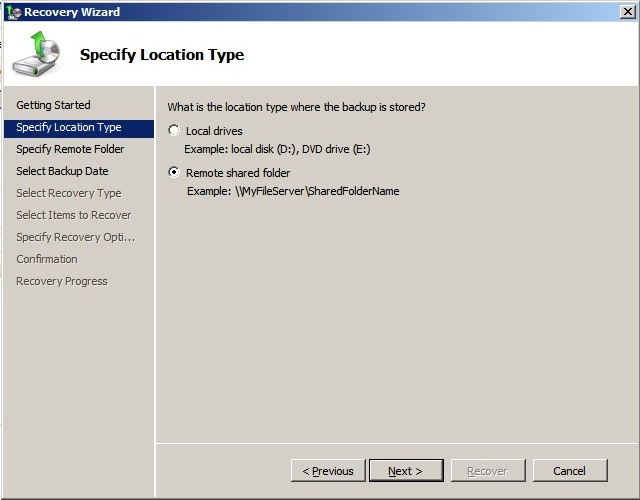 Make your selection and click next. On the following screen you will have to provide the location of where the backup is stored. This will be different depending on the location you specified on the previous screen. Locate your backup and click next.
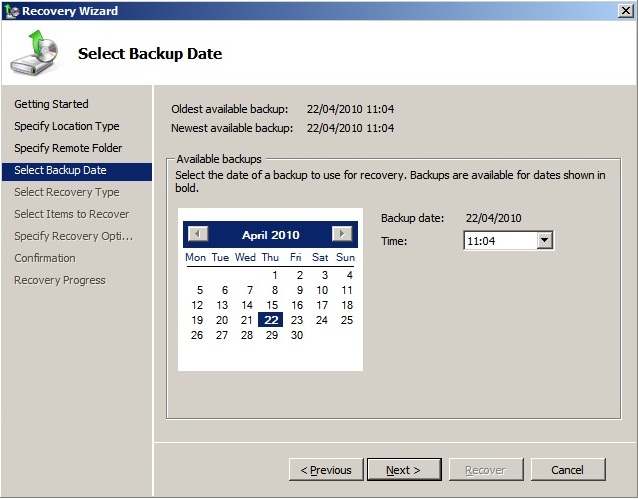
The next screen will be the date selection that you want to restore from (image below). Select the date from the calendar and the time the backup was taken, and then click next.
 Select the files and folders option from the following screen (there is no need to restore the full volume) and click next. You will see a full list of files and folders as displayed below. You need to select the files from the list. Make sure you select all the contents of the folder where the mailbox store is stored. Including the log files.
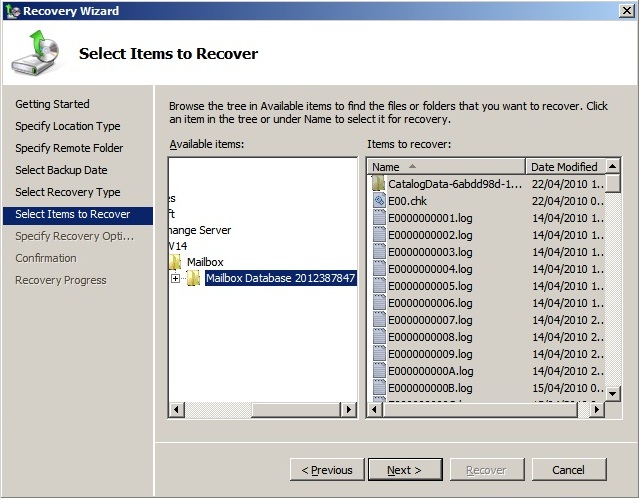 Once you have made the selection, click next. The following screen will ask you where you want to store the recovered data. Complete the detail and then click next. On the final screen click recover.
Create a Recovery Database from the EDB file
Once we have restored the EDB file and Log files, we then need to create a Recovery Database. This process can only be performed using the Exchange Management Shell.Assuming the following Information:
Servername is WIN2008R2 (must be an Exchange Server that holds the Mailbox Role)
The EDB & Log files have been restored to C:\EDBRestore\
EDB File Name is Mailbox Database 2012387847.edb
The recovery database name will be RecoveryDatabase1
Run the following command in the Exchange Management Shell:
New-MailboxDatabase -Recovery -Name “RecoveryDatabase1” -Server WIN2008R2 -EdbFilePath “C:\EDBRestore\Mailbox Database 1.edb" -LogFolderPath "C:\EDBRestore" This will create the Recovery Database. We can confirm the database has been created and that it is a recovery database by running the following command from the Exchange Management Shell:
Get-MailboxDatabase The important part of this screenshot is that the database listed as RecoveryDatabase1 has the value of True under the Recovery setting.
We now have a recovery database created. The next step is to replay any log files we have to bring the store up to date.
Use the ESEUTIL utility to replay the log files
The EDB file we have restored will not include any data that is contained in the log files as these are committed to the database AFTER we perform the backup.The utility we use to perform the replay is ESEUTIL, this utility is the same in all versions since Exchange Server 2000.
We need to know the log file numbering before we can run ESEUTIL. To do this, navigate to the folder you restored the EDB & Log files to (in the case of this article it is C:\EDBRestore) and look for the file that starts with an E and has 2 numbers after the E and an extension of .chk, so for example E00.chk. This is what is known as the checkpoint file, or the working log file. All the other log files will start with the same 3 digits and they are created when the checkpoint file gets full.
So assuming your checkpoint file is called E00.chk we now need to run the command to replay the log files in the Exchange Management Console.
Once the Exchange Management Shell is open type the following commands:
Cd \ <enter>
                      CD EDBRestore
ESEUTIL /R E00 /I /DThe final part of this step is to mount the Recovery Database. To do this we run the following command from the Exchange Management Shell:
Mount-Database RecoveryDatabase1Recover the required mailbox/mail items
Unlike previous versions of Exchange, there is no Graphical User Interface for the recovery process. To recover mail items we need to use the Exchange Management Shell.So for example, we have a user called mark_wills and he has deleted the entire contents of his mailbox and you need to recover all his mail.
We have a copy of the mailbox belonging to mark_wills in our Recovery Database. To restore the required mailbox, we would use the Exchange Management Shell and run the following command:
Restore-Mailbox -Identity mark_wills -RecoveryDatabase RecoveryDatabase1The next option is to recover the mark_wills mailbox from the Recovery Database and place it into a folder called "mark_wills Recovery" within a mailbox called tigermatt.
Restore-Mailbox -Identity tigermatt -RecoveryDatabase RecoveryDatabase1 -RecoveryMailbox mark_wills -TargetFolder “mark_wills Recovery”Restore-Mailbox -Identity alanhardisty -RecoveryDatabase RecoveryDatabase1 -RecoveryMailbox mark_wills -SubjectKeywords "demazter" –TargetFolder “mark_wills recovery with demazter”Have a question about something in this article? You can receive help directly from the article author. Sign up for a free trial to get started.
Comments (11)
Commented:
Commented:
Commented:
Commented:
Restore-Mailbox -Identity “fname lname" -includefolders “\Contacts” -RecoveryDatabase RDB1 -RecoveryMailbox “fname lname" -TargetFolder Recovery
The command runs for about 1 second, creates a folder in \Recovery\Recovered Data - Fname Lname - 09/12/2012 11:37:15 however the folder is empty.
Is there anything special needed to restore the Contacts folder?
Commented:
recoveryerror1.png
View More