Schedule a Transport Rule to be Enabled or Disabled at a Specific Time of Day / Day of the Week


Published:
Browse All Articles > Schedule a Transport Rule to be Enabled or Disabled at a Specific Time of Day / Day of the Week
The Problem:
In Exchange 2003, you could configure Exchange to delay the sending of large attachments until after hours, which was very useful if you have users that don't think twice before creating an email and attaching dozens of their most recent photographs in the email, then adding 20 or 30+ recipients to the email and hitting send - causing your Exchange server to go into melt-down as it tries its best to push all the emails out as quickly as possible.
So - having upgraded to Exchange 2007 or Exchange 2010 you may have discovered that this options doesn't exist any more, so you may find from time-to-time that your Internet connection suddenly grinds to a halt and if you dig hard enough, you may find the problem is sitting in your outbound Queues on your Exchange Server.
So - what to do about this?
Half a Solution:
You can create an Exchange Transport Rule to force large emails to be approved (before they are sent out), by a Manager or a Moderator which at least enables the Manager / Moderator to have to Approve the email before they clog up the Exchange Queues but as we are now living in a 24x7 age, if you don't want to have to approve / reject the emails in the evenings or over the weekend, there is no option in the Transport Rule to schedule the times that the Rule applies! Quite frustrating, especially over a long weekend.
The Whole Solution:
The answer (well, my answer) to this is to create two Powershell Scripts, two batch files and a two Scheduled Tasks to Enable / Disable the Transport Rule at specific times (Disable after hours on Weekdays / Enable before work starts on Weekdays).
Start by creating a new folder on your Exchange server called Scripts on any drive you like (I will be using E:\scripts in my example).
Then open up Notepad and copy / paste the scripts below (one script per file) and then save the files as DisableTransportRule.ps1 and EnableTransportRule.ps1 in the E:\Scripts folder.
The PowerShell Scripts:
Disable Transport Rule:
# Script to Disable a Transport Rule
Disable-TransportRule "Rule_Name" -confirm:$false
Enable Transport Rule:
# Script to Enable a Transport Rule
Enable-TransportRule "Rule_Name" -confirm:$false
The Batch Files:
Open up Notepad and copy / paste the single line commands below (one command per file) and then save the files as DisableRule.bat and EnableRule.bat in the E:\Scripts folder.
Disable Transport Rule Batch File:
C:\Windows\System32\Window
Enable Transport Rule Batch File:
C:\Windows\System32\Window
Scheduled Tasks:
Open up Server Manager and Expand Configuration> Task Scheduler. In the Actions Pane, click on Create Task.....
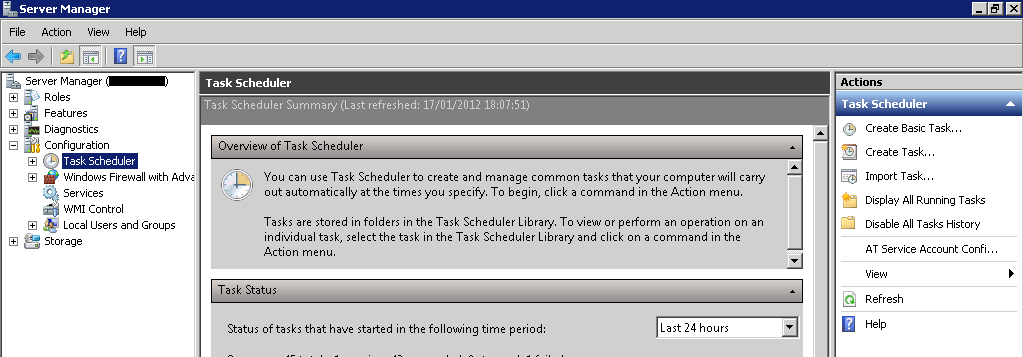
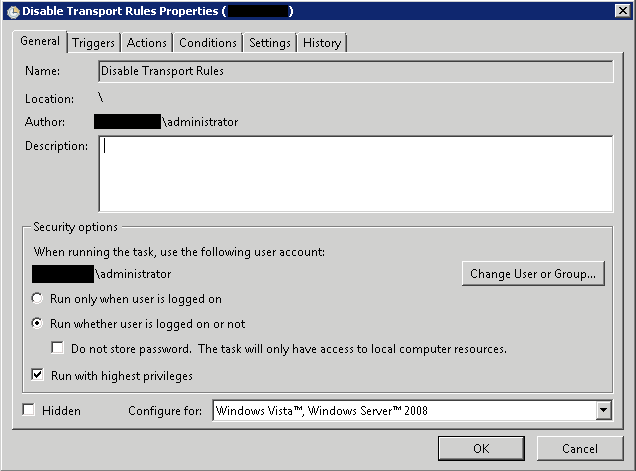
On the General Tab, Name the Task according to the rule you want to run e.g., Disable Transport Rule, then Select 'Run whether user is logged on or not" and "Run with highest privileges".
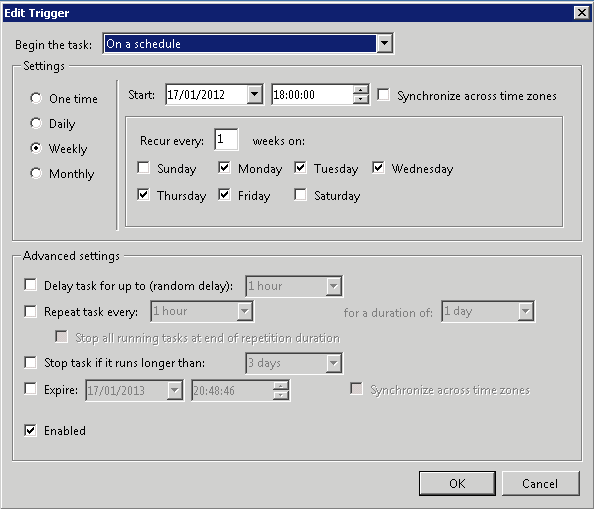
On the Triggers Tab, Click on New and Select "Weekly" and enable the days of the week you want the rule to run e.g., Mon to Fri. Set the time you want the rule to run e.g., 18:00:00 hours and tick the "Enabled" box and click OK.
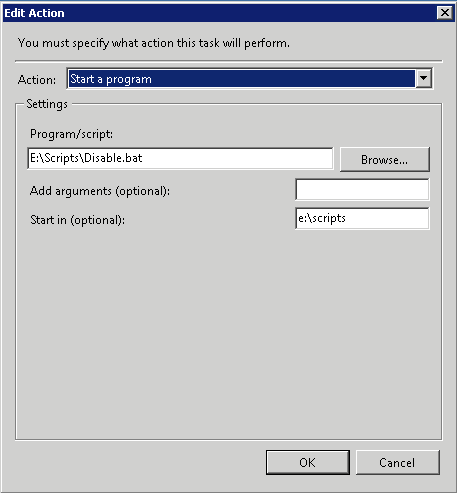
On the Actions Tab, Click on New and the default option is to Start a Program. Leave this selected and in the Program/script: window, click on Browse and select 'e:\scripts\disable.bat', then in the Start in (optional): box, enter 'e:\scripts' and click on OK.
We don't need to add anything to the Conditions Tab or the Settings Tab, so click OK and then enter the relevant username / password for the account you want to use to run the Scheduled Task as (usually an Administrator account).
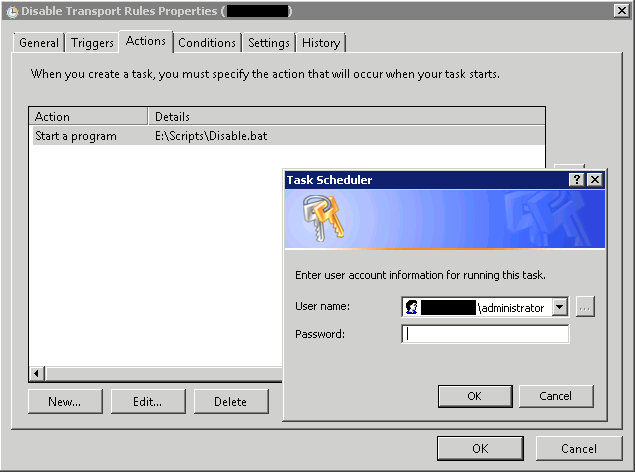
Repeat the above for the Enable.bat file.
One last step:
Before these commands will run properly, you need to run the following command in the Exchange Management Shell:
Set-ExecutionPolicy RemoteSigned
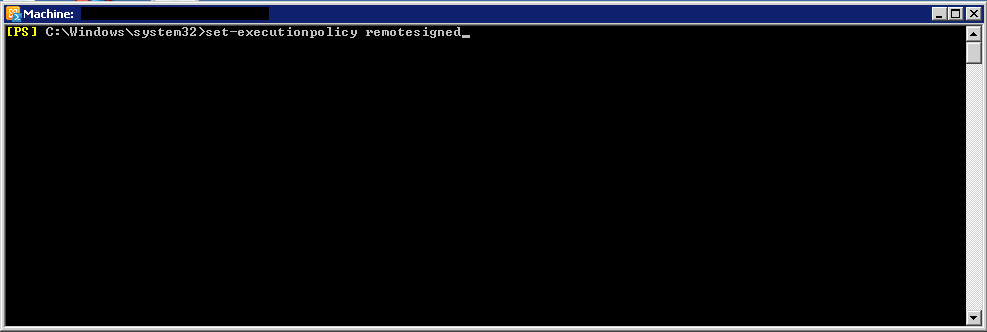
This command allows Powershell to interact with the Exchange Management Shell.
Summary:
So - you should now have two Scheduled Tasks that Disable your Transport Rule at a specified time on specific days (mine are Disabled at 18:00:00 hrs Mon - Fri) and another Scheduled Task to Enable the Transport Rule at a specific time one specific days (mine are enabled at 07:30:00 hrs Mon-Fri), so now, after hours and at weekends, you won't have to approve emails for your Exchange organisation and if someone sends out an email with large attachments to multiple users, there is less impact on the rest of the workforce.
If you found this article helpful - please vote for it :)
Have a question about something in this article? You can receive help directly from the article author. Sign up for a free trial to get started.
Comments (6)
Commented:
Author
Commented:Author
Commented:Thank you
Alan
Commented:
-Matt
Author
Commented:View More