How to Backup an ESXi installation on an USB Flash Drive or SD card, for security or redundancy.

Andrew Hancock (VMware vExpert PRO / EE Fellow/British Beekeeper)![]() VMware and Virtualization Consultant
VMware and Virtualization Consultant
 VMware and Virtualization Consultant
CERTIFIED EXPERT
EE Fellow, MVE, Expert of the Year 2021,2017-11, Scribe 2016-2012, Author of the Year 2018-6,2013-2012 VMware vExpert Pro, vExpert 2022-2011
Published:
Browse All Articles > How to Backup an ESXi installation on an USB Flash Drive or SD card, for security or redundancy.
How to Backup ESXi installation on a USB flash drive or SD card.
Requirements
1. A valid ESXi installation on a USB flash drive or SD card.
2. A copy of Winimage for Windows.
3. A Windows computer.
4. Optional Blank DVD for making backup.
5. Optional USB flash drive or SD card for flash backup.
Using your internet browser, Internet Explorer or Mozilla, download a copy of Winimage from http://www.winimage.com/download.htm .
WinImage is a shareware product. You may copy, distribute, and try it for free, but if you use for longer than the evaluation period, you must register. You will receive a valid license, a registration code and the latest release.
Install Winimage as per the vendors instructions on your Windows computer you need to backup the USB flash drive or SD card.
Insert the ESXi USB flash drive or SD card inserted in a card reader into the computer you have installed Winimage on.
![Winimage Startup]()
Start Winimage from the Start Menu on your Windows computer.
![Create Virtual Hard Disk]()
From the disk menu, in Winimage, select Creating Virtual Hard Disk Image from Physical Drive.
See picture below
![Select a physical drive in the list]()
Select the USB flash drive or SD card, from the list, in this example, I'm using a Flash LUXIO USB flash drive.
![Select usb flash drive]()
Select the Fixed Size Virtual Hard Disk, ensure there is a dot in this selection. This ensures that the saved backup image is exactly the same size as the flash drive, you are copying example 2GB for a 2GB USB flash drive, 4GB fort a 4GB flash drive.
Click OK
![Select save location]()
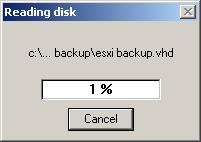
Once you have specified a location, a progress bar will continue on screen showing the progress of the copy.
![Progress Bar]()
When prompted to connect to partition, click okay and Exit Winimage
The contents will be saved to disk.
The operation is complete and you can exist Winimage, and Safely remove your USB flash drives or SD cards, from the computer, by selecting the Safely remove hardware icon, in the system Smart tray.
If you image size is less than the size of a DVD (4.5GB), I also backup the USB/SD card installation image to a DVD, and if you have a spare USB flash drive, it doesn't hurt writing the contens to another USB flash drive or SD card. (and make sure you label with date, time, and version and build of ESX, and what server it is for!)
Thank you for reading my article, please leave valuable feedback.
Requirements
1. A valid ESXi installation on a USB flash drive or SD card.
2. A copy of Winimage for Windows.
3. A Windows computer.
4. Optional Blank DVD for making backup.
5. Optional USB flash drive or SD card for flash backup.
1. Download Winimage from the Internet
Using your internet browser, Internet Explorer or Mozilla, download a copy of Winimage from http://www.winimage.com/do
WinImage is a shareware product. You may copy, distribute, and try it for free, but if you use for longer than the evaluation period, you must register. You will receive a valid license, a registration code and the latest release.
2. Install Winimage
Install Winimage as per the vendors instructions on your Windows computer you need to backup the USB flash drive or SD card.
3. Insert the ESXi USB flash drive or in USB port on computer
Insert the ESXi USB flash drive or SD card inserted in a card reader into the computer you have installed Winimage on.
4. Start Winimage

Start Winimage from the Start Menu on your Windows computer.
5. From the disk menu
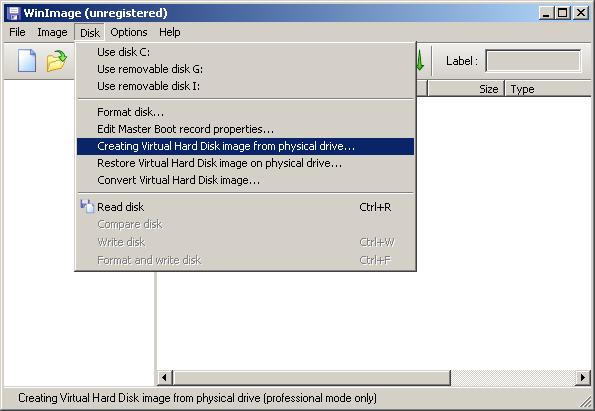
From the disk menu, in Winimage, select Creating Virtual Hard Disk Image from Physical Drive.
6. Select the USB flash drive or SD card
See picture below
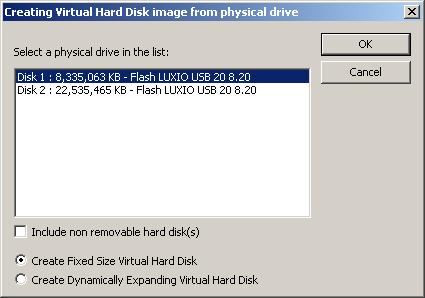
Select the USB flash drive or SD card, from the list, in this example, I'm using a Flash LUXIO USB flash drive.
7. Select Create Fixed Size Virtual Hard Disk
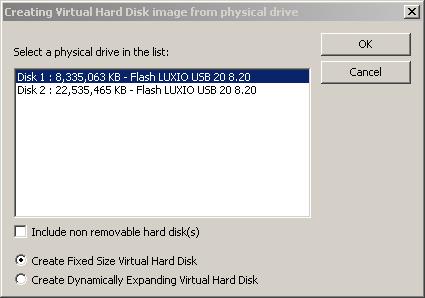
Select the Fixed Size Virtual Hard Disk, ensure there is a dot in this selection. This ensures that the saved backup image is exactly the same size as the flash drive, you are copying example 2GB for a 2GB USB flash drive, 4GB fort a 4GB flash drive.
8. Click OK
Click OK
9. Specify a disk location and select Save
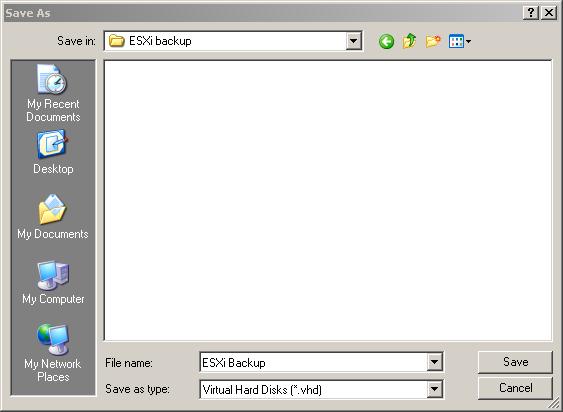
Once you have specified a location, a progress bar will continue on screen showing the progress of the copy.
10. Partiton to connect to
When prompted to connect to partition, click okay and Exit Winimage
11. The USB flash drive or SD contents will be saved as a complete image.
The contents will be saved to disk.
12. Complete.
The operation is complete and you can exist Winimage, and Safely remove your USB flash drives or SD cards, from the computer, by selecting the Safely remove hardware icon, in the system Smart tray.
13. Backup to DVD
If you image size is less than the size of a DVD (4.5GB), I also backup the USB/SD card installation image to a DVD, and if you have a spare USB flash drive, it doesn't hurt writing the contens to another USB flash drive or SD card. (and make sure you label with date, time, and version and build of ESX, and what server it is for!)
Thank you for reading my article, please leave valuable feedback.
EE Fellow, MVE, Expert of the Year 2021,2017-11, Scribe 2016-2012, Author of the Year 2018-6,2013-2012 VMware vExpert Pro, vExpert 2022-2011
Have a question about something in this article? You can receive help directly from the article author. Sign up for a free trial to get started.
Comments (13)
Commented:
Commented:
I used another USB key to restore the http://www.alexpage.de/usb-image-tool/ backup of my 'New_Esxi_Server' boot key.
I formated the duplicate target key before proceeding, it was my 'Old_ESXi_Server' boot key.
It seemed to work: Server ESXi booted, but had kept the name of 'Old_ESXi_Server' ... !
How can this be ?
I didn't rename the server booting with this 'duplicate' to check if I could reconnect it in vCenter.
Any thoughts ?
Commented:
Author
Commented:Commented:
In any case, here's the question:
https://www.experts-exchange.com/questions/28239655/Backing-up-ESXi-to-USB-stick-how-frequently.html
View More