
Microsoft Server OS
--
Questions
--
Followers
Top Experts

I'm following the steps found in pages 149-150 of the "Learn System Center Configuration Manager in a Month of Lunches" book (listed below).
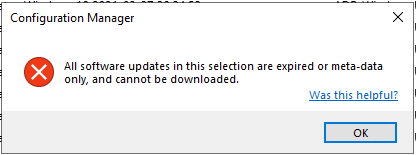
When I reach steps 6-9 and I right-click on the Server update group I just created (which contains the Server 2019 updates that I just downloaded into the newly created "Server 2019 updates-2-27-22b" group I receive an error message that says "All software updates in this selection are expired or meta-data only, and cannot be downloaded."
What steps need to be followed to fix this issue so I will be able to download all the updates for this group?
Here are the steps I followed:
150 CHAPTER 10 Keeping ConfigMgr clients patched
Now that you’ve configured the SUP to sync updates for the Microsoft products that
you’re interested in, it’s time to move on and download the content for those updates
into your environment so that you can deploy updates to your managed clients.
Before you download any content, you want to make sure that you’re downloading
only content for the specific updates that you’re interested in deploying. Otherwise,
you can end up downloading, storing, and distributing too much content
unnecessarily.
To refine the list of updates, do the following:
1 Navigate to Software Library > Software Updates > All Software Updates.
2 In the far-right corner of the list of updates, click “Add Criteria” and select the
following options:
a Expired
b Language
c Product
d Superseded
e Update Classification (go back and add Update Classification four more times)
3 This displays additional search filters that you can apply against the update list.
Configure each item as follows:
a Expired: No
b Product: Windows 10
c Superseded: No
d Update Classification: Critical Updates or Security Updates or Update Rollups
or Updates. (Click “Add” each time to include an extra classification.)
4 Click “Search.” The filters apply to the update list, and you’ll see only updates
for Windows 10 that have neither expired nor been superseded, and that fall
within the stated classifications (no definition updates).
5 Select all the updates, right-click the selection, and choose “Create Software
Update Group.” Call the new group MoL - Windows 10 Updates.
6 Navigate to Software Update Groups and you’ll see the newly created group
listed. Double-click the group to see all the updates you just added.
7 The next step is to download the content for the updates, but to do this you
need a location in the environment to physically store the source files. To create
a new folder structure and share, type the following in PowerShell:
New-Item -Path E:\ -Name Updates -ItemType Directory
New-SmbShare -Path E:\Updates -Name Updates -CachingMode None
-ChangeAccess MOL\Administrator #B
New-Item -Path E:\Updates -Name Windows10Updates -ItemType Directory
8 Verify that you can navigate to \ \CM01\Updates \Windows10Updates in File
Explorer. Navigate to Software Update Groups, right-click the group you created
earlier, and select “Download.”
9 You’re prompted to create a new deployment package to house the software
updates. Configure it as follows:
a Name: Windows 10 Updates
b Package Source: \ \ CM01 \Updates \ Windows10Updates (click Next)
c Distribution Points: Add > Distribution Point Groups > MoL Lab DPs
d All remaining settings as default
e Click “Summary” and then “Next” to start download process
Open the Windows10Updates folder in File Explorer and you’ll see it start to be populated
with content, as shown in figure 10.8. After the download finishes, you can close
the wizard.
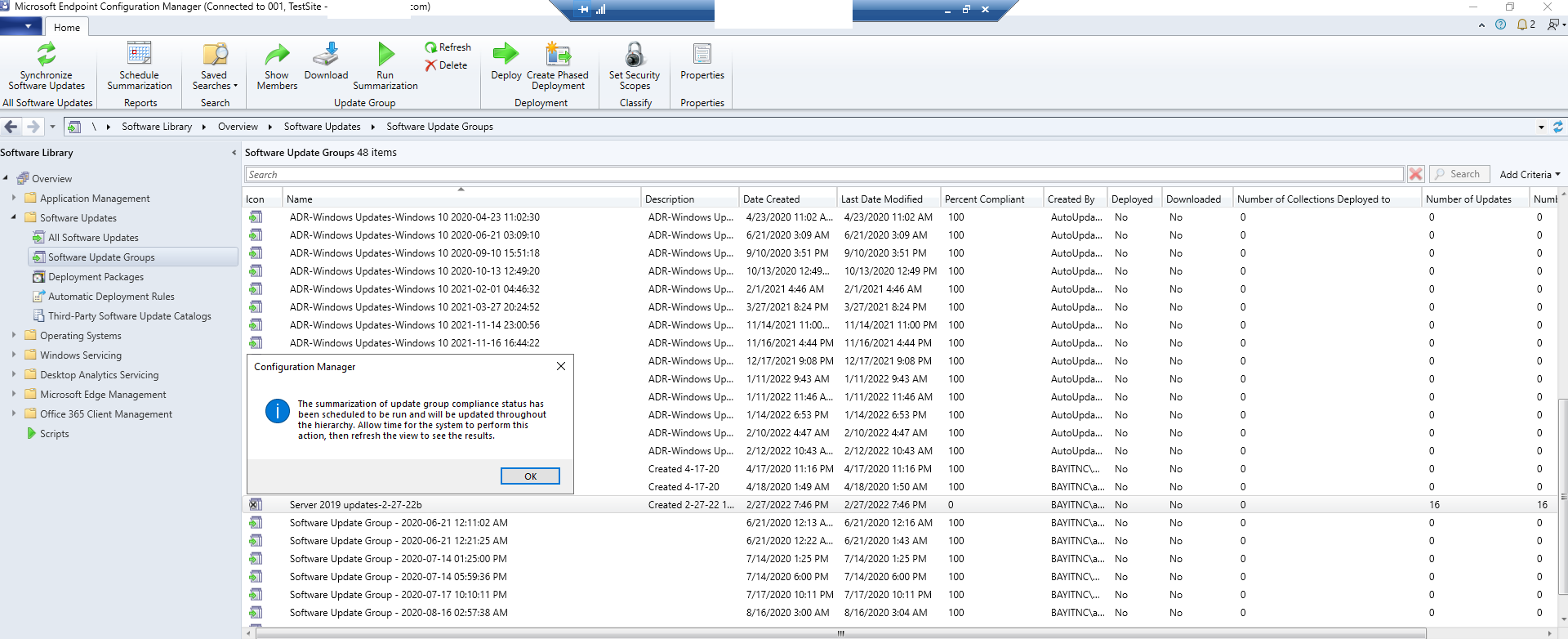
Full screenshot:
Zero AI Policy
We believe in human intelligence. Our moderation policy strictly prohibits the use of LLM content in our Q&A threads.


Initially, only the top option was selected, now all three options are selected.
How long will it take for these changes to go into effect so that I can complete the task that I originally mentioned in this question's posting?


EARN REWARDS FOR ASKING, ANSWERING, AND MORE.
Earn free swag for participating on the platform.
Microsoft Server OS
--
Questions
--
Followers
Top Experts
The Microsoft Server topic includes all of the legacy versions of the operating system, including the Windows NT 3.1, NT 3.5, NT 4.0 and Windows 2000 and Windows Home Server versions.