
Windows OS
--
Questions
--
Followers
Top Experts

I am attempting to access IIS using Powershell in order to automate installing a TLS/SSL Certificate on a Site.
In Powershell 7.2 I am using "Set-ItemProperty", passing a variable of the site and getting the following Error:
"Cannot find drive. A drive with the name 'IIS' does not exist."
Google-Fu is telling me that I need to import a WebAdministration Module, which I did at the beginning of the script. I've attempt three ways to import it, none of which are working:
Attempt 1:
Import-Module ServerManager
Add-WindowsFeature Web-Scripting-Tools
Attempt 2:
Import-Module -Name 'C:\Windows\System32\WindowsPowerShell\v1.0\Modules\WebAdministration\WebAdministration.psd1'
Attempt 3:
Import-Module -Name 'C:\Windows\System32\WindowsPowerShell\v1.0\Modules\WebAdministration\WebAdministration.psd1' -UseWindowsPowerShell
Below is a screenshot of the roles installed on this Windows Server 2019 instance. According to MicroSoft these are this is the Feature that Powershell is using.
How can I get "Set-ItemProperty" to find IIS?
I'm so close and I appreciate the Sanity Check.
Zero AI Policy
We believe in human intelligence. Our moderation policy strictly prohibits the use of LLM content in our Q&A threads.

When I do run this in Powershell 5 I get a handful of errors, mostly Invalid Arguments.
PS H:\Documents\WindowsPowerShell\Scripts> Get-PfxCertificate -FilePath 'H:\Documents\windows11 keys.pfx'
Enter password: ******


Thumbprint                                Subject
----------                                -------
FEE37E5A48FB927FC9EC42725A04221B029888EB  CN=DavidWayneJohnsonCD
PS H:\Documents\WindowsPowerShell\Scripts> Get-Host | Select-Object Version

Version
-------
5.1.25145.1000PS H:\Documents\WindowsPowerShell\Scripts> Get-Host | Select-Object Version
Version
-------
7.2.4
PS H:\Documents\WindowsPowerShell\Scripts> Get-PfxCertificate -FilePath 'H:\Documents\windows11 keys.pfx'
Enter password: ******
Thumbprint Subject EnhancedKeyUsageList
---------- ------- --------------------
FEE37E5A48FB927FC9EC42725A04221B029888EB CN=DavidWayneJohnso… Encrypting File System
PS H:\DocumBoth work for me


EARN REWARDS FOR ASKING, ANSWERING, AND MORE.
Earn free swag for participating on the platform.
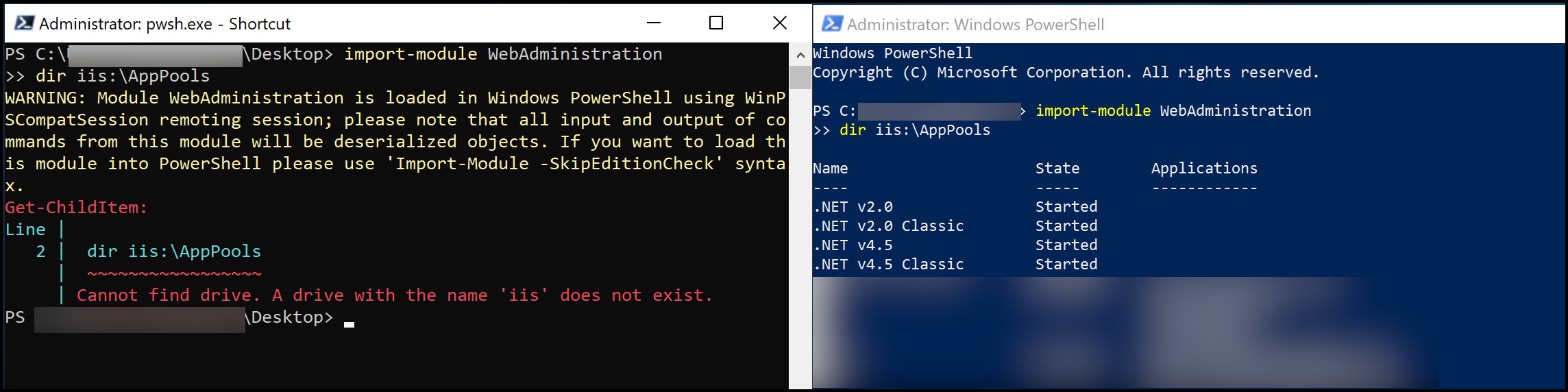
That said, I'm still getting the same original error of "Cannot find drive. A drive with the name 'IIS' does not exist."
I'm totally fine solving this in Powershell 5.
import-module WebAdministration
dir iis:\AppPools I chose to go with Powershell 7.2 in order to pass the Password Credentials. Even when I paste in the Password I'm not getting the results I want, so this might be going back to the drawing board.
You don't have to answer this question (I can post a new one), but I'm really trying to replicate the October 2020 entry in this Let's Encrypt post. If you happen to have Powershell or a batch file that updates the TLS Certificate on an FTP site, I would love to take a look at it.
Thank you for your help. I appreciate the sanity check! :-)
Get a FREE t-shirt when you ask your first question.
We believe in human intelligence. Our moderation policy strictly prohibits the use of LLM content in our Q&A threads.
Sources: https://docs.microsoft.com/en-us/powershell/module/pkiclient/import-pfxcertificate?view=win10-ps
https://webmasters.googleblog.com/2014/08/https-as-ranking-signal.html
read-host -assecurestring | convertfrom-securestring | out-file C:\cred.txt
$password = cat c:\cred.txt | convertto-securestring
now you can use $password for -password
Import-Module WebAdministration
$siteName = 'WEBftp'
$configItem = 'ftpServer.security.ssl.serverCertHash'
$thumb = '{new cert thumbprint}'
Set-ItemProperty "IIS:\Sites\$siteName" -Name $configItem -Value $thumblots of missing stuff there i.e the thumbprint and what is $configItem
EARN REWARDS FOR ASKING, ANSWERING, AND MORE.
Earn free swag for participating on the platform.
$CertificatePath = 'H:\documents\windows11 keys.pfx'
$sSecStrPassword = ConvertTo-SecureString "yabbadabbad00" -AsPlainText -force
$certificateObject = New-Object System.Security.Cryptography.X509Certificates.X509Certificate2($CertificatePath, $sSecStrPassword)
$certificateObject.ThumbprintWhat I expected to happen was to have the current SSL be replaced with the new one.
Instead, the old SSL got removed and nothing was in it's place (referring to when I look in IIS). Here's the script so far:
#Pre-Step Import the Modules in order to access IIS
Import-Module ServerManager
Add-WindowsFeature Web-Scripting-Tools

#Step 1: Let's get the Thumbprint of the Certificate & create the variable for the script
$cert = Get-PfxCertificate -Filepath "D:\CentralSSL\name-of-ftp-site.pfx"
#-Password ($pwd = ConvertTo-SecureString -String "thisiswherethepasswordwouldgobutitsnotworkingAndThatsWhyItsCommentedOut" -Force -AsPlainText)
$cert.Thumbprint

#Step 2: Now let's replace the Certificate in IIS for our FTP site
Import-Module WebAdministration
$siteName = 'name-of-ftp-site'
$configItem = 'ftpServer.security.ssl.serverCertHash'
$thumb = $cert.Thumbprint
Set-ItemProperty "IIS:\Sites\$siteName" -Name $configItem -Value $thumb

#End A side note (and why it's commented out) is that I have to paste in the Password. This is why I originally went with Powershell 7.2, which allowed me to pass the password as plain text. (I have yet to attempt your suggestion, which I will do on Monday).
The two roadblocks for me are (1) having to enter in the password and (2) having no TLS/SSL Certificate show up in IIS. Is there anything obvious I'm doing wrong?
Thanks for your help.
Get a FREE t-shirt when you ask your first question.
We believe in human intelligence. Our moderation policy strictly prohibits the use of LLM content in our Q&A threads.

Windows OS
--
Questions
--
Followers
Top Experts
This topic area includes legacy versions of Windows prior to Windows 2000: Windows 3/3.1, Windows 95 and Windows 98, plus any other Windows-related versions including Windows Mobile.