
Windows OS
--
Questions
--
Followers
Top Experts

Zero AI Policy
We believe in human intelligence. Our moderation policy strictly prohibits the use of LLM content in our Q&A threads.


What server and CPU are you using?

Hyper-V requires the cpu to have specified virtualization options to be present AND enabled in the BIOS
Hyper-V requires Second Level Address Translation (SLAT) -- present in the current generation of 64-bit processors by Intel and AMD.

Are you sure the processor supports hyperthreading? As others have mentioned, is it enabled? You can look at the model of processor and just look it up with the term hyperthreading. I have tried to repurpose older servers for my home lab and found that on some, while the processors are rather powerful, they do not support hyperthreading. I have usually had to spend $50-$100 per processor on eBay to upgrade it. It is definitely supported with the right hardware configuration as I have it running in my home lab now.


EARN REWARDS FOR ASKING, ANSWERING, AND MORE.
Earn free swag for participating on the platform.

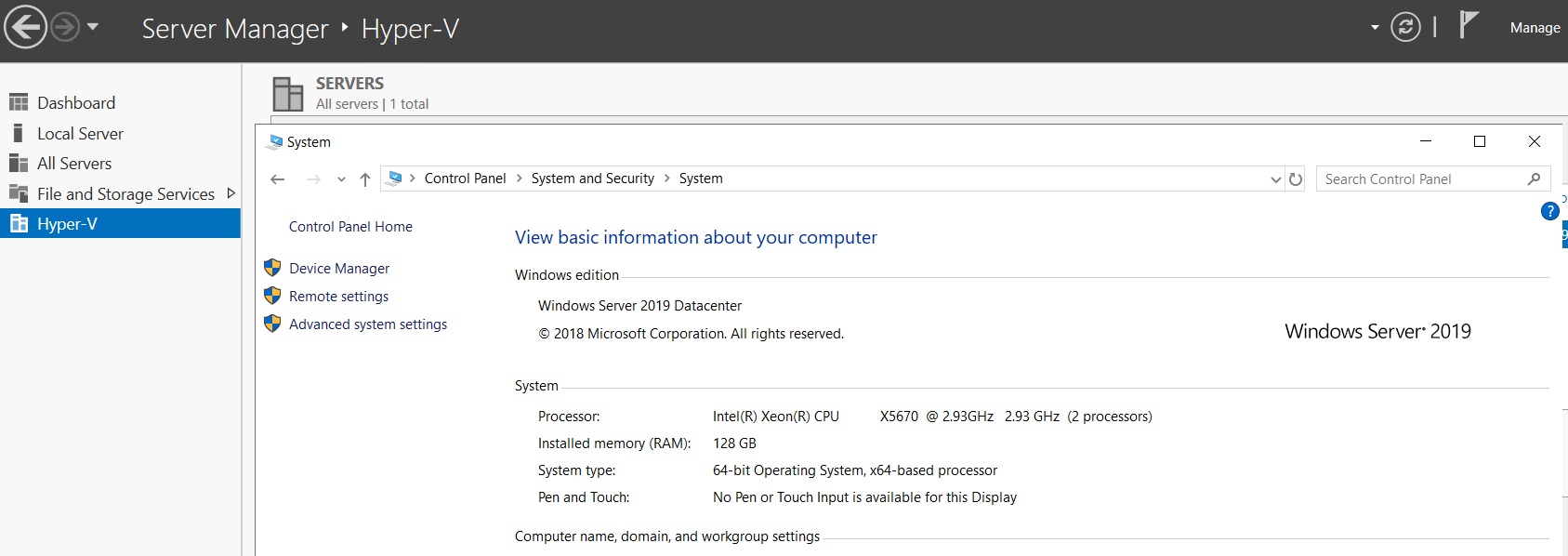
Thank you all for the helpful comments. This is a virtual server running Windows 2019 server standard. It has a Intel(R) Xeon(R) Gold 6136 Cpu @ 3.00ghz. We are in a vSphere 7.0 environment.
Get a FREE t-shirt when you ask your first question.
We believe in human intelligence. Our moderation policy strictly prohibits the use of LLM content in our Q&A threads.

You need to enable the virtual machine to use hardware-assisted virtualization capabilities within VMware vSphere. For this, you'll need access to either the VMware vSphere Client or vSphere Web Interface.
Instructions:
Access Virtual Machine Settings:
- Navigate to the inventory within your VMware vSphere Client.
- Locate the target virtual machine.
- Right-click on the virtual machine and select "Edit Settings" from the context menu.
Modify CPU Settings:
- In the "Edit Settings" window, switch to the "Virtual Hardware" tab.
- Find the "CPU" section and expand it to view more options.
- Look for the option labeled "Expose hardware assisted virtualization to the guest OS."
- Check the box to enable this option.
Apply and Confirm Changes:
- Click the "OK" button to apply the changes.
- After clicking "OK," the "Configure" tab will automatically refresh.
- Verify that the "Nested Hypervisor CPU" option now displays "Enabled," confirming the changes were successful.
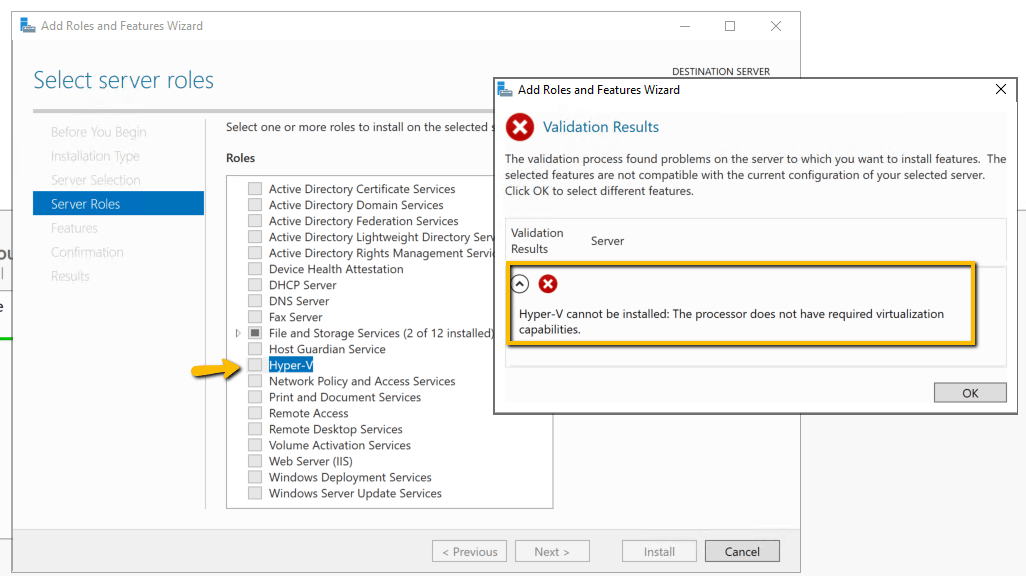
When asking a question, providing all the details (such as, in this case, "Hello! We have a Windows 2019 in a VMWare VM that is unable to add Hyper_V as a role within the Add Roles and Features Wizard. We get the following error") can lead to FASTER solutions.
I was almost going to ask if this was a bare metal install...
EARN REWARDS FOR ASKING, ANSWERING, AND MORE.
Earn free swag for participating on the platform.

OP: Point of order: @kevinhsieh should be awarded the points here as the very first post indicated exactly what you needed to do to make this work. The direction was applicable for both hardware and hypervisor.
Windows OS
--
Questions
--
Followers
Top Experts
This topic area includes legacy versions of Windows prior to Windows 2000: Windows 3/3.1, Windows 95 and Windows 98, plus any other Windows-related versions including Windows Mobile.