
Active Directory
--
Questions
--
Followers
Top Experts

I have Win 2008 R2 Entreprise Edition in place with RDS Server role installed.
I have DC Win 2003 R2.
I'm using RemoteApp component to publish applications to users.
I have all applications needed installed on the RDS Server.
I created the packages as .msi files, and I assign them to users desktops using Group Policy.
But, each time when I click on the icon to open the program, I receive the attached screen shot "Uknown Publisher Warning"... How can I resolve this publisher warning?
I read something about certificate to be in place.
I never used certificates before.
Could you please guide me step by step and if possible with screen shots on how to resolve this warning???
Thank You!
RemoteApp-Unknown-Publisher.JPG
Zero AI Policy
We believe in human intelligence. Our moderation policy strictly prohibits the use of LLM content in our Q&A threads.


Sorry for that :)
Regards,
Tomislav
Thank you for the reply.
Well I have a CA certificate for Exchange Server for MS outlook Anywhere.
Can I use that certificate for RDS RemoteApp?
How can I install it and use it?
Thanks,


EARN REWARDS FOR ASKING, ANSWERING, AND MORE.
Earn free swag for participating on the platform.
?????
How can I import and use our CA certificate, we bought I think from Verisign or Godaddy from a long time... and it is still validate till Dec 2015...
Thanks,
I suppose it is installed at your W2K3 server and not on W2K8 RDS since if that were the case we wouldn't have to do much.
The first important thing is to access the original certificate file - the one that holds both the private and the public key of the certificate.
It would be great if any of these are true (the most preferred option at the top):
- you have the file with private/public key stored in a known location
- you can download the certificate file with private/public key from the website through which you purchased the certificate
- you have imported the certificate to Exchange server with option to export the private key
The goal is for you to gain access to the certificate file containing both private/public key.
After that we'll import the cert to RDS.
Regards,
Tomislav
Get a FREE t-shirt when you ask your first question.
We believe in human intelligence. Our moderation policy strictly prohibits the use of LLM content in our Q&A threads.
But how can I make it available for RDS remoteapp?
Thanks,
This is how it works. Each certificate consists od a private and a public key. Public key is something that is normally presented to the clients accessing some service or site. In order for server or service that presented the public key to sucessfully authenticate it must have private key that matches the public key presented.
That means you can have any number of clients that store the public key in their trusted certificate store - that means that they trust that public certificate and also the site or service that holds private key of that cetrificate.
In your situation your RDS (with Outlook) is a client that trusts the certificate presented by your Exchange - and that's why it is stored in trusted certificates. But that doesn't enable your RDS to use that certificate for singning stuff itself - that would mean that anyone having access to your public key could impersonate the true holder of certificate - and the purpose of certificates would be defeated.
However (just in case you actually imported full certificate to RDS - meaning public+private key) you may open your trusted certificate store on RDS, right click your certificate and choose export. If you see the option to export the private key enabled in options than we're in business. Otherwise we'll have to go knocking on your Exchange's certificate store.
Regards,
Tomislav
EARN REWARDS FOR ASKING, ANSWERING, AND MORE.
Earn free swag for participating on the platform.
I really do appreciate your help, but I'm getting confused with these certificate scenarios...
Tell me the best way or option on how to solve my RDS Unknown Pubisher Warning when I open an RemoteApp...
Now I'm here:
And the final option - obviously worst :) - is that you have no certificates listed when you clicked the Change button in one of the steps above. That means you have to track back a bit and create a self signed certificate. And here are the steps.
Please help with best option...
Thank You!
Get a FREE t-shirt when you ask your first question.
We believe in human intelligence. Our moderation policy strictly prohibits the use of LLM content in our Q&A threads.
But tell me, I can call the Exchange admin!
If you can, call him and ask him if he can send you the certificate with private key.
If he agrees but doesn't know where he could access the file then ask him to:
- open Certificates.mmc for Local Computer on Exchange,
- open the container with Personal certificates,
- locate the certificate,
- right-click it and choose Export.
If he can set the options to export the private key with certificate - it's great. After he exports it ask him to send it to you and we'll go from there.
Maybe he will inform the top management...
How can we solve it without This Exchange certificate?
Other Option please...
Thanks,
EARN REWARDS FOR ASKING, ANSWERING, AND MORE.
Earn free swag for participating on the platform.
I created a certificate there then export it, now the certificate is xxx.pfx
Then?????
Get a FREE t-shirt when you ask your first question.
We believe in human intelligence. Our moderation policy strictly prohibits the use of LLM content in our Q&A threads.
Now go to your RDS, open Certificates.mmc - Local Computer and open your Private certificates store. Then right-click somewhere in there and choose - Import certificate.
If you don't see your PFX, just change file type in import - and then choose to put it in personal store. After that repeat the import but put it in a Trusted Root CA store.
Then you'll have to make the public version of the certificate that you will be outting in GPO but let's first finish the import.
EARN REWARDS FOR ASKING, ANSWERING, AND MORE.
Earn free swag for participating on the platform.
Personal Store and Trusted Root?
- in Personal store - right click the imported certificate and choose Export
- on options DESELECT or DO NOT SELECT export of private key - this is something you will be distributing so you must not give away your private key
- choose CER as file type and save it under nama that contains word "public"
Get a FREE t-shirt when you ask your first question.
We believe in human intelligence. Our moderation policy strictly prohibits the use of LLM content in our Q&A threads.
Not always critical - but can help avoid problems in certain scenarios.
Then I imported to Trusted Root CA, but I cannot see it in Root CA.
I can see in Personal Store that the Certificate status is OK NOW...
Next???
EARN REWARDS FOR ASKING, ANSWERING, AND MORE.
Earn free swag for participating on the platform.
I selected My SSL there...
What about here:
You must select the certificate you want for the RDP-tcp listener. That is the issue.
Launch '‘Remote Desktop Session Host Configuration' and double click RDP-tcp. You will see on the window that pops up the place to select the certificate you want.
https://www.experts-exchange.com/questions/26105321/RemoteApp-Server-SSL-Certificate.html
Get a FREE t-shirt when you ask your first question.
We believe in human intelligence. Our moderation policy strictly prohibits the use of LLM content in our Q&A threads.
What I want to here?
- you have to recreate your msi files now (they will be signed with new certificate and upload them to group policy)
- you must tell the RDP clients to trust your self-signed certificate through GP (you can place it in the same policy as the one through which you deploy the msis) - the steps for doing that are repeated here
observe the parts for self-signed certificate
EARN REWARDS FOR ASKING, ANSWERING, AND MORE.
Earn free swag for participating on the platform.
But anyone that imports your public cert - will trust you - however that must be done explicitly. Not implicitly because they trust the issuer.
But if you forge a passport or issue one to yourself - that is not a trusted situation :) oul have to sweettalk the oficers to let you pass :)
After that run the new msi and see what happens. If everything is OK - wait for tomorrow - after folks restart their machines the GP will be applied to them and no "Unsigned" issue should be happening for new signed msi-s
If you need more assistance - I'll stick around a bit more to help out :)
Get a FREE t-shirt when you ask your first question.
We believe in human intelligence. Our moderation policy strictly prohibits the use of LLM content in our Q&A threads.
I'm still receiving the same Unkown error Publisher.
So I will import the cert to the same GP which I'm deploying msi..
RIGHT?
Please step by step?
Deploy Certificates by Using Group PolicyUpdated: August 31, 2007
Applies To: Windows Server 2008
You can use this procedure to deploy a certificate to multiple computers by using Active Directory Domain Services and a Group Policy object (GPO). A GPO can contain multiple configuration options, and is applied to all computers that are within the scope of the GPO.
Membership in the local Administrators group, or equivalent, is the minimum required to complete this procedure.
To deploy a certificate by using Group Policy
1.Open Group Policy Management Console.
2.Find an existing or create a new GPO to contain the certificate settings. Ensure that the GPO is associated with the domain, site, or organizational unit whose users you want affected by the policy.
3.Right-click the GPO, and then select Edit.
Group Policy Management Editor opens, and displays the current contents of the policy object.
4.In the navigation pane, open Computer Configuration\Windows Settings\Security Settings\Public Key Policies\Trusted Publishers.
5.Click the Action menu, and then click Import.
6.Follow the instructions in the Certificate Import Wizard to find and import the certificate.
7.If the certificate is self-signed, and cannot be traced back to a certificate that is in the Trusted Root Certification Authorities certificate store, then you must also copy the certificate to that store. In the navigation pane, click Trusted Root Certification Authorities, and then repeat steps 5 and 6 to install a copy of the certificate to that store.
EARN REWARDS FOR ASKING, ANSWERING, AND MORE.
Earn free swag for participating on the platform.
Do you trust the publisher for this RemoteApp program.
I can see the publisher my certificate.
But why this warning? and how to resolve it?
Thanks,
Capture.JPG
Get a FREE t-shirt when you ask your first question.
We believe in human intelligence. Our moderation policy strictly prohibits the use of LLM content in our Q&A threads.
EARN REWARDS FOR ASKING, ANSWERING, AND MORE.
Earn free swag for participating on the platform.
There is Trusted Root CA, Entreprise Trust, Automatic..., Encryption File...
Capture.JPG
Get a FREE t-shirt when you ask your first question.
We believe in human intelligence. Our moderation policy strictly prohibits the use of LLM content in our Q&A threads.
To set trusted publisher options
1.Open Software Restriction Policies.
2.Double-click Trusted Publishers.
3.Click the users that you want to decide which certificates will be trusted, and then click OK.
Notes
To perform this procedure, you must be a member of the Administrators group on the local computer, or you must have been delegated the appropriate authority. If the computer is joined to a domain, members of the Domain Admins group might be able to perform this procedure. As a security best practice, consider using Run as to perform this procedure.
To open Software Restriction Policies, see "Open Software Restriction Policies" in Related Topics.
It may be necessary to create a new software restriction policy setting for the Group Policy object (GPO) if you have not already done so. For information about how to create new software restriction policies, see Related Topics.
You can use this procedure to determine whether users, local administrators, or enterprise administrators can add trusted publishers. For example, you can use this tool to prevent users from making trust decisions about publishers of ActiveX controls.
Local computer administrators have the right to specify trusted publishers on the local computer, while enterprise administrators have the right to specify trusted publishers on an organizational-unit level.
Information about functional differences
Your server might function differently based on the version and edition of the operating system that is installed, your account permissions, and your menu settings. For more information, see Viewing Help on the Web.
I just hope clients (XP, Vista, W7) will all understand this one
EARN REWARDS FOR ASKING, ANSWERING, AND MORE.
Earn free swag for participating on the platform.
Get a FREE t-shirt when you ask your first question.
We believe in human intelligence. Our moderation policy strictly prohibits the use of LLM content in our Q&A threads.
Stay tuned...
Thx!
I just did the Final procedure
http://www.bibble-it.com/2008/09/03/adding-trusted-publishers-certificate-with-group-policy
I checked on the client side, and I found my certificate, under Root CA and Trusted Publisher. GREAT!
But the strange things, that I'm still receiving this different warning, but If I click "Don't aske me again for remote connections from this publisher", it will not come anymore if I open Remoteapp again...
Any Idea???
Thank You...
Capture-1.JPG
This behavior is by design. The question here is directed to the user to confirm that they trust the publisher of the RemoteApp program enough to share local resources (printers, drives, ports...) with computer they are connecting to. After you confirm your answer is saved to client computer registry and linked to certificate "thumbprint".
If you want to override this you would have to deploy that registry value to your clients either through logon script or GP (through custom ADM file). It's quite a bit of work, but if you are determined to push this all the way I can gude you through.
Regards,
Tomislav
EARN REWARDS FOR ASKING, ANSWERING, AND MORE.
Earn free swag for participating on the platform.
It's not a big deal, they can click don't ask me again for remote... :)
If you could please post for me the .adm file here and I'll try it through Group Policy???? THX...
In fact, on the Client Side I'm using HP Thin Clients with Windows Embedded joined to the domain, instead of using normal desktops, less headache and support :) My Document Folder on the Thin Client is redirected to a file server using Folder Redirection Policy. GOOD?
I have a different question, I would really appreciate if you could help me as well:
Now I'm using one physical server on the back-end side RDS Server with Remote App!
But for now I installed RDS server under Hyper-V for demo testing and Hyper-V is very good for Production environment too...
But what if the server went down???... I need to have full redundancy...
We will buy an identical server hardware, but what configuration and scenario to configure to have an automatic fail over if on the server goes down???
For now if my server went down, users cannot access their remote apps...
Please I need your help as well...
Thank you very much...
Waiting for your support...
Do the following:
1) Open your public certificate (doesn't matter where you do it). Go to details tab and locate Thumbprint value.
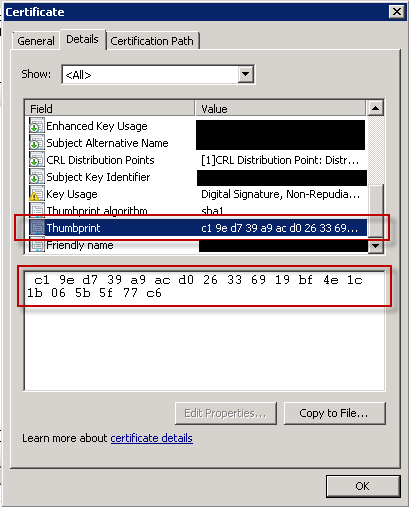
2) On the machine where you already clicked the "Always trust..." when running the MSI navigate to the HKCU\Software\Microsoft\Te
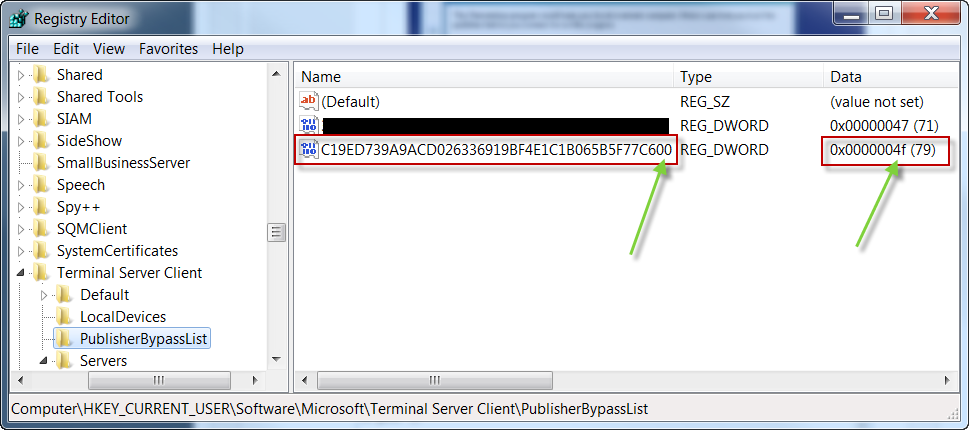
Make note of the number in the Data column for that value - it matches the device mapping settings you have set for your remote apps. Note the decimal value in parentheses ()
3) Open Notepad and paste the below code in there.
CLASS USER

CATEGORY "RemoteApp Settings (Custom)"
  POLICY "Trusted Publisher Bypass List"
  EXPLAIN !!PolicyHelp
  KEYNAME "Software\Microsoft\Terminal Server Client\PublisherBypassList"
    PART !!TrustedPublisher001
      NUMERIC
      VALUENAME "<Place the thumbprint of your server certificate here.>"
    END PART
  END POLICY
END CATEGORY

[strings]
TrustedPublisher001="Allowed RemoteApp settings for <the name in your server certificate>:"

; explains
PolicyHelp="This policy enables you to set the allowed settings of RemoteApp programs published by trusted publishers that will be bypassed in security check when users start the RemoteApp program."
Replace the entire text:
<Place the thumbprint of your server certificate here.>
with the exact Name of registry value that matches your certificate thumbprint. For example - the value that should be placed there for certificate I used for this example would be:
C19ED739A9ACD026336919BF4E
Replace the entire text:
<the name in your server certificate>
with the name that appers in your certificate (this is probably name of your computer). This will help you if you ever need to add additional values. For example - the value that could be placed there for certificate I used for this example would be:
example.mydomain.local
Save the text file and change it's extension to ADM.
This is how it would look in my example:
CLASS USER

CATEGORY "RemoteApp Settings (Custom)"
  POLICY "Trusted Publisher Bypass List"
  EXPLAIN !!PolicyHelp
  KEYNAME "Software\Microsoft\Terminal Server Client\PublisherBypassList"
    PART !!TrustedPublisher001
      NUMERIC
      VALUENAME "C19ED739A9ACD026336919BF4E1C1B065B5F77C600"
    END PART
  END POLICY
END CATEGORY

[strings]
TrustedPublisher001="Allowed RemoteApp settings for example.mydomain.com:"

; explains
PolicyHelp="This policy enables you to set the allowed settings of RemoteApp programs published by trusted publishers that will be bypassed in security check when users start the RemoteApp program."
After this go to your GPO and add this template to User Settings > Policy > Administrative Templates.
Since you are doing this on a W2K3 DC follow these steps:
1) Open your GPO in GPO Editor.
2) Right-click User Configuration > Administrative Templates and choose Add/Remove Template.

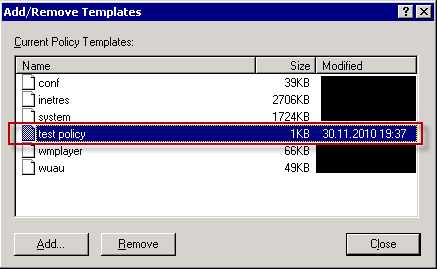
3) Click Add on Add/Remove Templates window.
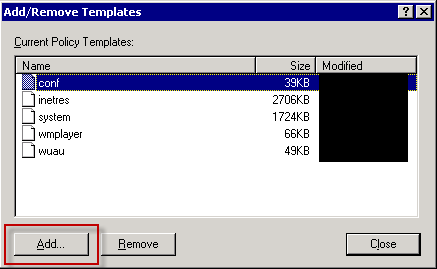
4) Locate your ADM file (I've named it test policy but you better name it "RemoteApp Settings (Custom).ADM") and click Open.
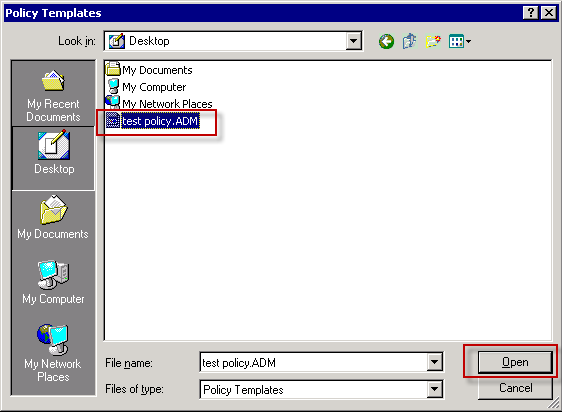
5) The template will appear in the list. Click Close on this window.
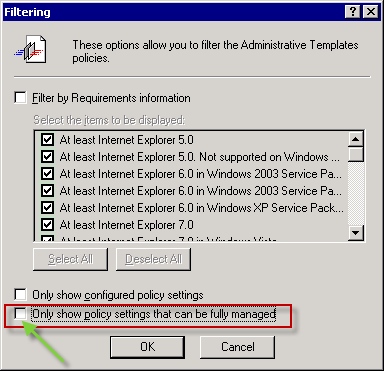
6) For new template to display in the editor you will have to modify the view filter. First click then right click Administrative Templates container, then choose View > Filtering.

7) Remove the check from Only show policy settings that can be fully managed and click OK.
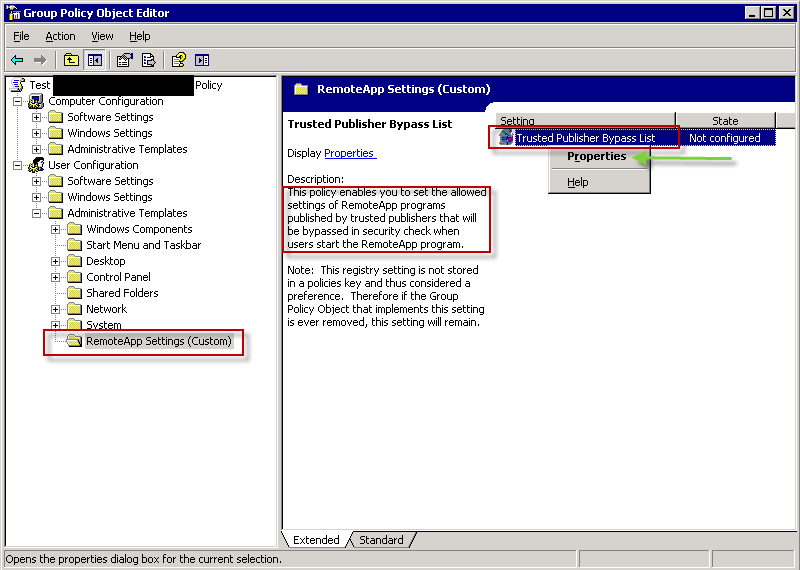
8) Expand Administrative Templates. You should see your new "RemoteApp Settings (Custom)" group. When you click it you will see "Trusted Publisher Bypass List" policy on the right. (Note how parts of ADM file show up in GP editor.) Open policy properties.
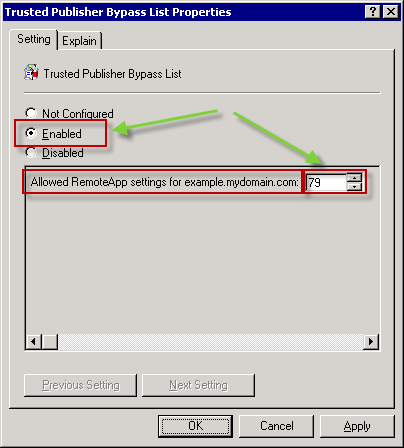
9) Enable the policy and set the value in the bottom screen to the value you found in Data column of your registry key. In my example the value was 79 (remember - the decimal value). Click OK.
10) The enabled policy is visible in editor.

You will even see the new setting in GP management window.
Now, you have to go to some client that doesn't have this registry key - and run gpupdate /force. No security warning should appear at msi installation (if you havent't changed msi settings in the meantime).
And this is it. I'm done with this question :)
Regarding your second issue on redundancy I will point you to setting up a load balanced terminal server farm using RD Session Host, but how to do this is way beyond this question. However there's really good reading material here. From my own experience - it works OK, with some minor extension in logon times when compared to single server environments.
Regards,
Tomislav
Good luck!
Get a FREE t-shirt when you ask your first question.
We believe in human intelligence. Our moderation policy strictly prohibits the use of LLM content in our Q&A threads.
One small question:
If I have a public certificate CA, I will not face this warning once the user double click the icon shortcuts on their desktops to open .rdp applications???
Please note that this warning is not during the msi installation, it's when the user needs to launch the application for the first time...
Now in my case my certificate is SSL and issued for 1 year, so it will expire after one year... what will happen in this case? What shall I do?
Thank You!
Now I'm facing issue with Printers:
I have already installed a printer driver on the user Thin Client.
But when they open Office for example and attemp to print, they cannot see their default printer locally... only they see the Server deafault printer, I don't want to use server Printer. I need to use the local one.
Please help...
Thank You!
could you open another question for this please?
I don't know if I'll have time for this today and I'm sure other experts can help you with that. As a small pointer:
- you have to enable printer redirection on RDS (in RDS host configuration and when setting up RemoteApps) - you've probably done that
- if you are not using RDP6.1 capable client or later than you don't have the option of using EasyPrint driver (sort of RDS universal printer) so you will have to either install correct drivers for your client printers on RDS or install universal printer drivers on RDS (most printer manufacturers have them) and map them to client printer drivers through a custom mapping file - either option will include some GP modifications
Here are some links regarding questions this topic that I've participated here on EE (still open though):
- printer drivers on W2K3 TS
- alternatives for EasyPrint
Regards,
Tomislav
EARN REWARDS FOR ASKING, ANSWERING, AND MORE.
Earn free swag for participating on the platform.
I have installed the same network printer driver on RDS server as well, now it's fine...
What abou this:
One small question:
If I have a public certificate CA, I will not face this warning once the user double click the icon shortcuts on their desktops to open .rdp applications???
Please note that this warning is not during the msi installation, it's when the user needs to launch the application for the first time...
Now in my case my certificate is SSL and issued for 1 year, so it will expire after one year... what will happen in this case? What shall I do?
Thank You!
The warning will happen for the public CA issued certificate too. You will not have to go through the procedure of deploying the certificate through GP (since it will be trusted automatically) but you will have to confirm that you allow the RemoteApps you publish with that certificate to acces your local computer.
When your self signed cert expires, just redeploy the new cert through GP. Again this only has to be done for self-signed certs - not ones issued by Enterprise CA or public root CA.
Regards,
Tomislav
Thanks for the info..
What is the difference between Enterprise CA/Public root CA and SSL.
Why for Entreprise CA and SSL I don't need to go through GP???
From Where can I get Entreprise CA? I need it to buy it from Verisign or Godaddy???
Get a FREE t-shirt when you ask your first question.
We believe in human intelligence. Our moderation policy strictly prohibits the use of LLM content in our Q&A threads.
Active Directory
--
Questions
--
Followers
Top Experts
Active Directory (AD) is a Microsoft brand for identity-related capabilities. In the on-premises world, Windows Server AD provides a set of identity capabilities and services, and is hugely popular (88% of Fortune 1000 and 95% of enterprises use AD). This topic includes all things Active Directory including DNS, Group Policy, DFS, troubleshooting, ADFS, and all other topics under the Microsoft AD and identity umbrella.