
Microsoft Excel
--
Questions
--
Followers
Top Experts

I have created a simple Excel spreadsheet with Microsoft 365 and from this I have generated an Excel form.
I would like help with achieving the following:
- One of the form input fields (Priority) is a text input field and I would like it to be a drop-down field. I have already made the related Excel cell a drop-down list. I am aware that you can only type in one of the values in the list and an error occurs if it is not one of the values, however, I would prefer this to be a drop-down for a better user experience.
- Another form input field (Issue Description) is a single line input field and I would like it to be a multiline text area input field.
The following screenshots show the relevant worksheets, Data Validation dialog and generated Excel form.
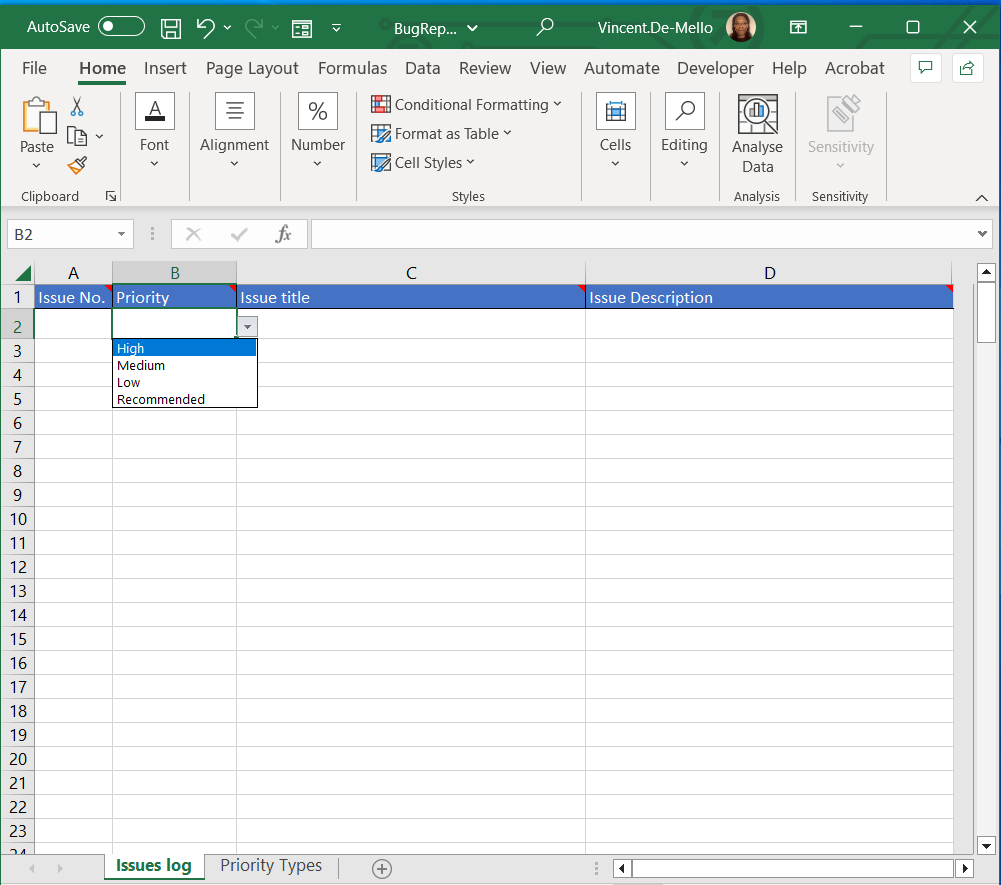 Worksheet showing drop-down list of values taken from Priority Types worksheet
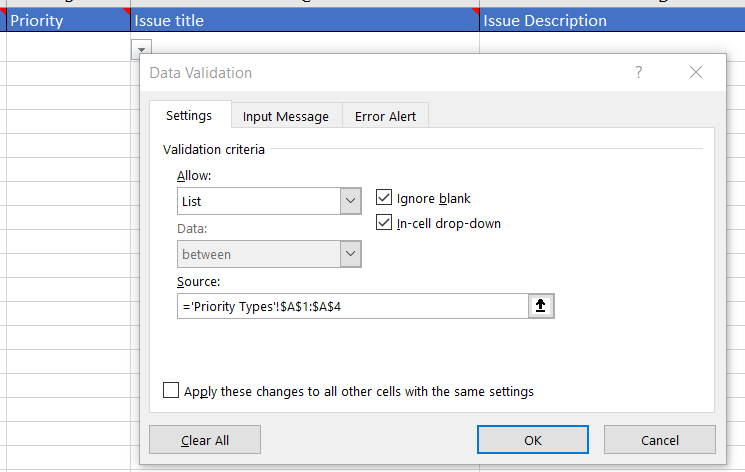 Data Validation dialog showing list values taken from Priority Types worksheet
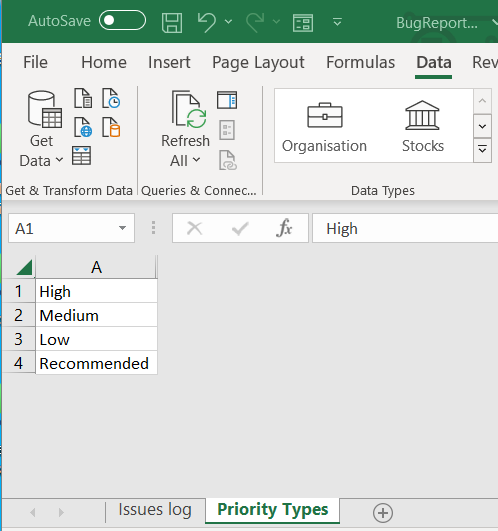 Priority Types worksheet showing all the values used to generate the Priority drop-down list
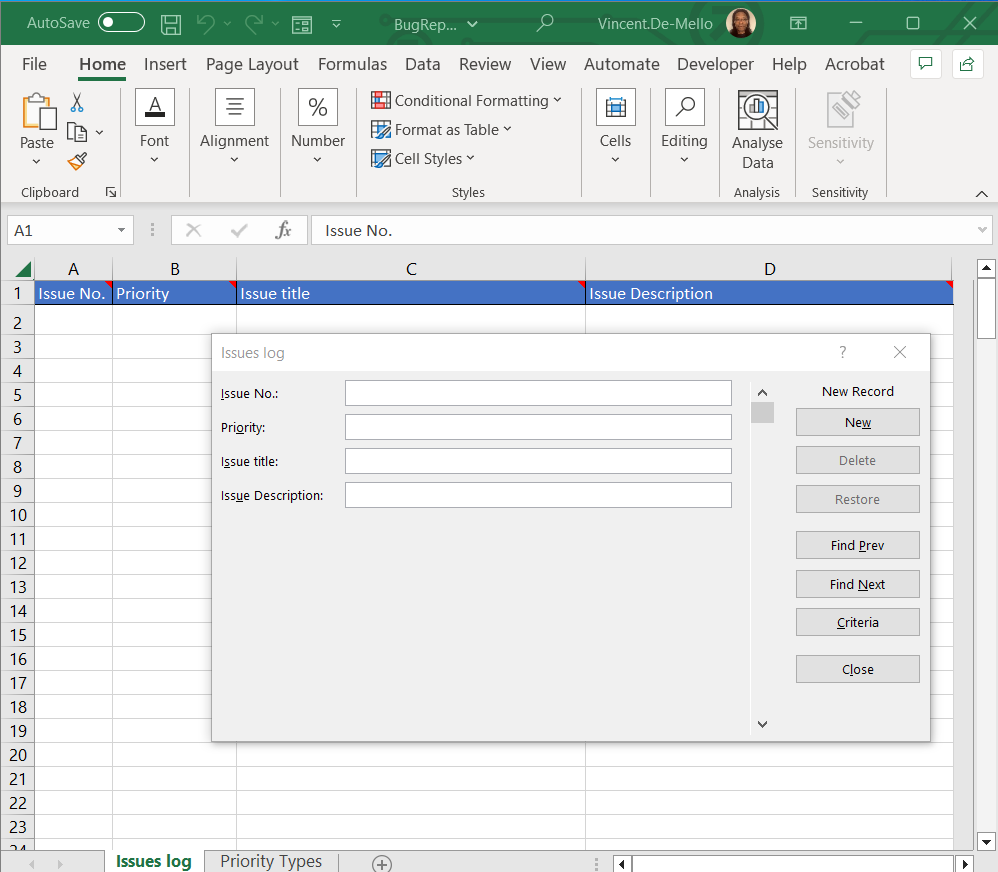 Generated Excel form showing Priority input field as a text input field and not a drop-down input field and Issue Description as a single line input field and not a multi-line text area field
If this cannot be done via the Excel commands, then I would appreciate a scripted solution using TypeScript. Alternatively, can this be down using an Excel VBA macro? I have found the following video offering a possible solution:
Zero AI Policy
We believe in human intelligence. Our moderation policy strictly prohibits the use of LLM content in our Q&A threads.

Try the following. It says to create the drop down on a new worksheet but the procedure is the same for an exiting one. Basically, you need a range of values some where and you add data validation to the field using tha range. The article adds in an input message, error tab if you need those.
In a new worksheet, type the entries you want to appear in your drop-down list. Ideally, you’ll have your list items in an Excel table. If you don’t, then you can quickly convert your list to a table by selecting any cell in the range, and pressing Ctrl+T.
Notes:
Why should you put your data in a table? When your data is in a table, then as you add or remove items from the list, any drop-downs you based on that table will automatically update. You don't need to do anything else.
Now is a good time to Sort data in a range or table in your drop-down list.
Select the cell in the worksheet where you want the drop-down list.
Go to the Data tab on the Ribbon, and then Data Validation.
Note: If you can’t select Data Validation, the worksheet might be protected or shared. Unlock specific areas of a protected workbook or stop sharing the worksheet, and then try step 3 again.
On the Settings tab, in the Allow box, select List.
Select in the Source box, then select your list range. We put ours on a sheet called Cities, in range A2:A9. Note that we left out the header row, because we don't want that to be a selection option:
If it’s OK for people to leave the cell empty, check the Ignore blank box.
Check the In-cell dropdown box.
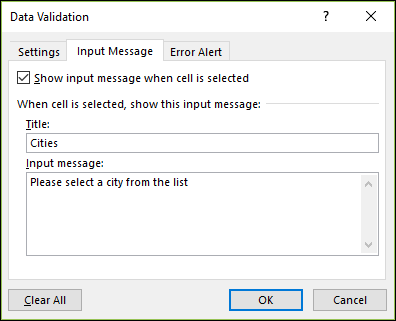
Select the Input Message tab.
If you want a message to pop up when the cell is selected, check the Show input message when cell is selected box, and type a title and message in the boxes (up to 225 characters). If you don’t want a message to show up, clear the check box.


Hi Randy,
Thanks for your response but it appears you have not understood my post. The solution you have given is to create a drop-down list within a table cell. I already have this working and indeed you can clearly see this in my screenshot. The drop-down values are in fact listed in the "Priority Types" worksheet.
My question is, how do I make the drop-down list option appear in an Excel form? You can see from my second screenshot that there is a "Priority" input field. This is NOT a drop-down list but a text entry field. How do I make this a drop-down list?
I hope this is clear. I will modify my post to clarify further so it is clear.
It's similar to your list. On your form go to Data | Data Tools | Data Validation & choose the list for the drop down


EARN REWARDS FOR ASKING, ANSWERING, AND MORE.
Earn free swag for participating on the platform.
Hi Randy,
I have rewritten my post to provide more information and make it clearer, please look at it again.
I have already created the drop-down list in the worksheet. My question is, how do I make this appear as a drop-down within the generated Excel form not the worksheet?
I have come across the following:
Apparently it alludes to the drop-down not appearing within the form as a normal outcome. If this is the case, can this be made a drop-down programmatically?
You are trying to use a form where you type and it pulls data from defined selection, but if it does not exist, allows it to be added?
https://www.automateexcel.com/how-to/form-drop-down-menu/
you want a form that has a mix of drop downs and text entry fields?
Hi Arnold,
Thanks for the link, but here is the statement where I have a problem:
So, while you cannot see the drop-down list in the data form, any data validation restrictions you have applied in the table also apply in form entries.
I actually want the drop-down list to appear in the data form.
Is the solution to implement this via an Excel VBA macro? I found the following video:
https://www.youtube.com/watch?v=Q-4NtE3FS14
This shows different approach in which a drop-down field is created.
Get a FREE t-shirt when you ask your first question.
We believe in human intelligence. Our moderation policy strictly prohibits the use of LLM content in our Q&A threads.
Since this is apparently a limitation of Excel, I suggest creating the data entry form in somewthing else like Access.
Moving your data to Access should be simple enough if you want to go that route.
Thanks Randy,
Access is not an option but if you look at the video I posted, it does appear that Excel VBA macro is the way forward.
Designing the from in VBA does seem to overcome the form issues with drop downs. Glad you found a solution.
EARN REWARDS FOR ASKING, ANSWERING, AND MORE.
Earn free swag for participating on the platform.
What is the environment? Scope and scale of this . How many entries do you anticipate?
Excel files have their limits, as Randy suggested access is next level.....
This is for limited personal use?
Thanks Randy and Arnold,
The VBA Macro route is the ideal approach. The number of entries will be limited so there should be no need to move up to Access.

Microsoft Excel
--
Questions
--
Followers
Top Experts
Microsoft Excel topics include formulas, formatting, VBA macros and user-defined functions, and everything else related to the spreadsheet user interface, including error messages.